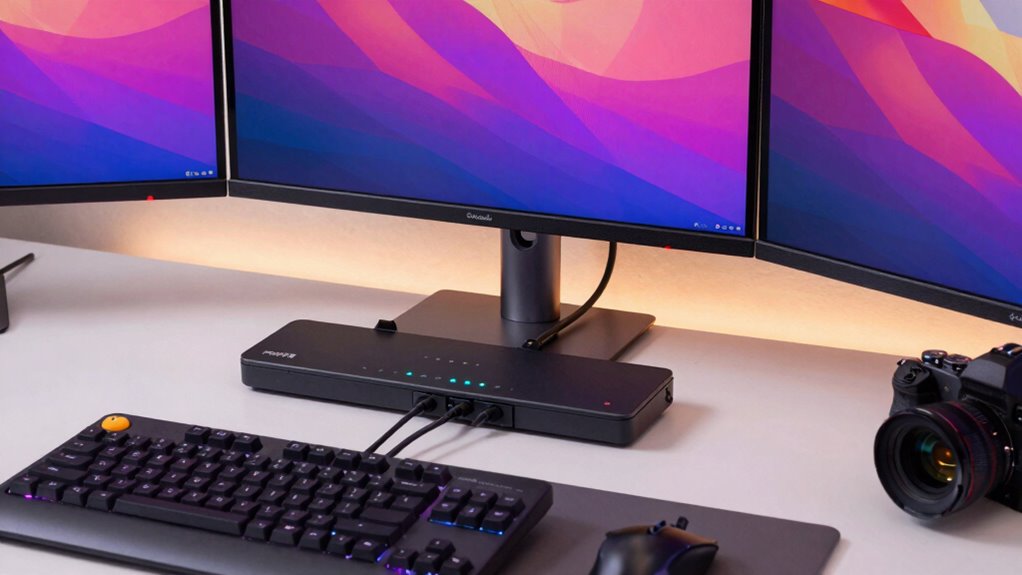

The best overall pick is the UGREEN 8K@60Hz HDMI DisplayPort KVM Switch, which pairs triple-display switching with an aluminum build and a mix of HDMI and DisplayPort connections. For a higher-feature alternative, the AV Access KVM Docking model adds docking-style functionality, while the three-computer HDMI and DisplayPort switch suits setups that need to share three monitors across more than two PCs. The main tradeoffs are display compatibility, refresh-rate support, USB connectivity, and whether you need two or three computer inputs. A triple-monitor KVM only works as intended when your computers, cables, and monitors support its connection and display-mode requirements. Read on for the full comparison, buying guidance, and picks for different desk setups.

Get business pricing on monitors, keyboards and dev gear
- Business-only prices and quantity discounts
- Tax-exempt purchasing
- Multiple users, one account, clear invoices
Key Takeaways
- UGREEN stands out for a mixed HDMI and DisplayPort setup with a stated aluminum enclosure, making it a strong all-around choice among the listed models.
- The AV Access KVM Docking model serves a different purpose from a basic switch: its docking-style design may suit buyers seeking more than display and USB sharing, but they should verify the exact dock functions they need.
- Most listed options are built for two computers; the model supporting three computers is the clearest fit for a three-host workstation, though it lists 4K@60Hz rather than 8K support.
- High refresh-rate support is not consistent across the lineup: MLEEDA lists 4K@144Hz, while several alternatives advertise 8K@60Hz or 4K@120Hz. Match the switch to the resolution and refresh rate you actually plan to run.
- Connection type matters as much as headline resolution: HDMI-only options may be simpler for matching systems, while HDMI-and-DisplayPort models offer more flexibility for mixed-output PCs and monitors.
| 8K@60Hz HDMI KVM Switch for 3 Monitors and 2 Computers, USB 3.0, Supports 4K@120Hz |  | Best for High-Refresh HDMI Setups | Computer support: 2 PCs or laptops | Monitor support: 3 monitors | Video support: Up to 8K@60Hz or 4K@120Hz | VIEW ON AMAZON | See Our Full Breakdown |
| AV Access 8K KVM Switch 3 Monitors 2 Computers |  | Best All-in-One Docking Pick | Computer support: 2 computers | Monitor support: 3 monitors | Video support: Up to 8K@60Hz and 4K@165Hz | VIEW ON AMAZON | See Our Full Breakdown |
| 8K@60Hz HDMI & DisplayPort Triple Monitor KVM Switch (2 PCs, 4 USB 3.0 Ports, Wired Remote, Power Adapter, Cables) | 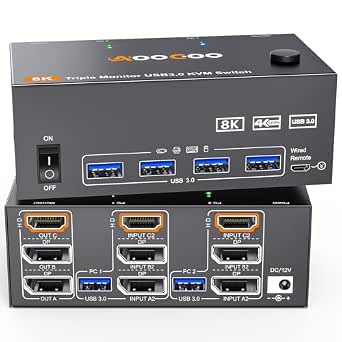 | Best Ready-to-Set-Up Pick | Brand and model: AOOCOO AO203DH-0522 | Computer support: 2 PCs | Monitor support: 3 monitors | VIEW ON AMAZON | See Our Full Breakdown |
| 8K DisplayPort KVM Switch for 3 Monitors and 2 Computers |  | Best for DisplayPort-Only Workstations | Computer support: 2 computers | Monitor support: 3 monitors | Video support: Up to 8K@60Hz or 4K@120Hz | VIEW ON AMAZON | See Our Full Breakdown |
| CCONG 8K@60Hz HDMI DisplayPort KVM Switch for 3 Monitors and 2 Computers | 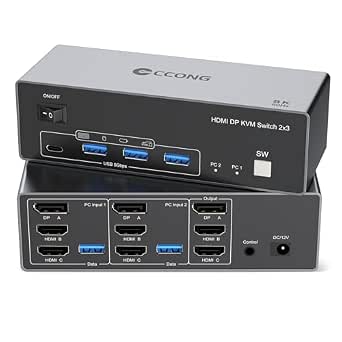 | Best Mixed-Connection Pick | Computer support: 2 computers | Monitor support: 3 monitors | Video connections: DisplayPort 1.4 and HDMI 2.1 | VIEW ON AMAZON | See Our Full Breakdown |
| UGREEN 8K@60Hz HDMI DisplayPort KVM Switch for 3 Monitors and 2 Computers, Aluminum |  | Best Overall for a Cable-Ready Mixed-Connection Setup | Computers: 2 | Monitors: 3 | Resolution support: Up to 8K@60Hz | VIEW ON AMAZON | See Our Full Breakdown |
| MLEEDA 3 Monitor KVM Switch for 2 Computers, Supports 8K@60Hz and 4K@144Hz, with Wired Remote, USB Cable, and 12V Power Adapter | 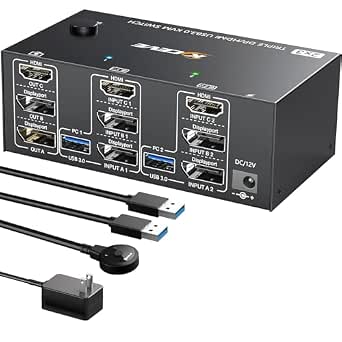 | Best for High-Refresh Gaming Displays | Computers: 2 | Monitors: 3 | Resolution support: Up to 8K@60Hz and 4K@144Hz | VIEW ON AMAZON | See Our Full Breakdown |
| AV Access KVM Switch 3 Monitors 2 Computers KVM Docking 8K@60Hz |  | Best Triple-Monitor KVM Dock for a USB-C Laptop | Host devices: One USB-C laptop and one desktop PC | Monitors: 3 | Resolution support: Up to 8K@60Hz and 4K@165Hz | VIEW ON AMAZON | See Our Full Breakdown |
| HDMI KVM Switch for 3 Monitors and 2 Computers, 4K@60Hz, with 4 USB 3.0 Ports |  | Best for Straightforward 4K HDMI Setups | Computers: 2 | Monitors: 3 | Resolution support: Up to 4K@60Hz | VIEW ON AMAZON | See Our Full Breakdown |
| 8K@60Hz HDMI DisplayPort KVM Switch for 3 Monitors and 2 Computers |  | Best Compact High-Resolution Pick | Computers: 2 | Monitors: 3 | Supported resolutions: 8K@60Hz, 4K@120Hz, 4K@60Hz, 2K@144Hz, 1080p | VIEW ON AMAZON | See Our Full Breakdown |
| KVM Switch for 3 Monitors and 3 Computers with 4 USB 3.0 Ports, Supports 4K@60Hz, HDMI & DisplayPort | 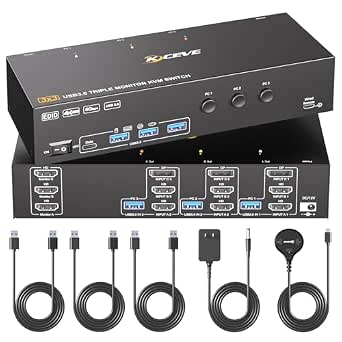 | Best for Three-Computer Setups | Monitor inputs: 3 | Computer inputs: 3 | Maximum resolution: 4K@60Hz | VIEW ON AMAZON | See Our Full Breakdown |
| kvm switches for triple monitor | USB ports |
|---|---|
| 8K@60Hz HDMI KVM Switch for 3 | 4 USB 3.0 ports |
| AV Access 8K KVM Switch 3 Moni | — |
| 8K@60Hz HDMI & DisplayPort Tri | 4 USB 3.0 ports, 5 Gbps |
| 8K DisplayPort KVM Switch for | 4 USB 3.0 ports |
| CCONG 8K@60Hz HDMI DisplayPort | 4 USB 3.0 ports |
| UGREEN 8K@60Hz HDMI DisplayPor | 4 USB 3.0 |
| MLEEDA 3 Monitor KVM Switch fo | — |
| AV Access KVM Switch 3 Monitor | 4 |
| HDMI KVM Switch for 3 Monitors | 4 USB 3.0 |
| 8K@60Hz HDMI DisplayPort KVM S | 4 USB 3.0 |
| KVM Switch for 3 Monitors and | 4 USB 3.0 |
More Details on Our Top Picks
8K@60Hz HDMI KVM Switch for 3 Monitors and 2 Computers, USB 3.0, Supports 4K@120Hz
This model is a strong fit for buyers who want three-monitor switching with HDMI and value refresh-rate headroom: its listed support reaches 8K at 60Hz and 4K at 120Hz. Four USB 3.0 ports let two computers share common peripherals, while the metal enclosure and compact footprint suit a fixed desk setup. Compared with the AOOCOO AO203DH-0522, which lists DisplayPort support and 4K at 144Hz, this switch is the more straightforward HDMI-focused choice, though it does not claim the same refresh rate. Its main limits are practical: it handles only two computers, and each computer must support three displays. I would skip it if you need wireless control or expect the KVM itself to add multi-monitor capability to a computer that lacks it.
Pros:- Supports listed video modes up to 8K at 60Hz and 4K at 120Hz
- Four USB 3.0 ports allow peripheral sharing
- Metal construction in a compact enclosure
- Plug-and-play setup with two switching options
Cons:- Limited to two computers
- Requires both computers to support three-monitor output
- No wireless control option
Best for: Desk users with two HDMI-equipped computers that already support three external displays and want to share USB peripherals.
Not ideal for: Users who need to switch among more than two computers, want wireless control, or need the KVM to overcome a computer’s display-output limits.
- Computer support:2 PCs or laptops
- Monitor support:3 monitors
- Video support:Up to 8K@60Hz or 4K@120Hz
- USB ports:4 USB 3.0 ports
- Input power:DC 12V/1A
- Material:Metal
- Dimensions:5.91 x 2.56 x 1.91 inches
- Warranty:2 years
Our verdict“Choose this HDMI-focused option if both computers already drive three displays and you want USB sharing without a docking-station feature set.”
AV Access 8K KVM Switch 3 Monitors 2 Computers
Among these five, this is the clearest choice for someone who wants more than display and USB switching: the docking-station design adds Ethernet, an SD card reader, audio, and 100W laptop charging. That can cut down on desk cables when switching between a laptop and desktop, while its stated video modes include 8K@60Hz and 4K@165Hz. Compared with the simpler HDMI KVM in this group, it offers a broader connection hub; compared with the AV Access KVM Switch 3 Monitors 2 Computers KVM Docking 8K@60Hz elsewhere in the roundup, the supplied product data makes the 100W charging and dock connections stand out. The tradeoff is compatibility: full functionality calls for a USB-C port with video output, and MacBooks are listed as mirroring rather than extending displays. Check host support before choosing it.
Pros:- Combines KVM switching with Ethernet, SD card reader, and audio connections
- 100W power delivery can charge a compatible laptop while connected
- Lists support up to 8K@60Hz and 4K@165Hz
- Panel-button and remote switching options
Cons:- MacBooks are listed as supporting mirrored displays rather than extended desktops
- Full operation depends on a USB-C port with video output
- More involved host compatibility checks than a basic KVM switch
Best for: Laptop-and-desktop users who want triple-monitor switching plus wired networking, card access, audio, and laptop charging from one desk hub.
Not ideal for: MacBook users who need three independent extended displays, or buyers whose USB-C port lacks video output support.
- Computer support:2 computers
- Monitor support:3 monitors
- Video support:Up to 8K@60Hz and 4K@165Hz
- Connectivity:HDMI 2.0, USB 3.0
- Switch controls:Panel button and remote
- Power delivery:100W
- Additional connections:Ethernet, SD card reader, audio jack
- Operating voltage:12 V DC
Our verdict“Pick this docking KVM if you need charging and desk-hub connections alongside triple-monitor switching and have a compatible laptop.”
8K@60Hz HDMI & DisplayPort Triple Monitor KVM Switch (2 PCs, 4 USB 3.0 Ports, Wired Remote, Power Adapter, Cables)
The AOOCOO AO203DH-0522 earns its place for buyers who want a mixed HDMI and DisplayPort setup with fewer accessories to source: the listing includes a wired remote, power adapter, and cables. It supports three monitors across two PCs, with stated video modes up to 8K@60Hz or 4K@144Hz when paired with HDMI 2.1 and DisplayPort 1.4 cables. That gives it a higher listed 4K refresh ceiling than the 8K@60Hz HDMI KVM Switch for 3 Monitors and 2 Computers, which specifies 4K@120Hz, while retaining four USB 3.0 ports for shared devices. The included cables simplify setup, but users still need to check cable standards and lengths; the product notes that longer runs can affect performance. Like the other two-computer picks here, it cannot serve a larger workstation fleet.
Pros:- Supports three monitors and two computers
- Lists video support up to 8K@60Hz or 4K@144Hz
- Four USB 3.0 ports rated at 5 Gbps
- Includes a wired remote, power adapter, and cables
Cons:- High-resolution modes require HDMI 2.1 and DisplayPort 1.4 cables
- Longer cable runs may affect performance
- Controls only two computers
Best for: Users with two PCs and a mix of HDMI and DisplayPort monitors who want a wired remote and key setup accessories in the box.
Not ideal for: People switching among three or more computers, or anyone planning long cable runs without verifying signal requirements.
- Brand and model:AOOCOO AO203DH-0522
- Computer support:2 PCs
- Monitor support:3 monitors
- Video support:8K@60Hz or 4K@144Hz via HDMI 2.1 and DisplayPort 1.4
- USB ports:4 USB 3.0 ports, 5 Gbps
- Control method:Wired remote
- Power:12 V DC; adapter included
- Dimensions:4.72 x 1.97 x 0.79 inches
Our verdict“Choose the AOOCOO if your displays use both HDMI and DisplayPort and you value included setup accessories and a wired remote.”
8K DisplayPort KVM Switch for 3 Monitors and 2 Computers
This is the most focused choice here for a desk built around DisplayPort 1.4: it supports three monitors, two computers, and video modes up to 8K@60Hz or 4K@120Hz. The aluminum enclosure and plug-and-play operation suit a permanent workstation, while four USB 3.0 ports let both computers share accessories. You can switch using either the device’s push button or its remote. Compared with the CCONG 8K@60Hz HDMI DisplayPort KVM Switch, this model is the cleaner match when the display chain is DisplayPort-based; the CCONG lists a mix of DisplayPort and HDMI connections, which may better fit mixed-input screens. The tradeoff is that this switch requires compatible DisplayPort outputs and monitors, and it does not offer keyboard-hotkey or Bluetooth switching. I would avoid it for HDMI-only monitor setups.
Pros:- Purpose-built for three DisplayPort monitors and two computers
- Supports up to 8K@60Hz or 4K@120Hz
- Four USB 3.0 ports for sharing peripherals
- Push-button and remote control with plug-and-play setup
Cons:- Requires compatible DisplayPort 1.4 connections for top video modes
- No keyboard-hotkey or Bluetooth switching
- Wired control and connections only
Best for: Windows, Mac, Linux, or Unix workstation owners whose two computers and three monitors all support DisplayPort 1.4.
Not ideal for: Buyers with HDMI-only displays, mixed connection needs that call for HDMI inputs, or a preference for keyboard-shortcut switching.
- Computer support:2 computers
- Monitor support:3 monitors
- Video support:Up to 8K@60Hz or 4K@120Hz
- Connectors:DisplayPort 1.4, USB 3.0
- USB ports:4 USB 3.0 ports
- Supported systems:Windows, Mac OS, Linux, Unix
- Control methods:Push button and remote
- Material:Aluminum
Our verdict“Select this model for a DisplayPort-centered workstation; choose the CCONG instead if you need a more mixed HDMI-and-DisplayPort connection layout.”
CCONG 8K@60Hz HDMI DisplayPort KVM Switch for 3 Monitors and 2 Computers
The CCONG is the flexible choice for a triple-monitor desk that combines HDMI 2.1 and DisplayPort 1.4 connections. It switches two computers across three monitors, shares four USB 3.0 peripherals, and offers both a front button and remote control. Its listed video modes reach 8K@60Hz, with backward-compatible modes including 4K at several refresh rates. That combination makes it a better fit for mixed-input displays than the 8K DisplayPort KVM Switch for 3 Monitors and 2 Computers, which is specifically centered on DisplayPort. The tradeoff is that this unit does not support keyboard-shortcut switching, and its 5V power adapter and cable-length cautions mean buyers should plan the physical setup rather than assume any cable arrangement will handle maximum resolution. It also remains a two-computer switch, not a multi-PC hub.
Pros:- Combines HDMI 2.1 and DisplayPort 1.4 connections
- Supports three monitors and two computers
- Four USB 3.0 ports for shared peripherals
- Offers both button and remote switching
Cons:- Does not support keyboard-shortcut switching
- Maximum-resolution performance can depend on cable length and compatibility
- Limited to two computers
Best for: Home-office users and creators with two computers and a triple-display arrangement that mixes HDMI and DisplayPort inputs.
Not ideal for: Users who need keyboard-hotkey control, switch among more than two computers, or plan long high-resolution cable runs without checking compatibility.
- Computer support:2 computers
- Monitor support:3 monitors
- Video connections:DisplayPort 1.4 and HDMI 2.1
- Maximum resolution:8K@60Hz
- Listed backward-compatible modes:8K@30Hz; 4K@240Hz, 144Hz, 120Hz, 60Hz, or 30Hz
- USB ports:4 USB 3.0 ports
- Control methods:Button and remote
- Power supply:5V power adapter
- Supported systems:Windows, MacOS, Linux
Our verdict“Choose the CCONG for two-computer triple-monitor setups with a mix of HDMI and DisplayPort connections, provided remote or button control suits your workflow.”
UGREEN 8K@60Hz HDMI DisplayPort KVM Switch for 3 Monitors and 2 Computers, Aluminum
I rank the UGREEN first for buyers who want a clearly specified triple-monitor KVM with a useful bundle of connection cables. Its mix of two DisplayPort 1.4 inputs and one HDMI 2.1 input per setup, plus support listed up to 8K@60Hz, gives it more flexibility than the all-HDMI HDMI KVM Switch for 3 Monitors and 2 Computers. The included desktop controller is also handy when the switch itself sits out of reach, and aluminum construction gives the unit a more substantial housing than a basic plastic box. The tradeoff is that both computers must already support three-monitor output, and this model lacks EDID emulation, which can mean displays rearrange or go blank during switching. Its included cables help, but 8K operation can still demand shorter runs.
Pros:- Supports up to 8K@60Hz according to the product data.
- Combines two DisplayPort 1.4 connections with one HDMI 2.1 connection.
- Includes a desktop controller and a substantial set of display and USB cables.
- Aluminum housing and mirror and extend display modes.
Cons:- Does not support EDID emulation, which can disrupt monitor detection or window layouts when switching.
- Both computers need native triple-monitor output for all three displays to work.
- Cable length can constrain 8K setups and may require shorter runs.
Best for: People with two computers, three displays that use a mix of DisplayPort and HDMI, and a preference for having the switching controller within reach.
Not ideal for: Users who need EDID emulation to preserve window placement or whose computers cannot independently drive three monitors.
- Computers:2
- Monitors:3
- Resolution support:Up to 8K@60Hz
- Display ports:2 DisplayPort 1.4, 1 HDMI 2.1
- USB ports:4 USB 3.0
- Switching:Push button and desktop controller
- Display modes:Mirror and extend
- Included cables:4 DisplayPort, 2 HDMI, 2 USB-A
- Material and power:Aluminum; 12V DC power supply
Our verdict“Choose the UGREEN if you want a well-equipped DisplayPort-and-HDMI triple-monitor switch with a separate controller and can work around its lack of EDID emulation.”
MLEEDA 3 Monitor KVM Switch for 2 Computers, Supports 8K@60Hz and 4K@144Hz, with Wired Remote, USB Cable, and 12V Power Adapter
The MLEEDA earns its place for setups where smooth motion matters alongside triple-monitor switching: its listed support reaches 4K@144Hz, with 8K@60Hz also specified. That refresh-rate ceiling is a stronger fit for high-refresh gaming monitors than the HDMI KVM Switch for 3 Monitors and 2 Computers, whose supplied data tops out at 4K@60Hz. A wired remote makes switching easier without reaching behind a desk, and the listed Windows, Mac, and Linux compatibility offers broad host coverage. Its main compromise is setup effort: the product data warns that several cables and adapters may be needed, and the detailed port layout is not provided here. Like the other two-computer options, it cannot compensate for a host that lacks triple-display output, and it will not serve a workstation fleet with more than two computers.
Pros:- Lists support for 4K@144Hz as well as 8K@60Hz.
- Shares three monitors and four USB 3.0 devices between two computers.
- Wired remote provides a convenient alternative to reaching the main unit.
- Driver-free compatibility is listed for Windows, Mac, and Linux.
Cons:- Triple-monitor wiring can require multiple cables and adapters, making setup more involved.
- Limited to two computers.
- Detailed display-port types are not specified in the supplied product data.
Best for: Owners of high-refresh 4K monitors who switch a three-display setup between two compatible computers and want a wired switching remote.
Not ideal for: Buyers seeking a plug-in USB-C dock, a clearly documented port map, or switching among more than two computers.
- Computers:2
- Monitors:3
- Resolution support:Up to 8K@60Hz and 4K@144Hz
- USB device sharing:4 USB 3.0 devices
- Control:Push button and wired remote
- Compatible systems:Windows, Mac, Linux
- Dimensions:4.72 x 2.56 x 1.65 inches
- Material:Metal
- Power:12V power adapter included
Our verdict“Pick the MLEEDA for a two-computer triple-monitor setup built around high-refresh 4K screens, provided you are comfortable sorting out the required cabling.”
AV Access KVM Switch 3 Monitors 2 Computers KVM Docking 8K@60Hz
Unlike a basic switch, the AV Access KVM Docking is aimed at a desk that combines a USB-C laptop and a desktop PC. It adds dock-style connections such as Ethernet, an SD card reader, audio, and USB ports, so laptop users can connect more than displays and input devices through one hub. Its listed 8K@60Hz and 4K@165Hz support also gives it a higher stated refresh ceiling than the UGREEN option, though the two products serve different connection needs. That convenience depends on the laptop’s USB-C port supporting video output; the product data also says MacBooks are limited to mirrored displays. Unlike the cable-bundled UGREEN, this model does not include HDMI or DisplayPort cables, so setup calls for separate purchases and a careful compatibility check.
Pros:- Combines KVM switching and docking features for a laptop-and-desktop workstation.
- Lists support up to 8K@60Hz and 4K@165Hz.
- Adds Ethernet, an SD card reader, audio, and USB connectivity.
- Product data says the network connection is maintained on both computers during switching.
Cons:- Requires a laptop USB-C connection that supports video output.
- MacBooks are limited to mirrored displays according to the product description.
- HDMI and DisplayPort cables are not included, and laptop compatibility may take checking.
Best for: Laptop-and-desktop users who want three shared displays plus dock functions such as Ethernet, an SD card reader, and additional USB connectivity.
Not ideal for: MacBook owners who need three independent extended displays, or buyers whose USB-C laptop port does not support video output.
- Host devices:One USB-C laptop and one desktop PC
- Monitors:3
- Resolution support:Up to 8K@60Hz and 4K@165Hz
- Hardware interfaces:DisplayPort, Ethernet, HDMI, USB Type-C
- Total ports:13
- USB ports:4
- HDMI ports:1
- Dock features:Ethernet, SD card reader, and audio
Our verdict“Choose this AV Access model if docking a compatible USB-C laptop is as important as switching three monitors, but skip it if you need extended triple displays from a MacBook.”
HDMI KVM Switch for 3 Monitors and 2 Computers, 4K@60Hz, with 4 USB 3.0 Ports
This model takes a simpler path than the mixed DisplayPort-and-HDMI UGREEN: it is designed around three HDMI monitors and supports up to 4K@60Hz. That makes it a more direct match for buyers whose screens and computers already use HDMI and who do not need the higher refresh or resolution claims found on the MLEEDA and product 10. Four USB 3.0 ports cover shared peripherals, while a panel button and wired remote offer two ways to switch between computers. The limits are equally plain: each computer needs three HDMI outputs, and the supplied data says there is no hotkey toggle. Buyers seeking DisplayPort flexibility or 4K high-refresh gaming support should look at MLEEDA instead; this one is better suited to a conventional 4K@60Hz office setup.
Pros:- Purpose-built for sharing three HDMI monitors between two computers.
- Supports resolutions up to 4K@60Hz.
- Four USB 3.0 ports allow peripherals to follow the selected computer.
- Panel button and wired remote provide flexible switching.
Cons:- Each computer needs three HDMI connections, which can add cable clutter.
- No hotkey switching is supported.
- Does not match the 8K or high-refresh 4K specifications of several alternatives in this roundup.
Best for: Office users with two computers that each provide three HDMI outputs and three HDMI displays running at up to 4K@60Hz.
Not ideal for: People using DisplayPort monitors, seeking high-refresh 4K, or relying on keyboard hotkeys to switch computers.
- Computers:2
- Monitors:3
- Resolution support:Up to 4K@60Hz
- USB ports:4 USB 3.0
- Power:12V DC adapter
- Switching methods:Panel button and wired remote
- Supported systems:Windows, Mac OS, Linux, Unix
- Color:White
Our verdict“Pick this HDMI-only switch for a two-computer office with three 4K@60Hz HDMI displays and no need for hotkey control or higher refresh rates.”
8K@60Hz HDMI DisplayPort KVM Switch for 3 Monitors and 2 Computers
At a listed 5.91 x 2.56 x 1.91 inches, this metal KVM has a small footprint while still combining HDMI and DisplayPort for a three-monitor, two-computer setup. Its stated modes include 8K@60Hz and 4K@120Hz, giving it a higher refresh ceiling than the HDMI-only 4K@60Hz switch elsewhere in this group. That makes it a better fit for mixed display needs or faster 4K screens, provided the computers, monitors, and cables all support the target signal. The tradeoff is less forgiving connectivity: the product data says DP-to-HDMI and DP-to-DVI adapters are unsupported, and high-power USB devices may need extra power. Compared with the cable-inclusive UGREEN, this model’s supplied data does not list bundled cables, so plan the wiring before buying.
Pros:- Compact metal enclosure with a listed footprint of 5.91 x 2.56 x 1.91 inches.
- Supports listed modes up to 8K@60Hz and 4K@120Hz.
- Combines two DisplayPort connections, HDMI, and four USB 3.0 ports.
- Panel-mount design and support for multiple switching options.
Cons:- DP-to-HDMI and DP-to-DVI adapters are not supported.
- Compatible cables and displays are needed to reach the listed high resolutions and refresh rates.
- High-power USB devices may need a separate power solution.
Best for: Desk-space-conscious users with compatible HDMI and DisplayPort monitors who want 8K support or 4K@120Hz switching between two computers.
Not ideal for: People who depend on DisplayPort conversion adapters, need cables included, or plan to run power-hungry USB peripherals without checking power requirements.
- Computers:2
- Monitors:3
- Supported resolutions:8K@60Hz, 4K@120Hz, 4K@60Hz, 2K@144Hz, 1080p
- Display ports:2 DisplayPort, 1 HDMI
- USB ports:4 USB 3.0
- Power supply:12V 1A adapter
- Dimensions:5.91 x 2.56 x 1.91 inches
- Material:Metal
- Mounting:Panel mount
Our verdict“Choose this compact mixed-port switch for a compatible high-resolution triple-monitor desk, but avoid it if your display connections rely on adapters.”
KVM Switch for 3 Monitors and 3 Computers with 4 USB 3.0 Ports, Supports 4K@60Hz, HDMI & DisplayPort
Most triple-monitor KVMs in this roundup connect two computers; this model supports three computers and three monitors, making it a better fit for a workstation shared by three systems. Its 4K@60Hz support and EDID simulation help preserve display settings when switching, while four USB 3.0 ports let you share peripherals without adding a separate hub. Compared with the roundup’s 8K two-computer options, it trades higher stated resolution headroom for a third computer connection. That is a useful exchange if your priority is consolidating several machines rather than driving the latest high-refresh displays. The tradeoffs are practical: each computer needs HDMI, DisplayPort, and USB connections, and the required cables are not included. Switching uses a wired remote, with no hotkey option, and cross-output connections are unsupported.
Pros:- Connects three computers to three monitors, unlike the roundup’s two-computer alternatives.
- Supports 4K@60Hz for detailed desktop work.
- EDID simulation helps retain display settings while switching.
- Four USB 3.0 ports share peripherals across connected computers.
Cons:- Each computer requires HDMI, DisplayPort, and USB connections, and cables are not included.
- No hotkey switching; selection is through the wired remote.
- Cross-output connections are unsupported, limiting display-routing flexibility.
Best for: Home-office users or IT workstations that need to switch one triple-monitor setup among three computers and share USB peripherals.
Not ideal for: People connecting only two computers who want 8K or high-refresh-rate support, or users who need hotkey switching and flexible cross-output routing.
- Monitor inputs:3
- Computer inputs:3
- Maximum resolution:4K@60Hz
- Video connections per computer:2 HDMI, 1 DisplayPort
- USB ports:4 USB 3.0
- Supported operating systems:Windows, Mac, Linux, Unix
- Material:Metal
- Dimensions:8.35 x 3.07 x 1.77 inches
- Warranty:1 year
Our verdict“Choose this model if you need one triple-monitor station to serve three computers; choose a two-computer 8K option if resolution headroom matters more.”
How We Picked
I compared the 11 listed switches around the needs that make a triple-monitor setup more demanding than a standard KVM arrangement: three simultaneous display outputs, stated resolution and refresh-rate support, connection types, number of host computers, and USB sharing. I gave more weight to options with clear support for mixed HDMI and DisplayPort setups, useful switching controls, and specifications that suit demanding displays. I also treated docking functionality, wired remotes, power adapters, and stated build materials as practical distinctions rather than assuming every buyer needs them.
The ranking favors versatility and a clear fit for common two-computer, three-monitor desks, while recognizing specialist needs. A three-computer model can be the better choice for a larger workstation even with a lower stated display ceiling; a 4K@144Hz option can suit high-refresh gaming better than a product whose headline is 8K@60Hz. I did not treat similar product names or resolution claims as proof of identical performance. Buyers should confirm port mapping, supported display modes, and host compatibility for their exact equipment before choosing.
Factors to Consider When Choosing Kvm Switches For Triple Monitors
For triple-monitor KVMs, the right choice depends on the whole signal path—not just the switch’s headline specification. I would first count the video outputs on each computer, then match those outputs to the switch and monitors. These broader checks can prevent buying a switch that appears suitable but cannot drive the screens in the arrangement you expect.
Match the switch to each computer’s video outputs
Start by checking how each computer can send three independent display signals. A desktop may have enough discrete GPU outputs, while a laptop may rely on a dock, USB-C video, or a combination of ports. A switch with both HDMI and DisplayPort can help with mixed equipment, but it does not convert every output into a compatible signal automatically. Check the exact input and output layout, including whether each host needs three separate cables. A common mistake is counting monitor ports on the computer without confirming that they can all run at once. If one machine cannot supply three displays in the desired mode, a triple-monitor switch will not solve that limitation by itself.
Read resolution and refresh-rate claims as a complete setup
Resolution and refresh rate depend on the source, switch, cables, and displays working together. A product listing that names 8K@60Hz or 4K@144Hz does not mean every combination of three screens will run at that rate simultaneously. Look for mode details for multi-monitor operation, not only a maximum figure for one output. If you use high-refresh gaming displays, the MLEEDA model’s stated 4K@144Hz support may be more relevant than an 8K@60Hz headline, but verify that the rate applies to your intended three-screen configuration. For office work, stable support for your actual monitor resolution may matter more than a larger maximum specification. Check cable versions and lengths too, since unsuitable cables can limit the signal.
Choose two or three computer inputs based on your real workflow
Most switches in this roundup connect two computers, which fits a work-and-personal-PC desk. If you regularly share one set of screens among three hosts, the listed three-computer option addresses that need directly. Do not assume a spare USB connection can act as another video input; host count is a separate part of the design. A higher host count can also mean more cables and a less simple switching routine. Think about which machines need access to all three displays and whether you need to switch them individually or as one group. Buying for a theoretical future setup can add complexity if two hosts cover your actual use.
Separate USB device sharing from video switching
USB 3.0 ports can let you share accessories such as a keyboard, mouse, storage device, or webcam between computers, but the number of ports determines how many wired devices can connect directly. Check whether USB peripherals follow the active computer automatically and whether switching video also switches USB. Some buyers need a simple keyboard-and-mouse setup; others may need a separate hub for several devices. A USB port on a KVM is not the same as a laptop charging or docking port. If you are looking at a docking-style model, check which functions it adds rather than assuming the word “dock” covers power delivery, network, or every peripheral connection you use.
Plan for switching controls and desk placement
Think about where the KVM will sit and how you want to change computers. A wired remote, listed on several models, can place the switching button within reach even when the box and cables are tucked behind a monitor. A front-panel button may be enough when the unit is easy to access, while a remote can reduce cable clutter around a shared workspace. Also check whether the product requires an external power adapter and whether there is room for it near your desk. For a clean setup, sketch the route for six video cables plus USB leads before buying. That quick layout check can reveal whether cable length or port access will be a bigger issue than the switch’s feature list.
Pay extra for the feature that removes your actual bottleneck
Added capability is useful only when it addresses a real constraint. A docking-style KVM may suit someone consolidating laptop connections, while a three-host model is more relevant to a workstation shared by several computers. An aluminum enclosure may appeal if materials and desk durability matter, but it does not replace checking signal support. Likewise, an 8K claim may be unnecessary if all three monitors are 4K or lower and the source computers cannot output higher modes. I would spend attention—and budget—on the specific need that is hardest to change later: host count, display mode, or port mix. Avoid paying for a headline feature that does not match your monitors or workflow.
Frequently Asked Questions
Can a triple-monitor KVM run three screens from a laptop?
It can, but the laptop must be able to output three independent displays through the connections available to it. Some laptops support only one or two external displays without a compatible dock or specific display technology. Check the laptop’s own display limits, the KVM’s host-side connections, and the display mode supported across all three screens. A docking-style KVM may help consolidate connections, but confirm its exact laptop compatibility and functions rather than assuming every dock supports three external monitors. If your laptop cannot drive three displays directly or through a compatible dock, the switch alone will not add that capability.
Does an 8K@60Hz rating mean all three monitors can run at 8K and 60Hz?
Not necessarily. A headline maximum can describe a supported signal under particular conditions, and it may not apply to three displays running simultaneously. The computers, switch, cables, and monitors all need to support the same mode, while the source must have enough display outputs and bandwidth. Look for explicit multi-monitor specifications and confirm the exact combination of resolutions and refresh rates you plan to use. If the listing does not state that combination clearly, ask the manufacturer before buying rather than relying on the headline figure.
Should I choose an 8K@60Hz switch or one that lists 4K@144Hz?
Choose based on the display mode you actually need, not the larger-looking number. A stated 4K@144Hz capability may suit high-refresh gaming monitors, while 8K@60Hz may matter more for an 8K display or a workflow that needs that resolution. Those claims do not by themselves confirm performance across three screens, so check simultaneous-output details for your planned setup. Also verify that both computers can produce the mode and that your cables match the required signal. If your displays are standard office monitors, reliable support for their native resolution may be the more useful measure.
Will a triple-monitor KVM work with one HDMI monitor and two DisplayPort monitors?
A model with both HDMI and DisplayPort connections is the more promising fit for that arrangement, but the exact port mapping still matters. Check whether the switch provides the needed mix for each computer and each monitor, rather than counting the connector types in the product name. Some computers may need to connect through different outputs or adapters, which can affect supported modes. Avoid assuming that a passive adapter will preserve every resolution or refresh rate. Before ordering, compare the KVM’s connection diagram with the actual ports on both computers and all three monitors.
Is a three-computer KVM a better buy if I may add another PC later?
It is a better fit if you expect to switch the same three monitors and USB devices among three active computers, and you are comfortable with the model’s stated display limits. The listed three-host option supports 4K@60Hz, so it may not suit a setup that prioritizes the higher refresh or resolution claims found on several two-host alternatives. If a third computer is only a possibility, compare how likely that change is against the display capability you need today. You can also keep a two-host KVM and use a separate arrangement for the occasional extra machine, though that may be less convenient. Decide based on the number of computers you will routinely switch, not just the number you own.
Conclusion
For most two-computer, three-monitor desks, I would start with the UGREEN 8K@60Hz HDMI DisplayPort switch because its mixed connection types and aluminum build give it a practical all-around role. The best value direction is a straightforward HDMI-only 4K@60Hz model if that matches your screens and you do not need higher refresh support or mixed ports; it keeps the setup focused on core switching. For a premium, docking-oriented setup, compare the AV Access KVM Docking model and confirm its added functions fit your laptop workflow. Beginners should favor the simplest connection match for their computers and monitors, rather than selecting by the highest resolution number alone. If you need 4K@144Hz, examine the MLEEDA’s multi-screen mode details; if you need three host computers, the dedicated three-computer model is the specific fit. The best choice is the one whose host count, ports, and verified display modes match your full setup.
Columbus Day / Indigenous Peoples' Day Picks
long weekend sales
As an affiliate, we earn on qualifying purchases.