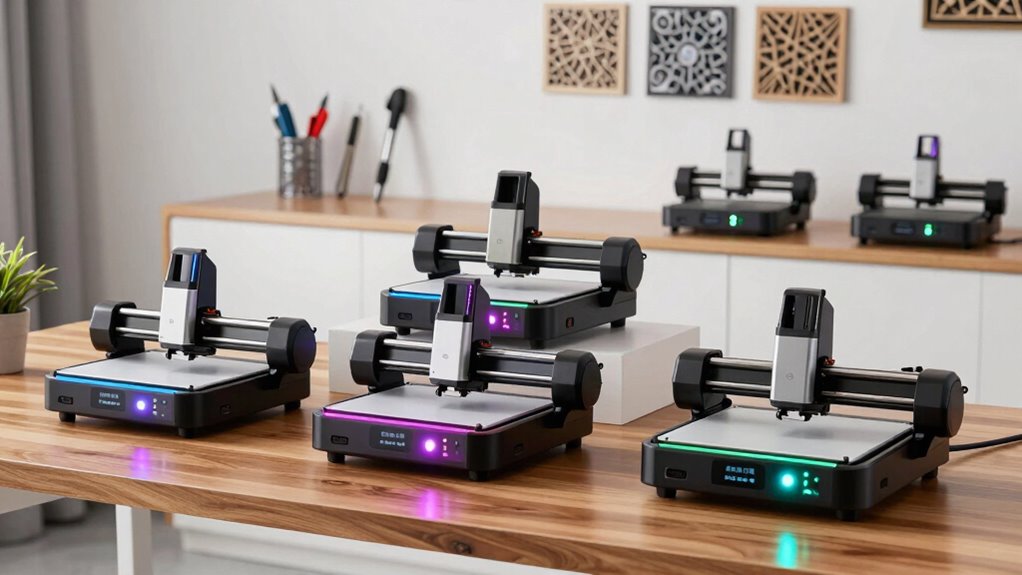
For most first-time buyers, I’d start with the Creality Falcon A1 10W: its enclosed design and camera-based positioning can make setup and material placement less intimidating. The Longer Ray5 5W stands out for a large work area and touchscreen controls, while the LaserPecker LP1 Plus suits buyers who value portability and angled engraving. The main tradeoff is between a compact, simpler machine and a more powerful or larger engraver that needs more space, safety planning, and setup. I compare all 15 options by beginner usability, work area, flexibility, and practical tradeoffs below. Read on for the full breakdown and a guide to matching a machine to your projects.

Get business pricing on monitors, keyboards and dev gear
- Business-only prices and quantity discounts
- Tax-exempt purchasing
- Multiple users, one account, clear invoices
Key Takeaways
Enclosure changes the beginner experience: the Creality Falcon A1 models pair a fully enclosed design with camera or auto-positioning features, while open-frame machines call for more deliberate workspace and safety planning.
A larger work area is not automatically a better first purchase: the Longer Ray5 5W offers a 400×400mm area, but compact models such as the ACMER S1 range suit smaller projects and take up less room.
Power and work area are separate choices: the 10W K15 Pro offers an A4 work area, while the ACMER S2 lists 12,000mW; match the machine to the materials and project sizes you expect to handle rather than choosing by power alone.
Portability brings a different kind of flexibility: the LaserPecker LP1 Plus and AlgoLaser Pixi 3W focus on portable use, unlike larger-frame choices designed around a dedicated workstation.
The lineup includes several near-duplicates: ACMER S1 versions vary from 2,500mW to 6,000mW, and two Falcon A1 listings highlight different positioning features. Compare the exact configuration, included accessories, and work area before choosing.


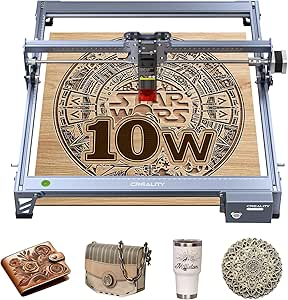


| laser engravers for beginner | Weight | Laser power |
|---|---|---|
| WIZMAKER Wand MINI 2.5W Laser | — | 2.5W |
| Twotrees TTS-55 Pro Laser Engr | — | 5.5W |
| ACMER S1 Laser Engraver Machin | — | 3500mW |
| ACMER S1 Laser Engraver for Be | 2 kg | 6000mW |
| K15 Pro 10W Laser Engraver and | — | 10W |
| LaserPecker LP1 Plus Mini Lase | 2.4 pounds | — |
| Longer Laser Engraver Ray5 5W | 8.26 pounds | 5W |
| ACMER S1 Laser Engraver Machin | 3.98 pounds | — |
| Creality Falcon A1 10W Laser E | 43.6 pounds | — |
| Creality Falcon A1 10W Laser E | 28.7 pounds | — |
| ACMER S2 Laser Engraver | 7.98 pounds | 12W |
| Longer Ray5 Laser Engraver and | 5.79 pounds | 5500mW |
| Creality 10W Laser Engraver Ma | 7.05 pounds | — |
| AlgoLaser Pixi 3W Portable Las | 6.6 pounds | 3W |
| Laser Engraver LE400PRO 50W wi | 14.02 pounds | — |
More Details on Our Top Picks
WIZMAKER Wand MINI 2.5W Laser Engraver, Compact Desktop Laser Cutter for Wood, Acrylic, Glass
The WIZMAKER Wand MINI is the easiest fit here for a beginner who wants a small, preassembled machine rather than a cutting-focused workhorse. Its 0.04 × 0.04 mm spot size is suited to fine lines and small graphics, while Wi-Fi, USB, and hotspot connections give new users a few ways to send jobs. Compared with the Twotrees TTS-55 Pro, it has less power and a much smaller work area, so it is a weaker choice for cutting thicker stock or making larger pieces. Its broad material list suits craft experiments, but material compatibility does not mean every material can be engraved safely or directly; glass, for example, may need preparation. Expect to learn engraving software, and skip it if metal work or room for larger projects is central to your plans.
Pros:- Preassembled design reduces mechanical setup for a new owner.
- Fine 0.04 × 0.04 mm spot size supports detailed small engravings.
- Wi-Fi, USB, and hotspot connectivity offer flexible job transfer.
- Listed material compatibility spans several common craft materials.
Cons:- The 135 × 145 mm work area restricts project size.
- The 2.5W laser is less suited to cutting than the higher-power Twotrees TTS-55 Pro.
- Advanced features still require learning compatible engraving software.
Best for: First-time hobbyists making small, detailed designs on wood, leather, cork, or similar craft materials who want a preassembled machine.
Not ideal for: Buyers planning large signs, substantial cutting jobs, or direct metal engraving; its 2.5W laser and 135 × 145 mm work area set clear limits.
- Laser power:2.5W
- Working area:135 × 145 mm
- Spot size:0.04 × 0.04 mm
- Dimensions:297 × 319 × 128 mm
- Connectivity:Wi-Fi, USB, hotspot
- Software compatibility:LaserGRBL, LightBurn, AtomStack
- Listed materials:Wood, acrylic, glass, leather, felt, cardboard, cork, MDF, slate, fabric
Our verdict“Choose the WIZMAKER Wand MINI for compact, detailed craft engraving and straightforward setup, not for large or demanding cuts.”
Twotrees TTS-55 Pro Laser Engraver 5500mW Laser Engraving Machine
The Twotrees TTS-55 Pro earns its place for beginners who want room to grow into larger projects without moving straight to a more powerful machine. Its 300 × 300 mm work area is more than four times the listed area of the WIZMAKER Wand MINI, making signs and multi-piece layouts less constrained. The 5.5W output and stated cutting capacities also make it more capable for light cutting than the lower-powered options here, though the stated stainless-steel compatibility should not be read as a promise of bare-metal engraving. Wi-Fi and TF-card operation add flexible ways to run jobs, but setup and tuning are less hands-off than on a preassembled beginner pick. I would choose it over the ACMER S1 3500mW when workspace matters more than a smaller, lighter footprint.
Pros:- 300 × 300 mm work area accommodates larger pieces than the compact ACMER S1 models.
- 5.5W output supports stated light-cutting tasks as well as engraving.
- Wi-Fi and TF-card offline operation provide more than one workflow.
- Compatible with LaserGRBL and LightBurn.
Cons:- Requires technical setup and tuning for best results.
- Its 8.23-pound weight and larger work area need a stable, dedicated surface.
- The 0.08 × 0.46 mm spot is less evenly proportioned than the WIZMAKER’s fine square spot for tiny details.
Best for: Beginners with a dedicated workbench who want to engrave larger boards, batch small items, and learn machine setup as they go.
Not ideal for: People with limited desk space or anyone seeking the simplest plug-in start; its larger frame and setup demands may feel like extra work.
- Laser power:5.5W
- Working area:300 × 300 mm
- Laser spot size:0.08 × 0.46 mm
- Engraving speed:Up to 30,000 mm/min
- Engraving accuracy:Up to 0.1 mm
- Cutting thickness:5 mm plywood, 3 mm acrylic, 0.7 mm leather
- Connectivity:Wi-Fi, online control, TF-card offline operation
- Item weight:8.23 pounds
Our verdict“Pick the TTS-55 Pro if a generous work area and room to learn matter more than a compact, low-setup beginner machine.”
ACMER S1 Laser Engraver Machine, 3500mW Laser Cutter for Wood and Acrylic
At 4.07 pounds, the ACMER S1 3500mW is the portable pick for a beginner who needs to store a machine between projects or move it around a small workspace. Its 0.01 mm repeatable positioning accuracy points to consistent placement across repeated passes, while the 455 nm diode and 10,000 mm/min listed speed suit small home craft jobs. The tradeoff is a 130 × 130 mm work area, smaller than the Twotrees TTS-55 Pro’s 300 × 300 mm bed and slightly tighter than the WIZMAKER Wand MINI’s listed area. Its description mentions beginner-friendly software, but setup challenges are reported in the supplied product information, so newcomers should be ready to troubleshoot. Compared with the 6000mW ACMER S1, this version offers less laser power but a clear, lightweight option for modest projects.
Pros:- Light 4.07-pound design is easier to store or reposition than the Twotrees TTS-55 Pro.
- 0.01 mm repeatable positioning accuracy supports consistent placement.
- 455 ± 5 nm diode laser suits common small craft projects.
- Listed engraving speed reaches 10,000 mm/min.
Cons:- 130 × 130 mm working area restricts project dimensions.
- Setup may present challenges for some beginners.
- Lower 3.5W power is less suited to cutting than the 6000mW ACMER S1.
Best for: Apartment hobbyists and makers who need a lightweight engraver for small wood, acrylic, or leather pieces and can handle some setup.
Not ideal for: Users who want a large work area, minimal troubleshooting, or stronger cutting capability; the 130 × 130 mm bed and 3.5W output are limiting.
- Laser power:3500mW
- Wavelength:455 ± 5 nm
- Working area:130 × 130 mm
- Engraving speed:10,000 mm/min
- Repeatable positioning accuracy:0.01 mm
- Focal length:2 mm
- Item weight:4.07 pounds
- Listed materials:Wood, acrylic, leather
Our verdict“Choose this ACMER S1 if portability and repeatable small engravings outweigh a larger bed or stronger cutting output.”
ACMER S1 Laser Engraver for Beginners, 6000mW, 130x132mm Working Area, Compatible with Wood, Acrylic, Leather, DIY Crafts & Small Business
This 6000mW ACMER S1 suits beginners who want more laser output without giving up a compact frame. Its 0.04 mm spot size and 0.01 mm repeatability are geared toward precise small work, while the 6W rating gives it more cutting headroom than the ACMER S1 3500mW. The working area remains nearly the same, at 130 × 132 mm, so the extra power does not solve the size limits that make the Twotrees TTS-55 Pro better for broad layouts. Mostly preassembled construction can shorten the mechanical setup, but software choice and workflow may still take learning. Its listed Class 4 certification is a serious safety consideration, not a beginner-friendly shortcut: buyers need suitable precautions and a controlled work area before running jobs.
Pros:- 6W laser offers more output than the 3500mW ACMER S1 in a similarly compact format.
- 0.04 mm spot size and 0.01 mm repeatability support detailed positioning.
- Mostly preassembled design reduces initial mechanical work.
- Supports macOS, Windows, and Linux.
Cons:- 130 × 132 mm working area limits project size.
- Class 4 laser designation requires careful handling and a controlled setup.
- Software compatibility and ease of use may vary with the user’s workflow.
Best for: Craft beginners and small-shop makers seeking a compact 6W diode engraver for detailed, small-format projects and willing to follow laser safety practices.
Not ideal for: Buyers who need large-format work, an enclosed system, or the least demanding safety setup; its small bed and Class 4 designation call for care.
- Laser power:6000mW
- Working area:130 × 132 mm
- Laser wavelength:455 ± 5 nm
- Laser spot size:0.04 mm
- Speed:10,000 mm/min
- Repeatability:0.01 mm
- Weight:2 kg
- Supported operating systems:macOS, Windows, Linux
- Certification:Class 4 laser, IEC 60825-1
Our verdict“Choose the 6000mW ACMER S1 for compact, precise work that benefits from added output, provided you can manage its laser-safety demands.”
K15 Pro 10W Laser Engraver and Cutter with A4 Work Area
The K15 Pro is the strongest match here for a beginner who wants a more capable engraver-and-cutter package from the outset. Its true 10W power, stated 0.01 mm precision, and 15,000 mm/min maximum speed put it ahead of the 2.5W WIZMAKER Wand MINI for cutting ambitions, while its A4 bed is substantially larger than either ACMER S1 work area. Wireless app control and offline TF-card operation give beginners alternative ways to run jobs, and the supplied starter kit includes safety glasses and tools. The tradeoff is that the listed metal capability has limits: the optional 1W IR head is needed for full-power metal engraving, and accessories such as a rotary roller and honeycomb plate are separate purchases. Its feature set may also ask more of a first-time user than a simpler compact engraver.
Pros:- 10W laser and stated 15,000 mm/min speed support more ambitious engraving and cutting than the WIZMAKER Wand MINI.
- A4 work area fits many hobby-sized projects while staying desk-friendly.
- Wireless app and offline TF-card operation provide flexible control.
- Starter kit includes safety glasses and tools.
Cons:- Full-power metal engraving requires the optional 1W IR laser head.
- Rotary roller, honeycomb plate, and other accessories are sold separately.
- More control options and features may take longer for a first-time user to learn.
Best for: New makers who want an A4-size bed, stronger cutting potential, and app or offline control for varied hobby and small-business projects.
Not ideal for: Buyers whose main goal is metal engraving without add-ons, or those who want every workflow accessory included in the box.
- Laser power:10W
- Work area:11.8 × 7.9 in (A4 size)
- Precision:0.01 mm
- Maximum speed:15,000 mm/min
- Item weight:2.68 kg
- Connectivity and operation:Wireless app control, offline TF-card operation
- Metal engraving upgrade:Optional 1W IR laser head
- Warranty:1 year
Our verdict“Pick the K15 Pro if you want a compact, feature-rich A4 machine with stronger cutting potential and accept that some capabilities need add-ons.”
LaserPecker LP1 Plus Mini Laser Engraver for Beginners
The LaserPecker LP1 Plus suits beginners who want to try small engraving projects without dedicating much space to a desktop machine. At 2.4 pounds, with an adjustable stand and magnetic base, it is easier to move and position than the larger Longer Ray5 or either enclosed Creality Falcon A1. Its multi-angle setup can help with objects that are awkward to lay flat, while support for wood, leather, acrylic, and other non-metal materials leaves room to experiment. The tradeoff is a narrower material range: unlike the Ray5, it cannot engrave metal. Beginners also need to set the working distance carefully at 200 mm, so its compact form does not mean every setup detail is automatic. I’d choose it for portability and small crafts, not broad material capability.
Pros:- Lightweight 2.4-pound design is easy to carry and store
- Adjustable stand and magnetic base support flexible positioning
- Works with wood, leather, acrylic, and other non-metal materials
- Quick setup is listed at about two minutes
Cons:- Cannot engrave metal, unlike the Longer Ray5
- Requires careful 200 mm distance setting for suitable results
- Compact portable format is better suited to small projects than large workpieces
Best for: Beginners who want a lightweight engraver for small non-metal crafts at home, in a shared workspace, or while traveling
Not ideal for: Buyers who want to engrave metal, work on large pieces, or avoid manually setting the recommended 200 mm distance
- Model:LP1 Plus
- Weight:2.4 pounds
- Dimensions:1 x 1 x 1 inches (as listed)
- Material compatibility:Wood, leather, acrylic, and other non-metal materials
- Positioning:Adjustable stand and magnetic base
- Recommended working distance:200 mm
- Warranty:Product warranty available
Our verdict“Choose the LP1 Plus if portability and flexible positioning matter more than metal engraving or a large work area.”
Longer Laser Engraver Ray5 5W
The Longer Ray5 earns its place for beginners who want room to grow into larger projects. Its 400 x 400 mm work area is far bigger than the ACMER S1’s 130 x 130 mm field, so signs and broad panels are less likely to require multiple passes of repositioning. A 3.5-inch touchscreen, TF-card operation, Wi-Fi, and app control also give newcomers several ways to send jobs, including offline use. The 0.08 mm laser spot and stated 0.01 mm accuracy support detailed work, while the 5W output limits its usefulness for cutting thicker stock. Compared with the enclosed Creality Falcon A1, the Ray5 is lighter and has a larger stated work area, but its open-machine format and reported setup challenges may demand more patience and safety planning.
Pros:- 400 x 400 mm work area accommodates larger pieces than the ACMER S1
- Touchscreen and USB, TF card, Wi-Fi, and app connectivity offer flexible operation
- 0.08 mm spot and stated 0.01 mm accuracy support fine engraving
- Offline use is available through the touchscreen and TF card
Cons:- 5W laser power may be limiting for cutting thicker materials
- Setup can be challenging for some users, according to the supplied product information
- Open-frame operation calls for careful safety precautions
Best for: First-time makers planning larger wood, leather, or acrylic projects who value a generous work area and multiple job-transfer options
Not ideal for: Beginners seeking an enclosed, simple-to-configure machine or frequent cutting of thick materials
- Laser power:5W
- Laser spot size:0.08 mm
- Engraving accuracy:0.01 mm
- Work area:400 x 400 mm
- Connectivity:USB, TF card, Wi-Fi, app
- Listed material compatibility:Wood, metal, glass, acrylic, leather, stainless steel
- Maximum listed speed:10,000 mm/min
- Weight:8.26 pounds
Our verdict“Pick the Ray5 if you want a large work area and flexible controls, and are willing to handle setup and open-frame safety.”
ACMER S1 Laser Engraver Machine, 2500mW
The ACMER S1 is a compact desktop choice for a beginner whose projects fit within a 130 x 130 mm work area. It arrives largely assembled, with a one-minute head installation, which makes starting less involved than the setup reported for the Longer Ray5. The light 3.98-pound aluminum frame is also easy to store between sessions. Acmerstudio is included, and compatibility with LightBurn and LaserGRBL gives users options as they learn different workflows. Its listed material range is broad for a small diode engraver, but the short work area is a firm limit: it cannot match the Ray5’s capacity for larger panels. The product data also identifies it as a Class 4 laser, so the approachable setup should not be mistaken for relaxed safety requirements; proper precautions and ventilation remain necessary.
Pros:- One-minute laser-head installation reduces initial setup work
- Lightweight aluminum construction is easy to move and store
- Works with Acmerstudio, LightBurn, and LaserGRBL
- Listed compatibility includes wood, leather, acrylic, ceramics, and other materials
Cons:- 130 x 130 mm work area restricts project size
- Class 4 designation calls for strict safety precautions and proper ventilation
- Small footprint does not provide the work capacity of the Longer Ray5
Best for: Beginners with limited storage who want a pre-assembled desktop machine for small crafts, samples, and detailed projects
Not ideal for: Makers who need to engrave large panels or want a laser setup that does not call for strict Class 4 safety precautions and ventilation
- Model:S1
- Laser specification:2500 mW diode (24 W output, as listed)
- Wavelength:455 ± 5 nm
- Working area:130 x 130 mm
- Maximum listed engraving speed:10,000 mm/min
- Positioning accuracy:0.01 mm repeatable
- Weight:3.98 pounds
- Software and operating systems:Acmerstudio, LightBurn, LaserGRBL; macOS, Windows, Linux
Our verdict“Choose the ACMER S1 for compact, small-format projects and accessible software options, provided you can meet its safety and ventilation needs.”
Creality Falcon A1 10W Laser Engraver with Enclosed Cutter and Camera
The Creality Falcon A1 is the most beginner-oriented choice here for buyers who value an enclosure and visual job placement over portability. Its Class 1 enclosed design helps reduce direct laser exposure during normal operation, while the camera can make positioning artwork on material less guesswork-heavy than on an open machine such as the Longer Ray5. The listed 600 mm/s speed and 10W output give it more headroom for routine work than the 5W Ray5, and it supports LightBurn and LaserGRBL. There are limits: at 43.6 pounds, it is a substantial fixture, and its 381 x 305 mm work area is smaller than the Ray5’s. The supplied details also say it cannot cut acrylic without a surface coating and is not suited to highly reflective materials, so check your intended materials before choosing it.
Pros:- Enclosed Class 1 design reduces direct laser exposure
- Camera-assisted positioning helps place designs on material
- Listed engraving speed reaches 600 mm/s
- Supports LightBurn and LaserGRBL
Cons:- 43.6-pound weight makes it difficult to move frequently
- 381 x 305 mm work area is smaller than the Longer Ray5’s
- Cannot cut acrylic without a surface coating and is not compatible with highly reflective materials
Best for: Beginners who want an enclosed laser with camera-assisted positioning for regular wood and compatible metal engraving in a dedicated workspace
Not ideal for: People who need a portable machine, the largest work area in this group, or reliable work with highly reflective materials or uncoated acrylic cutting
- Power output:10W
- Laser class:Class 1
- Working area:381 x 305 mm
- Maximum listed speed:600 mm/s
- Weight:43.6 pounds
- Positioning:Smart camera
- Software compatibility:LightBurn, LaserGRBL
- Material limitations:Not compatible with highly reflective materials; acrylic cutting requires a surface coating
Our verdict“Pick this Falcon A1 if an enclosure and camera positioning matter more than portability, maximum work area, or broad material flexibility.”
Creality Falcon A1 10W Laser Engraver with Fully Enclosed Design and Auto Positioning
This Falcon A1 listing is aimed at newcomers who want an enclosed machine with auto positioning and material recognition to reduce setup decisions. Its transparent panels let users view work inside the enclosure, and the listed Class 1 safety rating makes it a more contained option than the open-frame Longer Ray5. A stated 600 mm/s speed and 0.05 mm accuracy point toward quick, detailed engraving, while compatibility with Falcon Design Space, LightBurn, and LaserGRBL leaves room to change software later. The listing claims 80W power, which differs from the 10W in the product title; I would verify the exact configuration before buying. Its 460 x 346 mm panel size is also a defined boundary, and the 28.7-pound body still needs a dedicated spot, though it is lighter than the other Falcon A1 listed here.
Pros:- Fully enclosed Class 1 design helps contain laser exposure and noise
- HD camera positioning and automatic material recognition can simplify setup
- Listed 600 mm/s speed and 0.05 mm accuracy support detailed work
- Compatible with Falcon Design Space, LightBurn, and LaserGRBL
Cons:- Product title says 10W while the supplied specs say 80W, so the configuration needs verification
- 460 x 346 mm panel size limits the dimensions of supported work
- 28.7-pound weight and 30 x 25 x 15-inch dimensions require dedicated workspace
- Not suitable for reflective materials such as mirrored metals
Best for: Beginners who want an enclosed, pre-assembled machine with camera positioning and guided material setup for projects that fit its panel size
Not ideal for: Buyers who need portability, reflective-metal engraving, unrestricted workpiece sizing, or clear confirmation of the laser power before purchase
- Power:80W in supplied specs; product title states 10W
- Engraving speed:600 mm/s
- Accuracy:0.05 mm
- Panel size:460 x 346 mm
- Enclosure and safety:Fully enclosed with transparent panels; Class 1
- Positioning:HD auto positioning
- Weight:28.7 pounds
- Software compatibility:Falcon Design Space, LightBurn, LaserGRBL
Our verdict“Consider this Falcon A1 for enclosed, camera-assisted setup, but verify its conflicting power listing and confirm your materials and panel sizes fit.”
ACMER S2 Laser Engraver, 12000mW Laser Cutter Engraving Machine
I’d put the ACMER S2 first for beginners who want room to grow beyond small keepsakes. Its 300×300mm work area gives more space for signs and multi-piece layouts than the Longer Ray5 Mini’s 130×130mm bed, while the stated 12W laser output offers more cutting headroom than the compact options here. A 0.08×0.08mm spot and 0.01mm positioning accuracy also suit fine lettering and detailed designs. It works with ACMER Studio, LightBurn, and LaserGRBL across Windows, macOS, and Linux, so beginners can start with the supplied software route and switch later if their workflow changes. The tradeoff is a larger, heavier desktop setup: at nearly eight pounds, it needs a stable place, and 12W still does not make it a choice for very thick stock. I’d favor it over the AlgoLaser Pixi when project size and software flexibility matter more than a built-in touchscreen.
Pros:- 300×300mm work area accommodates larger designs than compact beginner machines.
- 0.01mm positioning accuracy and a 0.08×0.08mm spot support detailed engraving.
- Compatible with ACMER Studio, LightBurn, and LaserGRBL on Windows, macOS, and Linux.
- Listed material compatibility includes wood, leather, acrylic, and coated metal.
Cons:- Nearly eight-pound weight and 21-inch length call for a stable, dedicated setup.
- The 12W laser is not suited to very thick material cutting.
Best for: First-time makers planning signs, larger craft pieces, or a small workshop setup who want a generous bed and software options to grow into.
Not ideal for: People with little desk space or buyers whose main goal is cutting very thick materials; its footprint is substantial and its 12W module has limits.
- Laser power:12W
- Work area:300×300mm
- Laser spot size:0.08×0.08mm
- Positioning accuracy:0.01mm
- Material compatibility:Wood, leather, acrylic, coated metal, and more
- Weight:7.98 pounds
- Dimensions:21 × 11.5 × 6 inches
- Software and operating systems:ACMER Studio, LightBurn, LaserGRBL; Windows, macOS, Linux
Our verdict“Choose the ACMER S2 if you want a beginner-friendly machine with a larger work area and software flexibility, and can give it a stable spot.”
Longer Ray5 Laser Engraver and Cutter, 5500mW, 130×130mm
The Longer Ray5 Mini makes the most sense when a beginner values a manageable setup over a large bed. Its 130×130mm work area is well suited to tags, small ornaments, and practice pieces, and its pre-assembled, portable design reduces the amount of machine setup before a first project. At 5.79 pounds, it is easier to relocate than the ACMER S2 or the larger-bed LE400PRO. The 5.5W laser and stated 0.01mm repeat accuracy make it a more capable detail tool than a low-power, touchscreen-first option such as the AlgoLaser Pixi, though neither is intended for thick-stock cutting. Its defining compromise is scale: a project that outgrows the 130mm bed needs repositioning or a different machine. I’d pick this over the ACMER S2 for a small desk and modest crafts, not for signs or expanding production.
Pros:- Compact, portable design and pre-assembly simplify getting started.
- 130×130mm bed fits small craft pieces without taking up a large work area.
- Stated 0.01mm repeat accuracy supports detailed engraving.
- Safety features include protective glasses and an emergency stop.
Cons:- The 130×130mm work area restricts project size and may require repositioning.
- 5.5W output may not cut thicker materials effectively.
- Expanded functionality requires additional accessories.
Best for: Beginners with limited workspace who want a pre-assembled machine for small wood, leather, or plastic crafts and detailed practice projects.
Not ideal for: Makers planning signs, larger panels, or frequent thick-material cutting; the small work area and 5.5W output impose clear limits.
- Laser power:5500mW
- Work area:130×130mm
- Repeat accuracy:0.01mm
- Weight:5.79 pounds
- Dimensions:11.5 × 11.26 × 6.5 inches
- Model:Mini
- Safety features:Protective glasses and emergency stop
Our verdict“Choose the Ray5 Mini for small projects and a tight workspace, but pick the ACMER S2 or another larger-bed machine if your designs are likely to grow.”
Creality 10W Laser Engraver Machine, 72W DIY Laser Cutter and Engraving Machine
I’d choose the Creality 10W Laser Engraver when cutting capability matters more than the widest work area. Its stated ability to cut 5mm basswood and 3mm acrylic in one pass gives a beginner a clearer route into layered projects than the 3W AlgoLaser Pixi, which is aimed chiefly at small engraving jobs. The 17 × 16-inch bed is roomy enough for many craft layouts, though it is smaller than the ACMER S2’s 300×300mm area when comparing listed dimensions. Assembly is stated to take 10–20 minutes, and Wi-Fi, USB, and SD-card transfer options offer flexibility as a user learns a workflow. The caution is safety: the supplied description says its protection primarily filters UV rays, so buyers need to follow laser-safety practices rather than treat that as full enclosure protection. I’d skip it if a fully enclosed design is a priority.
Pros:- Stated one-pass cutting capability for 5mm basswood and 3mm acrylic supports layered craft projects.
- 0.06mm focus spot supports fine engraving detail.
- Wi-Fi, USB, and SD-card transfer options provide several ways to send designs.
- Assembly is stated to take 10–20 minutes.
Cons:- Safety protection is described as primarily filtering UV rays, not as a fully enclosed system.
- The 17 × 16-inch area limits larger layouts compared with the ACMER S2’s stated 300×300mm bed.
- Open-frame use calls for careful workspace and laser-safety practices.
Best for: DIY beginners who want to make cut-and-layer projects from basswood or acrylic and are comfortable setting up a safe, open-frame workspace.
Not ideal for: Users seeking a fully enclosed beginner machine, or makers whose projects need a bed larger than 17 × 16 inches.
- Output power:10W
- Laser module power:72W
- Engraving area:17 × 16 inches
- Focus spot size:0.06mm
- Repositioning accuracy:Less than 0.007 inches
- Assembly time:10–20 minutes
- Weight:7.05 pounds
- Transfer options:Wi-Fi, USB, and SD card
Our verdict“Pick the Creality if beginner-level cutting of basswood and acrylic is a priority and you can manage the safety needs of an open-frame machine.”
AlgoLaser Pixi 3W Portable Laser Engraver with 3.5-inch Touchscreen
The AlgoLaser Pixi 3W is the most approachable pick here for someone who wants to make a first engraving without learning desktop design software. Its 3.5-inch touchscreen and pre-installed designs let users start at the machine, while the compact footprint suits a craft table or shared workspace. That simplicity is also its main boundary. The 100 × 100mm engraving area and listed wood-and-leather compatibility make it a small-object engraver, not a flexible production tool. Compared with the Longer Ray5 Mini, the Pixi gives up a little work area and laser power in exchange for a more direct touchscreen workflow; compared with the ACMER S2, it is much less suited to larger signs or broader material experimentation. Adjustable height helps accommodate different object sizes, but it does not remove the small design area. I’d buy it for guided, personal projects and skip it for software-led growth.
Pros:- 3.5-inch touchscreen and pre-installed designs allow computer-free starting projects.
- Compact dimensions suit small craft spaces.
- Adjustable height accommodates different object sizes.
- Designed for detailed engraving on small wood and leather items.
Cons:- 100 × 100mm area restricts designs to small objects.
- 3W laser power and listed material range limit its flexibility compared with the Ray5 Mini.
- Larger objects may require manual placement to complete a design.
Best for: First-time crafters who want to engrave small wood or leather items directly from a touchscreen without relying on a computer.
Not ideal for: Beginners planning larger designs, broader material experiments, or a computer-based workflow with room to scale up.
- Laser power:3W
- Engraving area:100 × 100mm
- Touchscreen:3.5 inches
- Material compatibility:Wood and leather
- Adjustable height:Yes
- Dimensions:9.84 × 8.27 × 7.48 inches
- Weight:6.6 pounds
Our verdict“Choose the Pixi if touchscreen simplicity matters more than project size or versatility; choose the Ray5 Mini for a larger bed and more laser power.”
Laser Engraver LE400PRO 50W with 400×400mm Large Working Area
The LE400PRO is the large-format choice for a beginner whose planned work already includes broad layouts or varied object sizes. Its 400×400mm work area is the largest listed here, exceeding the ACMER S2’s 300×300mm bed and giving more freedom to place larger pieces without splitting a design. The all-metal frame and tool-free focus adjustment are practical advantages for a machine that may stay set up as a workshop tool, while support for GRBL and LightBurn offers familiar software paths. But this is not the easiest first machine by default: the 14.02-pound frame and stated need for some setup and calibration make it less plug-and-play than the pre-assembled Longer Ray5 Mini. The specifications also distinguish 50W machine power from 5500mW laser output, so I would not read the 50W figure as a promise of heavy cutting ability. Choose it for bed size, not effortless setup or thick-stock cutting.
Pros:- 400×400mm working area is the largest listed among these five options.
- All-metal structure supports a stable, durable setup.
- Tool-free focus adjustment simplifies routine changes.
- Supports GRBL and LightBurn and lists a broad range of compatible materials.
Cons:- At 14.02 pounds and over 22 inches across, it needs substantial dedicated space.
- Some technical setup and calibration are required, making it less beginner-ready than the pre-assembled Ray5 Mini.
- The listed 5500mW laser output may not cut thicker materials, despite the 50W system-power figure.
Best for: Beginners with a dedicated workshop space who expect to engrave large panels, varied objects, or repeated layouts and are willing to learn calibration.
Not ideal for: Casual users with limited desk space or anyone expecting a simple, ready-to-run machine or strong thick-material cutting from the 50W system figure.
- System power:50W
- Laser output:5500mW, Class 1
- Working area:400×400mm
- Engraving speed:6000mm/min
- Supported software:GRBL and LightBurn
- Material compatibility:Wood, acrylic, glass, stainless steel, ceramic, stone, food, bamboo, plastic, leather, cardboard, and round objects
- Weight:14.02 pounds
- Dimensions:22.71 × 24.25 × 8.32 inches
Our verdict“Choose the LE400PRO if a 400×400mm bed is worth the added space and calibration work, not if you want the simplest first machine.”

How We Picked
I ranked these laser engravers for beginners by how clearly their listed features address first-machine concerns: setup and positioning, work area, portability, enclosure, and the range of project needs they can serve. I also weighed the likely learning curve and workspace demands implied by their form factors. An enclosure, touchscreen, or camera can reduce particular sources of friction, but none removes the need to understand safe operation and material compatibility.
The order reflects fit for a new user, not a simple power ladder. Models with accessible positioning or a practical balance of features rank ahead of machines whose main appeal is higher output or a large work area. I distinguish between closely related listings where their stated specifications or features differ, and call out tradeoffs such as a smaller work surface, more demanding setup, or portable format. Since listings do not establish every detail—such as software workflow, included safety equipment, or supported materials in practice—I recommend checking the exact configuration before purchase.
Factors to Consider When Choosing Laser Engravers For Beginners
Before picking a machine, I’d decide what you plan to engrave, where the machine will live, and how much setup you want to manage. Those choices often matter more than a headline power figure. These factors help narrow the field without assuming that a larger or more powerful model is automatically the right first machine.
Match the Work Area to Your Real Projects
Think about the largest object you expect to engrave, not just the size of a design on screen. A small work area can be comfortable for tags, coasters, and test pieces, while signage or repeated batches may call for a larger frame. Oversizing has costs beyond the machine’s footprint: it also asks for more clear workspace and careful material placement. Beginners sometimes buy for a rare oversized project and then give up everyday desk space. Measure the machine’s full exterior dimensions as well as its usable work area, since those are not the same. If most projects are small, a compact engraver can be easier to store and learn on.
Treat Power as One Part of Material Compatibility
Laser power can affect engraving and cutting capability, but it does not make every material suitable. The material, thickness, surface coating, focus, and machine configuration all shape the result. A common mistake is choosing the highest stated wattage before checking whether the machine supports the intended material and task. Read the manufacturer’s material guidance and distinguish engraving from cutting; they place different demands on a machine. Also check whether a material may release hazardous fumes when processed. If your project list is still evolving, a flexible machine with clear compatibility guidance can be a more useful starting point than a power-first choice.
Choose an Enclosure and Safety Setup You Can Maintain
An enclosed engraver can help contain light and provide a more controlled working setup, but it does not remove the need for ventilation, supervision, or safe material choices. Open-frame machines may need a dedicated, protected workspace and careful attention to eye safety. Before buying, check what enclosure, exhaust connection, interlocks, and protective equipment are included rather than inferring them from product photos. Plan where fumes will go and whether that setup is practical in your home or workshop. New users can underestimate this work and focus only on the machine’s cutting specifications. If you cannot create a safe, ventilated location, reconsider the machine or the intended materials.
Look at Positioning and Workflow Before Chasing More Features
Positioning aids can reduce the chance of placing a design in the wrong spot, especially when engraving irregular objects or making repeat projects. Camera and auto-positioning systems address alignment, while a touchscreen may help with certain controls; they do not necessarily replace computer software or teach design preparation. Check which programs the machine supports, what file formats it accepts, and whether the workflow depends on a connected computer. Beginners can overlook software compatibility and discover that their preferred design process requires extra steps. A simpler workflow may matter more day to day than a specification that only helps occasionally. Look for clear setup instructions and available guidance before committing.
Balance Portability Against Stability and Project Scale
Portable models make sense when storage, travel, or engraving at different locations is part of the plan. A compact footprint can also suit a small home workspace, but it may limit the size or shape of projects you can place easily. Larger-frame machines provide more room for materials yet are harder to move and need a permanent, organized work area. Consider whether the object itself fits under the laser, not only whether the artwork fits the nominal work area. Buyers sometimes mistake portability for a complete advantage and overlook how often they will need precise positioning or repeatable placement. Choose based on your normal working location and project routine, not a one-time use case.
Compare the Exact Package, Not Just the Model Name
Similar names can describe machines with different power levels, work areas, or included positioning features. This roundup includes several ACMER S1 variants and two Falcon A1 listings, so verify the precise configuration before ordering. Check whether the package includes a stand, enclosure, exhaust parts, rotary attachment, or other accessories you need; a product title alone may not settle that question. Also review warranty terms, replacement-part availability, and instructions for maintenance. A lower-spec version may be the better fit if it meets your actual project needs, while a more complete package can reduce separate setup tasks. Write down your must-haves and compare them against the exact listing to avoid paying for features you will not use—or missing a component you expected.
Frequently Asked Questions
Should I choose an enclosed engraver or an open-frame machine as my first laser?
I’d lean toward an enclosed model if you value a more contained workspace and simpler positioning, as the Falcon A1 listings emphasize enclosure and camera or auto-positioning features. An enclosure is not a substitute for ventilation, supervision, or checking which materials are safe to process. Open-frame machines can be a reasonable choice if you have a dedicated work area and understand the safety measures they require. Compare the full setup, including exhaust arrangements and protective equipment, rather than judging enclosure alone. If your workspace cannot support safe operation, neither format is a good fit until you can address that.
Is a 5W or 10W laser a better starting point for a beginner?
Neither power level is automatically better for every new user. A 5W machine such as the Longer Ray5 may appeal if its work area and feature set fit your projects, while a 10W option may suit buyers whose intended tasks call for more output. Power does not tell you by itself what materials a machine can process or how well it handles a particular thickness. Check the manufacturer’s specifications for your materials, and separate engraving needs from cutting needs. If you mainly plan small decorative engravings, paying attention to workflow and safety may matter more than moving up in power.
Do I need a large work area if I am only making small crafts?
Usually, no: a compact work area can be easier to place, store, and manage when your projects are small. Larger areas become useful for bigger pieces, batch work, or materials that need more room for positioning. They also take up more space and may encourage a beginner to pay for capacity that stays unused. Measure the objects you plan to engrave, including their shape and how they need to sit under the laser. If you expect your projects to grow, choose a size that leaves reasonable room for that growth without making the current workspace impractical.
What should I verify before buying a portable laser engraver?
Check the usable engraving area, how the machine is positioned over the object, and whether it can accommodate the shapes you plan to mark. Portability does not guarantee that a device can handle every object or angle, so review the manufacturer’s stated limits and included stand or accessories. Confirm the software and file workflow as well, since a compact machine still needs a process for preparing and sending designs. Think through ventilation and safe operation wherever you intend to use it, including when moving between locations. A portable model is most useful when you will genuinely benefit from moving or storing it between projects.
How do I choose between the different ACMER S1 versions and Falcon A1 listings?
Start by comparing the exact listed power, work area, and included features, rather than treating a shared model name as proof that the machines are identical. The ACMER S1 options in this roundup range from 2,500mW to 6,000mW, while the Falcon A1 listings highlight camera or auto-positioning details. Next, check what comes in the box, which materials and software are supported, and what safety provisions are supplied. If two versions both suit your projects, favor the one whose workflow and support are clearest to you. Confirm the configuration on the product page before buying, since titles can leave out important package details.
Conclusion
For the best overall fit, I’d choose the Creality Falcon A1 10W if its enclosed format and camera or auto-positioning features match your workspace and workflow. For beginners prioritizing a large work area, the Longer Ray5 5W offers a roomy 400×400mm format and touchscreen controls, though it needs more space than compact picks. The best value direction is a lower-power ACMER S1 version when its smaller work area and intended materials meet your needs; compare the exact configuration rather than selecting by model name. For premium capability, the 12,000mW ACMER S2 is the power-forward option, best suited to buyers with a specific reason for that capacity and a suitable safety setup. Choose the LaserPecker LP1 Plus or AlgoLaser Pixi 3W for portability, and consider the Falcon A1 if enclosure and alignment help are your main priorities. Before deciding, verify material compatibility, software, package contents, and ventilation requirements for the precise model you intend to buy.
Halloween Picks
halloween
As an affiliate, we earn on qualifying purchases.