Developers spend eight or more hours a day at the keyboard, which makes ergonomic design one of the highest-leverage upgrades you can buy for your workstation. The Logitech Ergo K860 earns my best overall pick for its proven curved split layout, cushioned wrist rest, and reliable wireless connectivity — a combination few rivals match at the price. If budget is tight, the Perixx PERIBOARD-512B delivers a genuinely useful split design for far less, while the ProtoArc EK01 Plus stands out for backlit keys that late-night coders will appreciate. The main tradeoffs in this category come down to adjustability versus convenience: fully split designs offer better positioning but a steeper learning curve, while wave-style boards feel familiar on day one. Keep reading for the full breakdown of all 15 keyboards and which one fits your desk setup.
Key Takeaways
- The Logitech Ergo K860 and Logitech Wave Keys dominated the top of the lineup because of superior wrist rest cushioning, battery efficiency, and multi-device wireless — areas where budget brands like Nulea and Arteck cut corners.
- True split keyboards (Incase Sculpt-style, Perixx, Nulea) offer better shoulder alignment for wide typing postures, but demand a one-to-two week adaptation period that wave-layout boards like the Meetion and Logitech Wave Keys avoid entirely.
- Backlighting was the clearest dividing line for developer relevance: only the ProtoArc EK01 Plus, COLIKES, Arteck backlit, and the RGB split models offer it, which matters if you code in dim offices or at night.
- Wired budget models (X9, Perixx, the RGB numpad board) trade wireless freedom for zero battery anxiety and lower prices — a reasonable trade for a keyboard that never leaves your desk.
- Two Logitech Wave Keys colorways (Graphite and Sand) are identical hardware, so the choice between them is purely aesthetic — buy whichever is cheaper on the day you order.
| Incase Sculpt Ergonomic Keyboard, Split Layout, Palm Rest, Black |  | Best Detached Numpad Pick | Layout: Split QWERTY, 104 keys | Switch Type: Membrane | Connectivity: Wireless via USB-A receiver | VIEW LATEST PRICE | See Our Full Breakdown |
| Logitech Ergo K860 Wireless Ergonomic Split Keyboard with Wrist Rest |  | Best Overall | Type: Wireless ergonomic split keyboard | Wrist Rest: Pillowed memory foam, integrated | Key Layout: Full-size with numpad | VIEW LATEST PRICE | See Our Full Breakdown |
| Meetion Wireless Ergonomic Keyboard with Wave Keys and Wrist Rest – Black |  | Best Budget Wireless | Key Layout: Standard membrane, wave-shaped keycaps | Connectivity: 2.4GHz wireless, USB-A receiver with USB-C adapter | Power: 2 AAA batteries (not included), auto-sleep | VIEW LATEST PRICE | See Our Full Breakdown |
| Logitech Wave Keys Ergonomic Wireless Keyboard with Palm Rest – Graphite |  | Best for Multi-Device Coding | Connectivity: Bluetooth and Logi Bolt receiver | Battery Life: Up to 3 years | Design: Wave-shape ergonomic with cushioned palm rest | VIEW LATEST PRICE | See Our Full Breakdown |
| Nulea Ergonomic Split Wireless Keyboard with Cushioned Wrist Rest |  | Best Rechargeable Split Pick | Design: Split ergonomic layout | Key Type: Scissor-switch | Connectivity: Bluetooth and 2.4GHz wireless | VIEW LATEST PRICE | See Our Full Breakdown |
| ProtoArc EK01 Plus Backlit Bluetooth Ergonomic Keyboard, Full Size, Grey |  | Best for Multi-Device Workstations | Connectivity: Bluetooth, USB-A | Backlighting: Yes, adjustable white LED | Battery Capacity: 2000mAh rechargeable | VIEW LATEST PRICE | See Our Full Breakdown |
| Arteck Split Ergonomic Keyboard with Palm Rest, USB Wired Backlit Keyboard | 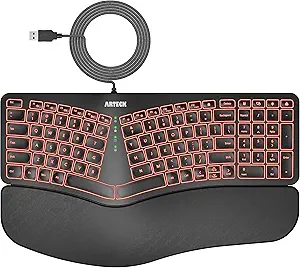 | Best Budget Backlit Pick | Design: Split ergonomic with palm rest | Backlight: 7 colors, 3 brightness levels | Connectivity: USB wired | VIEW LATEST PRICE | See Our Full Breakdown |
| X9 Wired Ergonomic Keyboard with Cushioned Wrist Rest, 110 Keys, 5ft Cable |  | Best Basic Productivity Keyboard | Design: Split ergonomic with wrist rest | Number of Keys: 110 | Cable Length: 5ft | VIEW LATEST PRICE | See Our Full Breakdown |
| COLIKES Wireless Ergonomic Keyboard with Backlit RGB Lighting and Rechargeable Battery |  | Best Battery Life | Battery Capacity: 2500mAh rechargeable | Battery Life: Up to 277 days | Lighting Effects: 15 customizable RGB effects | VIEW LATEST PRICE | See Our Full Breakdown |
| Perixx PERIBOARD-512B Wired Ergonomic Keyboard – Split Design with Wrist Rest |  | Best Typing Feel | Connectivity: Wired | Number of Keys: 111 | Switch Type: Tactile membrane | VIEW LATEST PRICE | See Our Full Breakdown |
| Arteck Ergonomic Wireless Keyboard with Cushioned Wrist Rest, Multi-Device Bluetooth & USB Receiver, Split Design for Windows & PC |  | Best for Multi-Device Workstations | Connectivity: Bluetooth, USB-A, USB-C | Compatible Devices: PC, desktop, laptop, tablet | Power Source: Rechargeable battery | VIEW LATEST PRICE | See Our Full Breakdown |
| Arteck Split Ergonomic Keyboard with Palm Rest, 2.4G USB Wireless |  | Best Budget Pick | Connectivity: 2.4G USB wireless (nano receiver) | Design: Split ergonomic with cushioned palm rest | Battery Life: Up to 6 months, rechargeable | VIEW LATEST PRICE | See Our Full Breakdown |
| Wired Ergonomic Split Keyboard with RGB Backlight & Numpad, Black |  | Best Backlit Full-Size Option | Connectivity: Wired USB-A, USB-C | Backlighting: Customizable RGB | Key Count: 120 keys including numpad and 17 shortcuts | VIEW LATEST PRICE | See Our Full Breakdown |
| Meetion Wired Ergonomic Keyboard with Backlit Keys and Wrist Rest |  | Best for Workspace Aesthetics | Design: Semi-translucent shell, split curved ergonomic layout | Wrist Rest: Built-in cushioned support | Backlighting: 7-color static, RGB cycle, breathing modes | VIEW LATEST PRICE | See Our Full Breakdown |
| Logitech Wave Keys Ergonomic Wireless Keyboard with Palm Rest – Sand |  | Best Battery Life and Everyday Comfort | Connectivity: Bluetooth, Logi Bolt receiver | Battery Life: Up to 3 years | Palm Rest: Cushioned memory foam | VIEW LATEST PRICE | See Our Full Breakdown |
| developer ergonomic keyboard | Connectivity |
|---|---|
| Incase Sculpt Ergonomic Keyboa | Wireless via USB-A receiver |
| Logitech Ergo K860 Wireless Er | Bluetooth and USB receiver |
| Meetion Wireless Ergonomic Key | 2.4GHz wireless, USB-A receiver with USB-C adapter |
| Logitech Wave Keys Ergonomic W | Bluetooth and Logi Bolt receiver |
| Nulea Ergonomic Split Wireless | Bluetooth and 2.4GHz wireless |
| ProtoArc EK01 Plus Backlit Blu | Bluetooth, USB-A |
| Arteck Split Ergonomic Keyboar | USB wired |
| X9 Wired Ergonomic Keyboard wi | — |
| COLIKES Wireless Ergonomic Key | — |
| Perixx PERIBOARD-512B Wired Er | Wired |
| Arteck Ergonomic Wireless Keyb | Bluetooth, USB-A, USB-C |
| Arteck Split Ergonomic Keyboar | 2.4G USB wireless (nano receiver) |
| Wired Ergonomic Split Keyboard | Wired USB-A, USB-C |
| Meetion Wired Ergonomic Keyboa | USB-A cable with USB-C adapter |
| Logitech Wave Keys Ergonomic W | Bluetooth, Logi Bolt receiver |
More Details on Our Top Picks
Incase Sculpt Ergonomic Keyboard, Split Layout, Palm Rest, Black
What sets this option apart from every other board in this lineup is its standalone numeric keypad, which lets developers park the numpad on the left or ditch it entirely to reclaim mousing distance — a genuine win for anyone whose desk real estate is precious. Compared with the Logitech Ergo K860, the fixed full-size footprint there is unavoidable, while here you can tailor the layout to your setup. The split keyset and cushioned palm rest deliver the core ergonomic benefit, and wireless encryption adds a nice security layer for anyone typing in shared or public spaces. The tradeoffs are real though: battery swaps instead of recharging, and Mac users will find functionality spotty since this is clearly Windows-first. Compared with the Meetion wave keyboard, you get a more aggressive split angle but a bulkier base unit.
Pros:- Detachable numpad lets you customize your desk layout and shorten mouse reach
- Split keyset with cushioned palm rest reduces wrist strain during long coding sessions
- Secure wireless encryption protects keystrokes in shared workspaces
- Adjustable elevation and reverse tilt for fine-tuned comfort
Cons:- Runs on replaceable batteries rather than rechargeable cells
- Limited compatibility outside the Windows ecosystem
Best for: Developers with limited desk space who want a split layout but still occasionally need a numpad they can move or remove
Not ideal for: Mac-first developers or anyone who hates swapping batteries — it’s Windows-oriented and disposable-battery powered
- Layout:Split QWERTY, 104 keys
- Switch Type:Membrane
- Connectivity:Wireless via USB-A receiver
- Numpad:Standalone, detachable
- Power Source:Battery powered
- Compatibility:Windows-focused; Mac and laptops supported with limits
- Dimensions:15.5″L x 9″W x 2.7″H
Our verdict“Buy this if a movable numpad and Windows-first workflow matter more than premium build or recharging convenience.”
Logitech Ergo K860 Wireless Ergonomic Split Keyboard with Wrist Rest
This is the pick I’d point most developers toward if budget allows. The ergonomist-certified curved split keyframe and memory-foam pillowed wrist rest are the most refined comfort package in this batch, and the adjustable palm lift at 0, -4, and -7 degrees lets you dial in negative tilt that most rivals simply don’t offer — the Incase Sculpt has elevation adjustment but a firmer rest, and the Nulea split lacks tilt options altogether. Add a two-year battery life and multi-device switching between Bluetooth and USB receiver, and it covers the daily realities of a developer hopping between a laptop and a desktop. The downsides: it’s the priciest membrane option here, the footprint is large, and the split layout demands an adjustment period of a week or two before typing speed recovers.
Pros:- Ergonomist-approved curved split design with the best wrist support in this lineup
- Three-position adjustable palm lift including negative tilt
- Two-year battery life with Bluetooth and USB receiver multi-device support
- Built with 71% post-consumer recycled plastic
Cons:- Higher price than most membrane ergonomic keyboards
- Large footprint and a real learning curve for split-layout newcomers
Best for: Developers typing 6+ hours daily who want the most adjustable, ergonomist-approved posture support and multi-device workflow
Not ideal for: Tight desks or tight budgets — it’s big, expensive, and overkill for light typists
- Type:Wireless ergonomic split keyboard
- Wrist Rest:Pillowed memory foam, integrated
- Key Layout:Full-size with numpad
- Connectivity:Bluetooth and USB receiver
- Battery Life:Up to 2 years
- Palm Lift:Adjustable, 0 / -4 / -7 degrees
- Certification:U.S. Ergonomics approved
Our verdict“If you type all day and can spend for it, this is the most complete ergonomic package here.”
Meetion Wireless Ergonomic Keyboard with Wave Keys and Wrist Rest – Black
For developers who want ergonomic relief without a premium price, this option makes the most sense. The wave-shaped keycaps create a gentler contour than a true split like the Logitech Ergo K860, which means there’s almost no relearning period — you get a natural wrist angle on day one, trading away some of the deeper posture correction a split frame provides. The built-in wrist rest and 2.4GHz plug-and-play connection round out a no-fuss experience, and the auto-sleep mode stretches battery life. The compromises are what you’d expect at this price: AAA batteries aren’t included, there’s no backlight for late-night sessions (the ProtoArc EK01 Plus and COLIKES RGB both cover that), and Linux, Chrome OS, iOS, and Android users are out of luck entirely.
Pros:- Wave keycaps deliver ergonomic comfort with virtually no adjustment period
- Built-in wrist rest included at a budget price
- Simple plug-and-play 2.4GHz setup with USB-C adapter
- Auto-sleep power saving extends battery life
Cons:- Batteries not included and not rechargeable
- No backlighting and no Linux, Chrome OS, iOS, or Android support
Best for: Budget-conscious Windows and macOS developers who want immediate ergonomic comfort with zero learning curve
Not ideal for: Linux or Chrome OS users, and anyone wanting backlighting or a rechargeable battery
- Key Layout:Standard membrane, wave-shaped keycaps
- Connectivity:2.4GHz wireless, USB-A receiver with USB-C adapter
- Power:2 AAA batteries (not included), auto-sleep
- Wrist Rest:Integrated
- Compatibility:Windows XP–11, macOS X 10.6+
- Backlighting:None
Our verdict“A sensible low-cost entry into ergonomic typing if you’re on Windows or macOS and don’t need lighting.”
Logitech Wave Keys Ergonomic Wireless Keyboard with Palm Rest – Graphite
Where this model earns its spot is workflow flexibility: Bluetooth and Logi Bolt connectivity with easy switching across Windows, macOS, iPadOS, and ChromeOS makes it the strongest pick for developers bouncing between a desktop, a MacBook, and an iPad — a combination the Meetion wave keyboard can’t touch and the Incase Sculpt handles poorly. The wave shape is milder than the K860’s full split, so adaptation takes a day instead of weeks, and the up-to-3-year battery life is the longest in this roundup. Shortcut customization through Logi Options+ can genuinely speed up an IDE-heavy routine, mapping macros and app switching to the function row. On the downside, setup requires the Logi software to unlock that customization, the cushioned palm rest is less plush than the K860’s memory foam, and Graphite is your only color choice.
Pros:- Bluetooth and Logi Bolt support across Windows, macOS, iPadOS, and ChromeOS
- Up to 3 years of battery life — the longest in this batch
- Customizable shortcuts via Logi Options+ streamline IDE workflows
- Gentle wave design means near-instant adaptability
Cons:- Full customization locked behind Logi Options+ setup
- Milder ergonomics than true split boards; single color option
Best for: Developers working across multiple machines and operating systems who want Logitech customization and minimal adjustment time
Not ideal for: Anyone needing deep split-style posture correction, or users who avoid vendor software — the best features depend on Logi Options+
- Connectivity:Bluetooth and Logi Bolt receiver
- Battery Life:Up to 3 years
- Design:Wave-shape ergonomic with cushioned palm rest
- Compatibility:Windows, macOS, iPadOS, ChromeOS
- Customization:Logi Options+ app shortcuts
- Materials:Certified post-consumer recycled plastic
Our verdict“Pick this for cross-platform, multi-device setups and long battery life rather than aggressive ergonomic correction.”
Nulea Ergonomic Split Wireless Keyboard with Cushioned Wrist Rest
This option stands out for solving the battery problem that plagues the Incase Sculpt and Meetion boards: a rechargeable battery rated for 200 hours means no AAA scavenging, and dual-mode connectivity lets you pair over Bluetooth and 2.4GHz simultaneously for quick device switching. The scissor-switch keys give it a crisper, more laptop-like feel than the mushier membrane action on the Meetion, which matters if you bounce between a laptop keyboard and a desk board all day. It delivers a true split layout with a cushioned rest, so the forearm-untwisting benefits are closer to the K860 than to any wave board. The compromises: there’s no adjustable tilt like the K860 offers, and split-newcomers should expect a week or so of typing at reduced speed while muscle memory rebuilds.
Pros:- Rechargeable battery rated for up to 200 hours — no disposable batteries
- Scissor-switch keys offer a crisper, laptop-like typing feel
- True split design reduces forearm twisting and wrist strain
- Dual-mode Bluetooth and 2.4GHz connectivity for easy device switching
Cons:- No adjustable tilt or palm lift options
- Split layout requires an adaptation period for new users
Best for: Developers who want true split ergonomics with USB-C recharging and laptop-style key feel, without Logitech pricing
Not ideal for: Anyone needing adjustable palm tilt or users unwilling to adapt to a split layout
- Design:Split ergonomic layout
- Key Type:Scissor-switch
- Connectivity:Bluetooth and 2.4GHz wireless
- Battery:Rechargeable, up to 200 hours
- Wrist Support:Cushioned palm rest
- Tilt Adjustment:None
Our verdict“A strong mid-price split option for typists who want rechargeable power and snappier keys over deep adjustability.”
ProtoArc EK01 Plus Backlit Bluetooth Ergonomic Keyboard, Full Size, Grey
Developers juggling a work laptop, personal machine, and a test rig will appreciate what sets the ProtoArc EK01 Plus apart: three-device Bluetooth switching that actually feels seamless mid-task. Compared with the wired-only Arteck Split Ergonomic, the freedom to hop between machines without replugging is a genuine productivity gain, and the 2000mAh battery lasting up to 100 days with the backlight off means charging is a monthly afterthought rather than a daily ritual. The curved split-frame plus a cushioned wrist rest and three tilt angles gives it more adjustability than the X9 Wired Ergonomic. The tradeoff is that there’s no true wired fallback despite the USB-A cable, and the white backlight needs to be re-enabled after sleep mode — an annoyance during late-night debugging sessions.
Pros:- Three-device Bluetooth switching without re-pairing
- Up to 100 days of battery life with backlight off
- Adjustable white backlighting plus three tilt angles
- Full-size layout with cushioned wrist rest
Cons:- Cannot function as a true wired keyboard despite the USB cable
- Backlight resets after sleep mode and must be re-enabled
Best for: Developers working across multiple computers daily who want one keyboard to switch between them instantly
Not ideal for: Anyone who wants a wired connection option for zero-latency or KVM setups — this model stays wireless even when cabled
- Connectivity:Bluetooth, USB-A
- Backlighting:Yes, adjustable white LED
- Battery Capacity:2000mAh rechargeable
- Battery Life:Up to 100 days with backlight off
- Device Switching:3 devices
- Tilt Adjustment:Yes, 3 angles
- Compatibility:Windows 8/10+, Mac OS X 10.12+, Android 4.3+
Our verdict“The right pick if your workflow spans several machines and you want split-keyboard ergonomics without cable clutter.”
Arteck Split Ergonomic Keyboard with Palm Rest, USB Wired Backlit Keyboard
Among sub-$50 ergonomic keyboards, the Arteck Split Ergonomic stands out for delivering 7-color backlighting and a proper split design at a price where most rivals — including the similarly wired X9 — offer no backlight at all. The 6-foot cable gives plenty of reach for tower setups, and plug-and-play means no driver fuss before your first commit. The cushioned palm rest is integrated rather than detachable, which keeps the desk tidy but makes the whole unit a single fixed slab. Compared with the wireless COLIKES, you give up mobility and battery-free convenience is your reward: no charging, no dongle, no dropouts. The real compromises are aesthetic and ergonomic — the split angle is fixed, and the color-cycling backlight is more novelty than tool.
Pros:- 7 backlight colors with 3 brightness levels at a low price
- Plug-and-play wired setup with a generous 6-foot cable
- No batteries or charging required
- Integrated cushioned palm rest
Cons:- Wired-only connection limits placement flexibility
- Fixed split angle may not suit all wrist positions
Best for: Budget-conscious developers with a fixed desktop setup who want a backlit split keyboard without recurring charging
Not ideal for: Laptop users or couch coders — the wired-only design and fixed palm rest anchor you to one spot
- Design:Split ergonomic with palm rest
- Backlight:7 colors, 3 brightness levels
- Connectivity:USB wired
- Wrist Rest:Cushioned, integrated
- Cable Length:6 feet (1.8m)
- Compatibility:Windows desktops and laptops
Our verdict“A sensible low-cost entry into split ergonomics with lighting, as long as you never need to cut the cord.”
X9 Wired Ergonomic Keyboard with Cushioned Wrist Rest, 110 Keys, 5ft Cable
Not every developer needs RGB lighting or Bluetooth gymnastics — sometimes the job calls for a dependable, cheap, full-featured workhorse, and that’s the X9’s lane. Its 110-key layout with a numeric keypad and 17 shortcuts handles spreadsheet wrangling and IDE navigation, while the cushioned wrist rest and split design cover the ergonomic basics. Compared with the Arteck backlit model, you lose lighting entirely but gain a cleaner, distraction-free typing experience; compared with the Perixx PERIBOARD-512B, the tactile feel is flatter and less satisfying for long-form coding. The adjustable kickstand is a nice touch for dialing in tilt. The honest tradeoffs: no backlight for dim offices, a shorter 5-foot cable than Arteck’s 6-footer, and membrane keys that heavy typists may find mushy.
Pros:- Full 110-key layout with numeric keypad and 17 shortcuts
- Plug-and-play with no drivers needed
- Cushioned wrist rest plus adjustable kickstand
- Very low price for a split design
Cons:- No backlit keys for low-light environments
- Flat membrane key feel won’t satisfy mechanical converts
Best for: Developers and office workers who want an affordable, no-frills ergonomic upgrade with a full numpad
Not ideal for: Anyone who codes in low light or values key feel — there’s no backlight and the membrane action is basic
- Design:Split ergonomic with wrist rest
- Number of Keys:110
- Cable Length:5ft
- Backlit Keys:No
- Additional Features:17 shortcuts, numeric keypad, LED indicators, kickstand
- Compatibility:PC and Chrome
Our verdict“The pick when budget and practicality outrank lighting and premium switches — just don’t expect thrills.”
COLIKES Wireless Ergonomic Keyboard with Backlit RGB Lighting and Rechargeable Battery
The COLIKES makes its case on sheer endurance: a 2500mAh battery rated for up to 277 days, which comfortably outlasts the ProtoArc EK01 Plus’s 100-day claim. For developers who resent charging interruptions, that margin matters. The 15 customizable RGB effects and silent membrane keys also make it the flashiest quiet option here — the Arteck wired model offers only 7 fixed colors, and the X9 offers none. The 33-foot 2.4GHz range handles standing-desk or couch-coding scenarios without lag, and dedicated multimedia keys are handy for music during deep work. Two quirks temper the enthusiasm: the backlight shuts off after 90 seconds and auto-sleep kicks in at 3 minutes, so idle sessions lose their lighting, and there’s no Bluetooth — you’re occupying a USB port with the receiver, which matters on port-starved laptops.
Pros:- Up to 277 days of battery life from a 2500mAh cell
- 15 RGB lighting effects with 5 modes and 3 brightness levels
- Silent membrane keys with soft wrist rest
- Stable 2.4GHz wireless up to 33 feet across 4 platforms
Cons:- Backlight and keyboard auto-sleep quickly, cutting lighting during pauses
- Receiver-only wireless with no Bluetooth option
Best for: Developers who hate recharging and want colorful, quiet wireless typing across Windows, Mac, Chrome OS, or Linux
Not ideal for: Laptop users with few free USB-A ports — the 2.4GHz receiver is mandatory, with no Bluetooth fallback
- Battery Capacity:2500mAh rechargeable
- Battery Life:Up to 277 days
- Lighting Effects:15 customizable RGB effects
- Connection:2.4GHz wireless with USB receiver
- Wireless Range:33 feet
- Power Saving:Auto sleep after 3 minutes, backlight off after 90 seconds
- Compatibility:Windows, Mac, Chrome OS, Linux
Our verdict“The endurance champion for wireless users who want RGB personality — if a spare USB port and aggressive sleep timers don’t bother you.”
Perixx PERIBOARD-512B Wired Ergonomic Keyboard – Split Design with Wrist Rest
What separates the Perixx PERIBOARD-512B from the cheaper membrane crowd is key feel: tactile switches with long key travel and a curved row design that gives fingers real confirmation on every keystroke — something the X9 and Arteck wired models simply don’t match. For developers writing thousands of lines a day, that feedback translates into fewer misfires and less finger fatigue. Perixx also rates the membrane switches at 20 million keystrokes, so the keyboard should outlive several laptops. The design is more conventional than the Logitech Ergo K860’s aggressive tenting, which some will prefer and others will find underwhelming. Compromises are real: wired only, a single-color backlight rather than the COLIKES’s RGB array, and an adjustment period while your hands learn the split geometry — expect a week of slower typing.
Pros:- Tactile switches with long key travel for confident typing
- Rated for 20 million keystrokes
- Curved key rows add comfort beyond a basic split
- 11-key full layout with integrated wrist rest
Cons:- Wired-only connectivity with no wireless option
- Split shape demands a break-in period of slower typing
Best for: Heavy-typing developers who prioritize tactile key feel and long-term durability over wireless convenience
Not ideal for: Multi-device or mobile users — the wired-only design and single-computer focus will frustrate anyone switching machines
- Connectivity:Wired
- Number of Keys:111
- Switch Type:Tactile membrane
- Keystroke Rating:Up to 20 million keystrokes
- Backlighting:Single color
- Layout:Split with curved key rows
- Dimensions:19.09″L x 9.29″W x 1.73″H
Our verdict“The choice for typists who judge a keyboard by how keys feel under fingers after hour six of coding.”
Arteck Ergonomic Wireless Keyboard with Cushioned Wrist Rest, Multi-Device Bluetooth & USB Receiver, Split Design for Windows & PC
Developers who bounce between a work laptop, a personal desktop, and a tablet will appreciate what this Arteck does that most budget ergonomic boards don’t: three simultaneous connections across Bluetooth, USB-A, and USB-C. Switching between machines mid-debugging session is where this model earns its spot, especially compared with the Arteck Split Ergonomic Keyboard (2.4G), which locks you to a single USB receiver. The split keyset and cushioned wrist rest deliver real ergonomic benefit for the price, and the rechargeable battery rated for six months means charging is a twice-a-year chore. The tradeoffs are predictable at this price: no backlighting for late-night coding sessions, and Windows-centric compatibility leaves Mac and Linux users guessing. Compared with the Logitech Wave Keys, you give up software polish and multi-OS support but gain the split layout Logitech’s wave design doesn’t offer.
Pros:- Three simultaneous device connections across Bluetooth, USB-A, and USB-C
- True split ergonomic layout at a budget-friendly price
- Rechargeable battery with roughly six months of use per charge
- Cushioned wrist rest included rather than sold separately
Cons:- No backlighting, which hurts productivity in dim offices or at night
- Windows-focused design makes compatibility unreliable on other operating systems
Best for: Developers juggling two or three machines daily who want a split layout and quick device switching without paying premium prices
Not ideal for: Mac or Linux users — the keyboard’s shortcuts and setup are built around Windows, and support elsewhere is inconsistent
- Connectivity:Bluetooth, USB-A, USB-C
- Compatible Devices:PC, desktop, laptop, tablet
- Power Source:Rechargeable battery
- Design:Split ergonomic keyset with cushioned wrist rest
- Layout:QWERTY, ambidextrous
- Warranty:24 months
Our verdict“This pick makes the most sense for multi-machine developers who need device switching and a split layout on a budget — skip it if you code on a Mac.”
Arteck Split Ergonomic Keyboard with Palm Rest, 2.4G USB Wireless
This is the entry point for developers curious about split keyboards without committing serious money. The formula is simple: a split design that angles your wrists naturally, a cushioned palm rest, plug-and-play nano receiver, and a six-month battery. Where the multi-device Arteck above justifies a higher price with Bluetooth flexibility, this model strips things down to one reliable 2.4G connection — and for most developers with a single workstation, that’s all that’s needed. Setup is genuinely painless compared with software-dependent options like the Logitech Wave Keys, which pushes you toward Logi Options+ for customization; here, you plug in the receiver and start typing. The compromises are worth stating plainly: Windows-only support, no backlighting, and no Bluetooth mean it’s less versatile than nearly every other wireless pick in this roundup. But for a fixed desk running Windows, the value is hard to argue with.
Pros:- Most affordable way into a true split ergonomic layout
- Six-month battery life on a single charge
- Plug-and-play nano receiver with zero software setup
- 24-month warranty provides real peace of mind at this price
Cons:- Windows-only compatibility excludes Mac, Linux, and iPad users
- Single 2.4G connection with no Bluetooth option limits flexibility
Best for: Budget-conscious developers on a single Windows machine who want to try a split layout before investing in a premium ergonomic board
Not ideal for: Anyone with a Mac or multi-device workflow — there’s no Bluetooth and no macOS support to fall back on
- Connectivity:2.4G USB wireless (nano receiver)
- Design:Split ergonomic with cushioned palm rest
- Battery Life:Up to 6 months, rechargeable
- Included:Nano USB receiver, USB-C charging cable, welcome guide
- OS Compatibility:Windows
- Warranty:24 months
Our verdict“The cheapest credible split keyboard here — buy it if you’re Windows-only and curious about ergonomics, skip it if you need cross-platform or multi-device support.”
Wired Ergonomic Split Keyboard with RGB Backlight & Numpad, Black
Most budget ergonomic keyboards force a choice: backlighting or a split layout. This one refuses, pairing a full-size 120-key layout with customizable RGB and an ergonomic split frame with an integrated wrist rest. For developers who hammer the numpad for data work and shortcut keys for IDE macros, the dedicated key count matters more than it might seem — the compact alternatives in this roundup, like both Arteck models, sacrifice dedicated macro real estate. The wired USB connection is a double-edged sword: no charging anxiety and zero input lag, but your desk placement is tethered to cable length, and unlike the Logitech Wave Keys, there’s no Bluetooth fallback. Membrane switches keep the price low and typing quiet, though they lack the crisp feedback mechanical fans want. Cross-platform support spanning Windows 7 through macOS Sierra is decent, but console gamers are out of luck entirely.
Pros:- RGB backlighting with a full-size layout — a rare pairing in budget ergonomics
- 17 shortcut keys speed up common commands and IDE actions
- 10-million-keystroke durability rating and water-resistant build
- Adjustable kickstands let you dial in typing angle
Cons:- Wired-only connection tethers you to the desk and blocks portability
- Membrane switches feel softer and less precise than mechanical alternatives
- No compatibility with PS5 or Xbox despite gaming-oriented styling
Best for: Developers who work late hours and need backlighting plus a full numpad for number-heavy or macro-driven workflows
Not ideal for: Anyone wanting a clean wireless desk setup or mechanical switch feel — it’s wired-only with membrane keys
- Connectivity:Wired USB-A, USB-C
- Backlighting:Customizable RGB
- Key Count:120 keys including numpad and 17 shortcuts
- Switch Type:Membrane
- Durability:10 million keystrokes
- Dimensions:17.1″ L x 9.4″ W x 1.1″ H
- OS Compatibility:Windows 7+, macOS 10.12+
Our verdict“The right pick if backlighting and a numpad are non-negotiable for your late-night workflow; the wrong one if you want wireless freedom.”
Meetion Wired Ergonomic Keyboard with Backlit Keys and Wrist Rest
Semi-translucent shells are usually reserved for gaming keyboards, so seeing one wrapped around an ergonomic split curved layout is genuinely unusual. The effect — light bleeding through the chassis in seven static colors, RGB cycle, or breathing modes — turns a utilitarian tool into something of a desk centerpiece, which the matte-black Wired Ergonomic Split Keyboard with RGB Backlight in this lineup can’t match. Functionally, the curved split frame guides hands into a natural arc, and the built-in cushioned wrist rest makes long refactor sessions more tolerable. The USB-A cable with a USB-C adapter covers both port types, and auto-sleep after five minutes is a sensible touch for a wired board. The honest tradeoff: lighting modes are basic compared with full per-key RGB customization elsewhere, and being wired-only means no flexibility — the COLIKES Wireless Ergonomic Keyboard offers backlighting without the cable, if that matters more to you than the translucent design.
Pros:- Distinctive semi-translucent design that stands out from typical black ergonomic boards
- Curved split layout actively reduces wrist deviation during long sessions
- Three lighting modes including RGB cycle and breathing effects
- USB-A with USB-C adapter covers virtually any modern machine
Cons:- Wired-only, with no wireless option at any price tier
- Lighting customization limited to presets rather than per-key control
Best for: Developers who care how their desk looks and want an ergonomic board that doubles as ambient lighting during evening sessions
Not ideal for: Cable-averse users or anyone wanting per-key RGB control — this is wired with preset lighting modes only
- Design:Semi-translucent shell, split curved ergonomic layout
- Wrist Rest:Built-in cushioned support
- Backlighting:7-color static, RGB cycle, breathing modes
- Connectivity:USB-A cable with USB-C adapter
- Power Management:Auto-sleep after 5 minutes idle
- Best For:Wired desk setups with aesthetic focus
Our verdict“Choose this if style matters as much as ergonomics on your desk; choose wireless alternatives if the cable bothers you more than the looks appeal.”
Logitech Wave Keys Ergonomic Wireless Keyboard with Palm Rest – Sand
Three years of battery life changes how you relate to a keyboard — charging simply stops being part of your life, which neither Arteck model (six months each) can claim. The Wave Keys takes a different ergonomic approach from the split boards in this roundup: instead of separating the keysets, it uses a gradual wavy contour with memory-foam palm support that keeps wrists neutral without the steep learning curve of a full split design. It’s the gentler entry point for developers experiencing early wrist discomfort who aren’t ready for the Nulea or Logitech Ergo K860’s aggressive geometry. Add Bluetooth and Logi Bolt connectivity, cross-platform support from Windows to iPadOS, and an ergonomics certification most budget boards lack, and the premium price starts to make sense. Just know that the wave shape takes a week or two to adapt to, customization requires installing Logi Options+, and shortcut mapping is shallower than power users may want.
Pros:- Up to 3-year battery life eliminates charging from your routine
- Certified ergonomic design with memory-foam cushioned palm rest
- Works across Windows, macOS, iPadOS, and ChromeOS via Bluetooth or Logi Bolt
- Built with 46–61% recycled plastic depending on colorway
Cons:- Wavy layout requires an adjustment period of a week or more
- Customization requires installing Logi Options+ software
- Gentler wave design offers less aggressive correction than true split keyboards
Best for: Developers with early wrist strain who want a certified, low-maintenance ergonomic upgrade that works across every major OS
Not ideal for: Anyone wanting a true split layout or deep macro customization — the wave design is gentler and the software options are relatively basic
- Connectivity:Bluetooth, Logi Bolt receiver
- Battery Life:Up to 3 years
- Palm Rest:Cushioned memory foam
- Ergonomic Certification:Yes
- OS Compatibility:Windows, macOS, iPadOS, ChromeOS
- Recycled Plastic Content:46–61% depending on color
Our verdict“The best choice for set-and-forget comfort across multiple operating systems — pick a true split model instead if you need maximum wrist correction.”

How We Picked
I ranked these keyboards through the lens of a developer’s actual workday: long uninterrupted typing sessions, heavy shortcut use, and a desk setup that rarely changes. That meant prioritizing wrist and forearm support quality (cushioning depth, palm rest integration), layout ergonomics (true split versus wave versus curved), and everyday reliability like battery life, connection stability, and key feel across ten-hour stretches. Connectivity flexibility also mattered — keyboards that pair over Bluetooth with multiple devices scored higher for developers switching between a laptop and desktop.
Value played a large role in the ordering, too. A $40 keyboard that fixes 80% of the posture problem ranks above a $120 keyboard that adds features developers rarely touch. I also weighed backlighting, full-size versus compact layouts, and numpad inclusion, since developers who live in spreadsheets or terminals have very different numpad needs than front-end engineers. Products were penalized for thin wrist rests, mushy key switches, and proprietary batteries that complicate long-term ownership.
Factors to Consider When Choosing Developer Ergonomic Keyboards
Before picking a specific model, it helps to understand what actually drives comfort and productivity gains with ergonomic keyboards — and where buyers commonly overspend or underinvest.Split Design vs. Wave Layout: Match It to Your Posture
The biggest decision is between a true split keyboard, where the two halves angle away from each other, and a wave or curved layout that keeps a single fixed board. Split designs better serve people with broader shoulders or anyone whose wrists bend outward on standard boards, but they demand patience — expect typos for the first week as your muscle memory rewires. Wave layouts like the Logitech Wave Keys and Meetion deliver roughly 70% of the ergonomic benefit with almost zero adaptation, which is why they dominate the top of this list for beginners. A common mistake is buying a full split board, finding it frustrating, and reverting to your old keyboard within a month — that helps no one. If you’ve never used an ergonomic board, start with wave, then graduate to split once you know the geometry works for your body.
Wrist Rest Quality Matters More Than You Think
The palm rest is where budget brands quietly differentiate themselves, and it’s the component that touches your body for eight hours a day. Memory foam cushioning like the Logitech K860’s integrated pillow degrades slowly and keeps wrists neutral, while the thin rigid plastic strips on some sub-$35 models can create pressure points that undo the split design’s benefits. Look for rests that are either permanently bonded to the board (no alignment drift) or generously sized so your palms land naturally without hunting. Detachable rests sound appealing but often slide during intense typing. If you already own a standalone wrist rest, factor that in — a board with a mediocre integrated rest plus your own accessory can beat a premium all-in-one.
Wireless, Wired, or Both: The Developer’s Reliability Question
Wireless freedom is pleasant, but developers have specific reliability needs that a flaky connection turns into real frustration — lost keystrokes in a terminal or a lag spike mid-pair-programming session. Dual-mode keyboards that offer both Bluetooth and a 2.4GHz USB receiver, like the Arteck wireless and Logitech options, give you a fallback path if one connection misbehaves in a busy office full of interference. Wired boards like the X9 and Perixx eliminate battery anxiety entirely and often cost $15–25 less for equivalent ergonomics, which is a sensible trade for a keyboard that never travels. Also check multi-device switching: developers juggling a work laptop and personal machine will use it daily, while single-computer users can safely ignore it.
Backlighting and Key Visibility for Long Sessions
Backlighting divides this category sharply: only about a third of the boards here offer it, yet for developers working in dim offices, shared spaces, or late at night, it’s a daily quality-of-life feature rather than a gimmick. The ProtoArc EK01 Plus and COLIKES RGB model are the strongest backlit picks, but check whether brightness is adjustable — fixed-brightness backlighting on max can be genuinely annoying in a dark room. One caveat worth knowing: backlit ergonomic keyboards almost always cost more and drain batteries faster, especially RGB variants with rechargeable cells that need charging every few weeks. Touch typists who never look at the keys can skip backlighting entirely and put the savings toward a better wrist rest or a higher-tier brand.
Numpad or Not: Your Workflow Decides
Every keyboard in this roundup is full-size or near-full-size, so the real question is whether the numpad’s placement works for you ergonomically. A right-side numpad forces your mouse further out, which strains the shoulder on the very side the split layout is trying to protect — some developers remap or simply never use it. If you work with numbers, IP addresses, or spreadsheet-heavy tasks, keep the numpad; the tradeoff is a wider footprint and a mouse that sits several inches further right. Hardcore ergonomics enthusiasts eventually move to numpad-less boards, but within this full-size category, focus instead on whether the arrow cluster and function row feel cramped, since those get used constantly in editors and terminals.
When to Pay More — and When Not To
The price band here runs roughly from $30 to $130, and the honest answer is that diminishing returns kick in around $70. Above that line, you’re paying for brand polish, better batteries, multi-device switching, and refined cushioning — real benefits, but not transformative ones. Below $45, expect compromises in key feel, wrist rest density, and warranty support; the Perixx and Nulea boards thread this needle well, while some generic listings are riskier. A practical rule: if you type professionally, treat the keyboard as a health purchase and lean toward the mid-tier Logitech or ProtoArc options. If you’re trying ergonomics for the first time and aren’t sure it’s for you, a cheap split board is a fair experiment before committing real money.
Frequently Asked Questions
How long does it take to adjust to a split ergonomic keyboard as a developer?
Most developers regain full typing speed within one to two weeks on a true split board like the Perixx or Nulea, though the first few days can feel disorienting enough to slow pair-programming sessions. Wave-layout boards like the Logitech Wave Keys need almost no adjustment because the key positions stay familiar — the curve just tilts your wrists naturally. My advice for splits: switch on a lighter workload week, avoid alternating back to your old keyboard mid-adjustment, and practice shortcuts deliberately since control clusters sit differently. Coders who rely on heavy IDE shortcuts sometimes report the shortcut muscle memory taking longer to rebuild than plain typing. If you’re still slower after three weeks, the geometry may not suit your shoulder width, and a wave design is the safer fallback.
Is the Logitech Ergo K860 worth the premium over budget split keyboards?
For most developers, yes — but not for the reasons the spec sheet suggests. The K860’s advantages are cumulative: a genuinely plush integrated wrist pillow, excellent battery life measured in months not weeks, stable multi-device Bluetooth, and Logitech’s replacement-part ecosystem if the palm rest wears down. Budget splits like the Nulea or Perixx get the geometry right but use firmer foam, lighter plastics, and cheaper key stabilizers that matter when you type 40,000 keystrokes a day. That said, if your budget caps at $50, the Perixx covers the core posture fix at a fraction of the price, and the remaining gap is comfort polish rather than health outcomes. Pay the premium if programming is your full-time job; experiment cheaply if you’re a student or hobbyist.
Do I need a backlit keyboard for coding work?
Strictly no, practically maybe. If you touch-type at full speed, backlighting adds almost nothing — most senior developers rarely glance at the keys, which is why flagship ergonomic boards often skip it entirely. It becomes genuinely useful if you work in a dim shared office or at night, if you’re still learning the layout of a new split board (finding the symbol keys is the hard part), or if you frequently switch between keyboards with different layouts. In this roundup, the ProtoArc EK01 Plus is the strongest backlit ergonomic option because it pairs the lighting with a full-size layout and solid cushioning, while the RGB models lean more toward aesthetics than function. Just budget for more frequent charging, since backlighting is the single biggest battery drain on wireless boards.
Wired or wireless ergonomic keyboard for a developer desk setup?
For a keyboard that lives permanently on one desk, wired is the pragmatic choice: no charging, no pairing hiccups, and typically $15–25 cheaper for the same ergonomics, which is why the X9 and Perixx rank well for stationary setups. Wireless earns its premium when you switch between a laptop and desktop, share the board across a work and personal machine, or use a keyboard tray where cables snag. Dual-connectivity boards — Bluetooth plus a USB receiver — are the safest wireless option because a crowded 2.4GHz office can’t knock you offline when you have a fallback. Developers who join lots of video calls also appreciate being able to lean back and type from a distance. If you’re unsure, the Arteck dual-mode boards cover both scenarios for a mid-range price.
Will an ergonomic keyboard actually help with wrist or RSI pain from coding?
An ergonomic keyboard is a meaningful part of the solution, but it rarely fixes pain on its own — and expecting it to is the most common mistake buyers make. What these boards genuinely do is keep your wrists in a neutral, pronated-less position for the hours you’re typing, which reduces the sustained strain that contributes to discomfort. Pairing the keyboard with better habits matters just as much: regular breaks, monitor height adjustment, and not resting palms on the rest while typing (rests are for pauses, not typing). If you have existing diagnosed RSI, carpal tunnel symptoms, or persistent numbness, see a professional before spending money — equipment changes complement treatment, they don’t replace it. Within this lineup, the split designs with deep cushioning offer the most aggressive posture correction for developers already feeling strain.
Conclusion
Mapping these 15 keyboards to buyer types: the Logitech Ergo K860 is my best overall pick for professional developers, combining the category’s best wrist support, wireless reliability, and long battery life in one package. For best value, the Perixx PERIBOARD-512B delivers the core split-keyboard benefits at a budget price, with the Nulea as a close wireless alternative. The ProtoArc EK01 Plus takes the best premium-featured spot for developers who want backlighting and Bluetooth multi-device switching without giving up ergonomics. Beginners nervous about split layouts should start with the Logitech Wave Keys — familiar typing with a gentle ergonomic curve and virtually no learning curve. For specific needs: desk-bound minimalists on a budget get the X9 wired, RGB fans and night coders get the COLIKES, and multi-device switchers get the Arteck dual-mode wireless. Whatever you choose, the biggest win is simply committing to an ergonomic layout — even the cheapest board in this lineup beats a flat keyboard for eight-hour coding days.