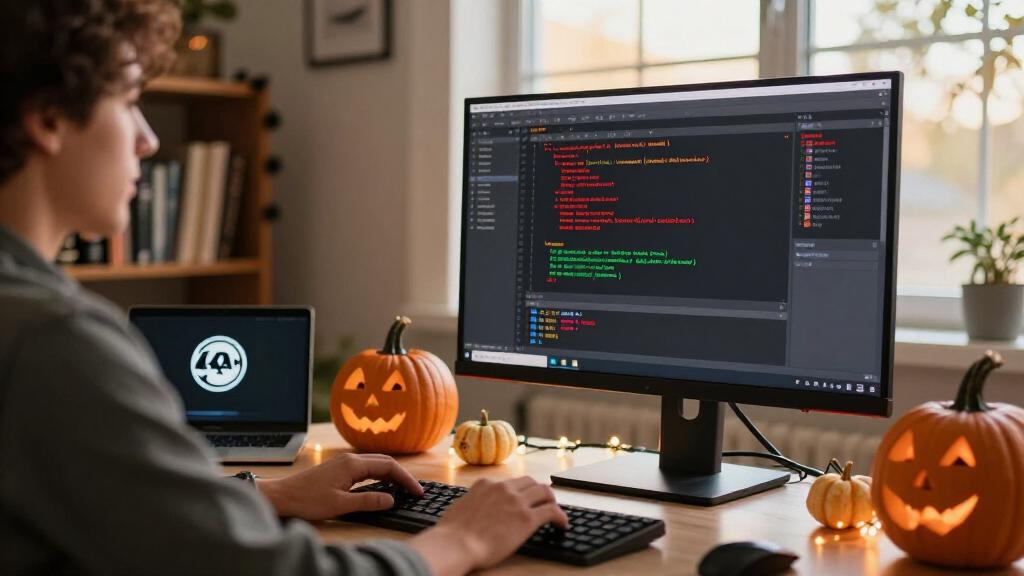

This guide shows you how to build a Halloween-themed software testing setup: a working test suite that validates a seasonal feature — a Halloween landing page, promotional banner, themed checkout flow, or game — across functional, visual, and performance checks. You will finish with automated smoke tests running locally, a short manual test checklist, and documented results you can hand to a developer or product owner.

Get business pricing on monitors, keyboards and dev gear
- Business-only prices and quantity discounts
- Tax-exempt purchasing
- Multiple users, one account, clear invoices

Software Testing Tools: WinRunner, SilkTest, LoadRunner, JMeter, TestDirector, and QTP
- ✔ Format: Printed book
- ✔ Tools covered: WinRunner, SilkTest, LoadRunner, JMeter, TestDirector, QTP
- ✔ Testing types: Functional and load/performance

Software Testing Programs with Test Cases (Version I)
- ✔ Format: Workbook-style resource
- ✔ Focus: Test cases and testing programs
- ✔ Version: Version I

Test Automation Tool
- ✔ Format: Digital/print resource
- ✔ Focus: Test automation
- ✔ Tools covered: Not specified
This guide is written for junior QA engineers, developers who test their own work, and hobbyists shipping a seasonal app or website. No prior automation experience is required, though basic comfort with the command line and HTML helps. Expect to spend two to four hours, most of it in setup and writing your first tests.
The Halloween framing is practical, not decorative: seasonal features are typically launched under deadline pressure, touch marketing content that changes late, and are removed after the holiday — all conditions that cause bugs. The workflow here (build a checklist, automate the smoke path, verify visuals, run a load pass) applies to any seasonal feature.
Difficulty: Beginner | Time: 2-4 hours
What You’ll Need
Tools & Materials:
- A computer with Node.js 18 or later installed (check with node –version)
- A web browser: Chrome or Firefox, current version
- A code editor such as VS Code
- Playwright (installed during the guide) for automated browser testing
- A free account on a visual testing service (e.g., Percy or Applitools) if you want automated screenshot comparison
- Access to the application or website under test, ideally a staging environment
- A spreadsheet app or markdown file for the manual checklist
Knowledge:
- Basic command line usage: changing directories, running commands
- Ability to read simple HTML selectors (ids, classes)
- Rough familiarity with what a test case is: action, input, expected result
If you do not have a live Halloween feature to test, build a small practice page first: a simple HTML page with a pumpkin image, a ‘Claim 20% Off’ button, and a countdown timer. Every step in this guide works against that page too. Do all testing against staging or a local copy, never a live production site, until the final verification pass.
Software Testing Tools: WinRunner, SilkTest, LoadRunner, JMeter, TestDirector, and QTP
This is the only product of the three that names its subject matter in full, and that alone puts it at the top of our list. Covering WinRunner, SilkTest, TestDirector, QTP, SilkTest, LoadRunner, and JMeter, it spans both functional testing and load and performance testing, which matters for readers who have not yet decided on a specialty. Compared with the Test Automation Tool title, which commits to one narrow theme, this book gives you a map of the whole tooling landscape — useful when a Halloween-season coursework deadline or job interview asks you to compare tools rather than master one.The tradeoff is age. Tools like WinRunner and QTP belong to an older generation of testing software, so readers expecting coverage of modern frameworks should adjust expectations. Still, as a foundational reference it beats both alternatives on raw coverage, and it pairs well with the workbook below as a theory-plus-practice set.
Pros:
- Covers six named testing tools in one volume
- Includes both functional and load testing perspectives
- Useful as a comparative reference when choosing tools
- Works as classroom or interview preparation material
Cons:
- Some covered tools are legacy and no longer industry-standard
- No publisher description to verify depth or exercise content
- Not suited to modern cloud or open-source testing stacks
Best for: Students and early-career QA engineers who want a single reference spanning multiple testing tool families
Not ideal for: Engineers who need current, modern-framework coverage or tool-specific certification prep
Bottom line: The broadest and most informative of the three, and the only pick that functions as a genuine multi-tool reference.
“The broadest and most informative of the three, and the only pick that functions as a genuine multi-tool reference.”
Software Testing Programs with Test Cases (Version I)
Where our top pick explains tools, this one practices the craft. The emphasis on test cases signals a workbook-style approach: instead of reading about what LoadRunner or QTP does, you work through concrete testing scenarios that build the habit of structured test design. For a beginner who finds theory-heavy books intimidating, that practice-first format is often the faster route to competence — and it is the reason this title ranks second rather than third despite having no named tools at all.Compared with the multi-tool book, it sacrifices breadth entirely. You will not learn tool comparisons here; you will learn how to think in test cases. The Version I labeling suggests this is the first in a series, so treat it as an entry point rather than a complete curriculum. Its main weakness is the same one affecting this whole roundup: almost no published detail, so the exact programs and cases inside remain a genuine gamble.
Pros:
- Practice-oriented format built around test cases
- Approachable for readers with no prior QA background
- Structured, versioned content suggests a planned learning path
- Complements a theory book as a practical companion
Cons:
- No named tools or frameworks covered
- Minimal product information available before purchase
- Version I implies incomplete coverage on its own
Best for: Hands-on learners and QA trainees who want guided test case practice rather than tool surveys
Not ideal for: Readers who need to learn a specific tool like JMeter or QTP
Bottom line: The best choice for building practical test-writing skills, provided you accept its total lack of tool-specific instruction.
“The best choice for building practical test-writing skills, provided you accept its total lack of tool-specific instruction.”
Test Automation Tool
This is the most specialized entry of the three, and also the least documented. The title points squarely at test automation, which is the most in-demand skill of the three themes represented here. For a reader who already knows manual testing basics and wants to move toward automated testing, this pick makes more sense than the beginner workbook, which stays at the manual test-case level.But the specialization cuts both ways. Unlike our top pick, it offers no comparative view of the tooling landscape, and unlike the workbook, it does not clearly advertise practice material. Essentially, you are buying on theme alone. We rank it third because ambiguity is a real cost: both alternatives at least tell you something concrete about their contents. Consider this one only if automation is your specific gap and you are comfortable with an unverified resource filling it.
Pros:
- Focused on automation, the most career-relevant testing theme
- Narrow scope makes it a quick supplementary read
- Suits readers transitioning from manual testing
- Simpler entry point than a six-tool reference
Cons:
- No product description or confirmed contents
- No comparison to other tools or frameworks
- Cannot serve as a primary learning resource
Best for: Manual testers looking to branch into automation with a low-commitment starting resource
Not ideal for: Anyone who needs verified content depth or multi-tool coverage before buying
Bottom line: A calculated bet on a relevant theme — worth it only for automation-focused buyers willing to accept the uncertainty.
“A calculated bet on a relevant theme — worth it only for automation-focused buyers willing to accept the uncertainty.”
As an Amazon Associate we earn from qualifying purchases.
Before You Start
Confirm three things before writing any tests. First, define scope in one sentence, for example: ‘Verify the Halloween landing page loads, the promo code SPOOKY20 applies at checkout, and the page renders correctly on mobile.’ Scope creep is the biggest time sink in seasonal testing. Second, get the acceptance criteria or design reference for the feature so you have something concrete to compare against. Third, confirm your test environment is stable — if the staging site is down or deploys mid-session, your results will be unreliable and you will waste time chasing phantom bugs.
Timing note: start this work at least one week before launch. Testing on October 30 leaves no room to fix what you find.
Step-by-Step Instructions
Step 1: Define scope and write the Halloween test checklist
Open a spreadsheet or markdown file and create a manual test checklist. List one test per row with three columns: Test, Steps, Expected result. For a typical Halloween promo feature, include at least these tests:
- Landing page loads and displays the themed hero image and headline
- Countdown timer to October 31 shows a correct future date and counts down
- Promo code (e.g., SPOOKY20) applies the correct discount at checkout
- Expired or invalid code is rejected with a visible error message
- Theme falls back to normal branding after the promotion ends
- Page renders correctly on a phone-width viewport (375px)
- All images load without broken links (no alt-text-only placeholders)
- No console errors on page load
Mark each row as Manual or Automated. Tests that click through a fixed path are good automation candidates; tests requiring judgment (‘does the pumpkin look good?’) stay manual.
Tip: Include a test for what happens AFTER Halloween. Seasonal features that fail to switch off are a classic bug: test that the promo, banner, and timer disappear on November 1 by temporarily changing your system clock or asking a developer to override the feature date.
Check: You have a checklist of 8-15 concrete tests, each with steps and an expected result, and each marked Manual or Automated.
Step 2: Install Playwright and scaffold the test project
Create a project folder and install Playwright. In your terminal, run:
mkdir halloween-tests && cd halloween-tests
npm init -y
npm install @playwright/test
npx playwright install
The last command downloads the browser binaries Playwright drives, and can take several minutes. When it finishes, create a file named playwright.config.js in the project root with this content:
const { defineConfig } = require(‘@playwright/test’);
module.exports = defineConfig({
use: {
baseURL: process.env.BASE_URL,
navigationTimeout: 30000
},
testDir: ‘./tests’
});
Then create a folder named tests and add an empty file named halloween.spec.js inside it.
Because the base URL is read from an environment variable, set it before each run. On macOS or Linux, run your tests with BASE_URL=’https://your-staging-host’ npx playwright test, substituting the real address of your staging or local site. On Windows PowerShell, run $env:BASE_URL=’https://your-staging-host’; npx playwright test. Using an environment variable keeps the real URL out of the config file, lets you switch between staging and a local copy with one change, and prevents accidental runs against production.
Tip: If npx playwright install fails or stalls, check your internet connection and disk space, then re-run it — it resumes cleanly.
Check: With BASE_URL set to your staging or local address, running npx playwright test in the project folder completes with a message that no tests were found, which confirms the toolchain works.
Step 3: Write the first automated smoke test
Open tests/halloween.spec.js and write a first test that loads the landing page and checks the headline. A minimal version looks like this:
const { test, expect } = require(‘@playwright/test’);
test(‘Halloween landing page loads’, async ({ page }) => {
await page.goto(‘/halloween’);
await expect(page.locator(‘h1’)).toContainText(‘Halloween’);
});
Run it with npx playwright test. If it passes, add a second test that clicks the promo button and verifies the user reaches the expected next page or sees the discount panel.
Tip: Select elements by stable ids, roles, or test-specific attributes wherever possible. Selectors based on themed CSS class names (like .spooky-banner) break whenever a designer renames styles.
Check: Two tests pass in the terminal output with a green checkmark and a total run time under one minute.
Step 4: Automate the promo code checkout path
Add a test that walks the money path: add an item to the cart, enter the promo code, and verify the discounted total. Compute the expected price in the test itself rather than hard-coding it where possible, so the test still works if prices change. Also add the negative case: enter an invalid code and verify the page shows an error message instead of applying a discount. Negative tests catch broken validation that happy-path testing never touches.
Tip: Coupon logic bugs are the single most common defect class in seasonal promotions. Test edge cases: code entered twice, code applied to already-discounted items, and code used after the expiry timestamp.
Check: The checkout test shows the correct discounted total, and the invalid-code test fails gracefully with a visible error — both pass automatically.
Step 5: Add mobile viewport and visual checks
Add a test block that sets a phone-sized viewport and re-checks the landing page. In Playwright, use test.use({ viewport: { width: 375, height: 667 } }) above the test, then assert that key elements are visible and that no horizontal scrollbar appears. Next, capture full-page screenshots for visual review. In your test, call await page.screenshot({ path: ‘halloween-mobile.png’, fullPage: true }) for both desktop and mobile widths, then open the PNG files yourself and compare them against the design reference.
For automated comparison, connect a visual testing service such as Percy: install its Playwright package (npm install –save-dev @percy/cli @percy/playwright), wrap your test command with npx percy exec — npx playwright test, and add Percy snapshot calls in your tests following the service’s current Playwright docs. Applitools works similarly with its eyes-playwright SDK.
Tip: Themed pages are heavy on large images and animated backgrounds. Check the browser console and network tab during your manual pass: a 4MB animated hero image is a performance bug, not a style choice.
Check: Screenshots exist for desktop and mobile, they match the design reference, and the mobile test passes with no horizontal overflow.
Step 6: Run a basic load check on the landing page
Seasonal pages get traffic spikes. Run a light load test before launch. A quick approach without new tooling: open the page, open browser developer tools, and record the total page weight and load time on a throttled ‘Fast 3G’ connection in the Network tab. Anything over roughly 10 seconds to interactive on mobile is a launch risk. For a fuller check, install the load testing tool k6 by downloading the binary from its official website, then create a file named loadtest.js with this content:
import http from ‘k6/http’;
import { sleep } from ‘k6’;
export const options = { vus: 50, duration: ’60s’ };
const TARGET_URL = __ENV.TARGET_URL;
export default function () {
http.get(TARGET_URL);
sleep(1);
}
Run it with k6 run -e TARGET_URL=’https://your-staging-host/halloween’ loadtest.js, substituting the full address of your staging landing page. Reading the target from an environment variable keeps the script reusable and prevents accidentally pasting a production URL into it.
Tip: Never run load tests against production. A synthetic traffic spike on a live site during peak Halloween shopping can cause a real outage.
Check: The page loads within your target time under throttling, and the load run shows no 5xx errors and acceptable response times at your chosen user level.
Step 7: Log defects and produce the results report
Record every failure in a shared bug tracker or document. For each defect, include: title, steps to reproduce, expected versus actual result, environment, and a screenshot. Playwright generates one automatically on failure — look in the test-results folder. Then write a one-page summary: what was tested, what passed, what failed, and a clear go/no-go recommendation for launch. Include the date through which the feature must be switched off.
Check: Every checklist row is marked Pass, Fail, or Blocked with a note, and the summary report exists and names each open defect.
Common Mistakes to Avoid
- Testing only the happy path — page loads, code works, checkout succeeds. — Write at least one negative or edge test for every positive test: expired codes, empty cart, missing images, post-holiday date. Edge cases are where seasonal features break.
- Writing brittle selectors tied to themed CSS classes or marketing copy. — Select by stable ids, roles, or data-testid attributes. Marketing rewrites Halloween headlines constantly; ‘Halloween’ in a text assertion will fail the moment copy changes.
- Testing against production or mixing environments mid-run. — Pass the target environment as an environment variable on every run (BASE_URL for Playwright, TARGET_URL for k6), and confirm the page footer or build number shows you are on staging before starting.
- Starting the week of October 31. — Begin at least a week before launch so found bugs can actually be fixed and retested. Put the start date on the calendar when the feature is scheduled.
Troubleshooting
Problem: Playwright tests fail with a timeout on page.goto.
Solution: Check that the BASE_URL environment variable is set correctly for this run and the staging site is reachable in your own browser. If the site is slow to load, raise the navigation timeout in the config rather than guessing at selectors.
Problem: Tests pass locally but fail intermittently (flaky tests).
Solution: Flakiness is usually a race: the test asserts before content loads. Prefer auto-waiting assertions like expect(locator).toBeVisible() over fixed sleeps, and avoid waitForTimeout entirely. If a countdown timer animation interferes, freeze time or wait for a stable element instead.
Problem: The promo code test fails even though the code works manually.
Solution: The test environment may have a different code, an expiry date already passed, or a rate limit triggered by repeated runs. Verify the code on staging manually, check the expiry timestamp, and use a fresh session (new browser context) for each test run.
Problem: Visual screenshots differ from the baseline for non-obvious reasons.
Solution: Animated backgrounds, countdown timers, and random elements change between captures. Mask the changing regions in the screenshot comparison, or freeze time and disable animations for the duration of the visual test.
What Success Looks Like
You have succeeded when all of the following are true: your automated suite runs green in under a few minutes from a single command; your manual checklist is fully marked Pass, Fail, or Blocked; every failure has a logged defect with reproduction steps and a screenshot; desktop and mobile screenshots match the design reference; and your one-page report gives a clear launch recommendation with a switch-off date for the feature. As a final check, have someone outside the testing work run the promo flow once on their own device following only your checklist — if they can complete it without asking you questions, your documentation holds up too.
Next Steps
Once the feature launches, run your automated suite once against production on launch day (by setting BASE_URL to the production address) to confirm the deploy matches staging behavior. Schedule a post-Halloween verification on November 1 (or simulate the date on staging) to confirm the theme, promo, and timer are gone. Save the Playwright project as a template — swapping selectors and URLs converts it into a reusable suite for the next seasonal campaign. If defects were found, track them to closure and re-run the affected tests. If you outgrow the basics, add CI integration (run the suite on every deploy via GitHub Actions) and cross-browser coverage using Playwright’s built-in multi-browser projects.
Frequently Asked Questions
Do I really need automated tests for a feature that only runs for a few weeks?
Yes for the money path and page-load checks, no for everything else. A short automated suite protects the two things that cannot fail quietly: the promo code applying the right discount and the page loading on mobile. Visual and copy checks can stay manual. Automation pays for itself the moment a late content change is deployed and you re-run the suite in two minutes instead of re-testing by hand.
Can I do this without writing code?
You can cover the manual checklist and visual review with no code, and that catches many seasonal bugs. For automation without scripting, recorders like Playwright Codegen (npx playwright codegen) generate test code from your clicks, which you can then save and run without writing anything from scratch.
What devices and browsers should I test on?
Prioritize Chrome and Safari on a phone-width viewport, plus one desktop browser. Seasonal landing pages get most traffic from mobile social links, and Safari handles fonts, animations, and date functions differently enough from Chrome to surface real bugs. Playwright’s WebKit build gives you Safari-engine coverage on any machine.
How do I test what happens after October 31 without waiting?
Three options, in order of preference: ask a developer to expose a date override in staging, change the expiry logic in your local copy, or temporarily set your test machine’s clock to November 1. Verify the banner disappears, the promo code is rejected, and normal branding returns, and record the result in your checklist.
The Halloween content is still being changed by marketing. When should I test?
Automate structural checks now (elements exist, code works, no console errors) using selectors that survive copy changes, and save text and visual assertions for a final pass 24-48 hours before launch when the content is frozen. Then re-run the full suite once after the last content deploy.