This checklist is for developers, QA professionals, and software teams who need a travel kit that supports focused work away from a permanent desk. It covers carrying gear, adding screen space, connecting devices, protecting on-screen work, and choosing a compact keyboard. Start with your work routine and the equipment you already bring.

Get business pricing on monitors, keyboards and dev gear
- Business-only prices and quantity discounts
- Tax-exempt purchasing
- Multiple users, one account, clear invoices
The sections follow a practical setup order: backpack first, then display and connections, followed by privacy and typing. Each pick has a specific role, while the charger section offers selection advice without naming a product. Check your laptop’s ports and dimensions before choosing accessories, since fit and compatibility depend on the devices you use.
Use the look-for lists as a quick review before buying, and read each verdict alongside its best-for and not-ideal notes. Think through where you work, how much you carry, and what needs to connect. Build around your actual setup, then add the pieces that solve a clear travel-work need.
Laptop backpack
A backpack is the foundation of a travel work kit: it needs to carry the laptop and the smaller tools that make a work session possible. The Timbuk2 Authority Laptop Backpack Deluxe is the listed pick for this slot. Before choosing it, compare its laptop compartment dimensions with your computer and consider whether your usual load also includes a charger, keyboard, or portable monitor. Fit the laptop first, then judge the remaining storage against your everyday kit.
A common mistake is to choose a bag by its appearance or capacity alone. A large main compartment does not guarantee that a particular laptop will sit securely, and a snug laptop area may leave little room for accessories. Check how the compartments are arranged and whether the layout suits how you reach for items while traveling. Map the contents you carry before deciding if the organization works for you.
Also consider how the loaded bag feels during your typical commute. Your laptop size, accessory mix, and travel routine all affect what makes a comfortable fit. Confirm the listed dimensions and carry details from the seller before purchase, especially if the bag needs to fit a particular travel setup. Match the bag to your load rather than packing around an uncertain fit.
What to look for:
- Laptop compartment dimensions that match your computer
- Room for the accessories you routinely carry
- Compartment layout that keeps frequently used items accessible
- A carry style suited to your commute and travel routine
Timbuk2 Authority Laptop Backpack Deluxe

The Timbuk2 Authority Laptop Backpack Deluxe is a highly organized, eco-friendly bag designed for work and travel. It features multiple compartments, a laptop sleeve, water-resistant bottom, and comfort-enhancing padding, making it ideal for carrying essentials securely and comfortably.
Pros:
- Highly organized with multiple compartments and features
- Eco-friendly materials and water-resistant design
- Comfortable padded straps and ventilated back panel
- Includes useful extras like luggage pass-through and key keeper
Cons:
- May be too large for minimal carry needs
- Limited color options (Eco Black only)
Best for: Developers who want a dedicated backpack for a laptop and travel-work essentials
Not ideal for: People whose laptop dimensions or accessory load do not fit its listed capacity
Bottom line: Confirm the laptop fit and space for your usual accessories before making this your everyday work bag.
Portable monitor
A second screen can make a travel setup feel more like a dedicated workspace, particularly when your tasks involve several windows. The listed pick is the Cocopar 15.6 Inch Portable FHD Monitor with Speakers, VESA Mount, and. Its product name is incomplete, so check the exact listing and included details before purchase. Confirm what the listing includes rather than assuming a cable, stand, or other accessory comes with it.
Compatibility deserves attention before screen features. Check how the monitor connects to your laptop, whether your laptop supports the required video output, and what power arrangement the listing specifies. A USB-C connector alone does not establish that a laptop will send video over that port. Verify the video path for your particular laptop and intended connection.
Also think about where the screen will sit while you work. Compare its dimensions with your travel bag, desk space, and preferred viewing position; check the stated resolution and whether the product’s listed mounting or support options suit your setup. A common buying mistake is to focus on screen size without considering placement and the extra items needed to use it. Plan the full setup before adding a portable display to your kit.
What to look for:
- Exact product listing and complete model details
- Laptop video-output compatibility for the intended connection
- Power requirements and included connection accessories
- Dimensions that fit your bag and available work surface
- A support or mounting arrangement that suits your workspace
Cocopar 15.6 Inch Portable FHD Monitor with Speakers, VESA Mount, and Cover Stan
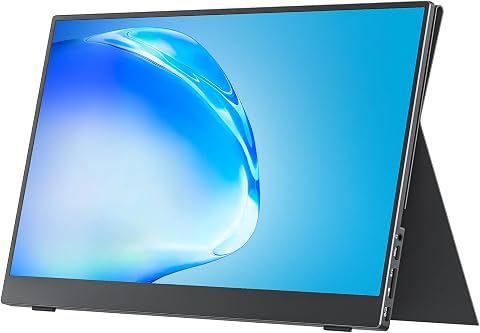
This 15.6-inch portable monitor features 1080p FHD resolution, 60Hz refresh rate, and 85% sRGB color gamut, making it ideal for travel, work, gaming, and content creation. It supports multiple connectivity options including USB-C and HDMI, with VESA mounting capability and a protective cover stand for versatile use.
Pros:
- High-resolution 1080p display with wide viewing angles
- Multiple connectivity options including USB-C and HDMI
- VESA mount compatibility for flexible setup
- Lightweight and slim design for portability
Cons:
- Requires device support for Thunderbolt 3.0/4.0 or USB 3.1 Type C DP ALT-MODE
- No built-in battery, dependent on external power
- Limited to 60Hz refresh rate, not ideal for high-speed gaming
Best for: Traveling developers who have confirmed their laptop can connect to the monitor
Not ideal for: Buyers who need a fully specified listing or have not checked video compatibility
Bottom line: Verify the complete listing, connection method, and power needs before relying on this monitor for travel.
USB-C docking station
A dock can help bring a laptop and several work devices together around one connection point. The pick here is the Anker Prime DL7400 14-in-1 DisplayLink Docking Station. Because the product name identifies DisplayLink, check the seller’s compatibility and setup information for your operating system and intended displays before purchase. Confirm DisplayLink support for the laptop you plan to use.
Do not assume that a high port count means every port suits your equipment or that every display arrangement will work as expected. List the peripherals you intend to connect, then compare their connectors and requirements with the dock’s specifications. Check whether the laptop connection and display outputs match your setup. Compare each device connection against the product details instead of relying on the number of ports.
Another common mistake is overlooking desk placement and cable reach. A dock used while traveling still needs to fit the workspace and connect comfortably to the laptop and peripherals. Review the dimensions, included cables, power details, and any software or driver instructions in the listing. Check setup requirements ahead of your first work session so the dock fits both your devices and routine.
What to look for:
- DisplayLink compatibility information for your operating system
- Ports that match your specific peripherals
- Display outputs that support your intended screen setup
- Laptop connection, power details, and included cables
- Dimensions and setup requirements for your workspaces
Anker Prime DL7400 14-in-1 DisplayLink Docking Station

This docking station connects up to three 4K displays and offers USB-C, USB-A, HDMI, DisplayPort, Ethernet, audio, and SD/TF card ports. It supports laptop charging up to 140W, with a built-in display and fan for monitoring and cooling.
Pros:
- Supports up to three 4K external displays
- Provides up to 140W laptop charging
- Broad selection of ports, including 2.5Gbps Ethernet
- Built-in smart display and fan cooling
Cons:
- Requires a DisplayLink driver for triple-display use
- DRM-protected streaming may show a black screen
- Front USB-C ports do not support video output
Best for: Developers connecting multiple compatible devices through a travel dock
Not ideal for: Buyers who have not confirmed DisplayLink and peripheral compatibility
Bottom line: Match the dock’s documented ports and DisplayLink requirements to your laptop and peripherals.
Laptop privacy screen
A privacy filter may suit work in shared spaces where people can see your screen from nearby. The listed pick is the 3M Gold Frameless Privacy Filter for 14-Inch Widescreen Laptop. Its stated screen size and format make fit checks essential: confirm your laptop’s display dimensions and aspect ratio against the product listing. Measure the visible display rather than using the laptop’s overall body size.
A frequent mistake is buying by the “14-inch” label alone. Laptop screens with the same diagonal measurement can differ in their proportions or visible area, so compare the exact display measurements and mounting method. Check the listing for how the filter attaches and whether its design suits your screen bezel. Check the attachment method before ordering to avoid a filter that does not sit correctly.
Consider your work habits, too. A filter changes how you view the screen, and the product name alone does not establish how it will look or feel with your display. Review the seller’s compatibility details and any stated care or handling guidance. Prioritize a precise fit and make sure the attachment approach works for a laptop you carry and open frequently.
What to look for:
- Visible screen dimensions and widescreen aspect ratio
- Laptop display measurements that match the listing
- Attachment method compatible with your screen bezel
- Seller guidance on fit and handling
- A design that suits how often you travel with the laptop
3M Gold Frameless Privacy Filter for 14-Inch Widescreen Laptop

This privacy filter keeps your personal information secure from prying eyes while maintaining clear visibility for the user. It features a reversible design with a vivid gold or black side and uses an optically clear adhesive for easy application.
Pros:
- Provides high-level privacy protection
- Reversible design offers two color options
- Clear visibility for the user
Cons:
- May slightly reduce screen brightness
- Requires careful application to avoid bubbles
Best for: Laptop users who work where nearby people may see their display
Not ideal for: Anyone who has not confirmed the laptop’s exact display fit
Bottom line: Compare the visible screen measurements and attachment method before choosing this filter.
Compact mechanical keyboard
A compact keyboard can be useful when you prefer a separate typing setup but want to keep travel gear manageable. The pick is the Logitech G PRO Tenkeyless Mechanical Gaming Keyboard, Clicky Switches,. Its name indicates a tenkeyless layout and clicky switches; the product name is incomplete, so verify the full listing and connection details before deciding. Check the complete product listing for the exact model and what it includes.
Tenkeyless means the layout omits the number pad, which may not suit people who enter numbers frequently or depend on a full-size layout. Compare the keyboard’s layout with your work habits and the space available at your usual travel desk. Clicky switches may also be a poor fit for shared or quiet settings, so consider where you expect to type. Match the layout to your work and the noise expectations of the places you use it.
Check the keyboard’s dimensions, weight, and connection requirements against your bag and laptop. Do not assume the connection type or included cable from the product name; confirm those details in the listing and check that your laptop supports the connection. Review connection and carry details before treating it as a travel-ready part of your kit.
What to look for:
- Complete product listing and exact model details
- Tenkeyless layout suitability for your typing tasks
- Clicky switch noise fit for shared workspaces
- Dimensions and weight that work with your travel bag
- Connection type and included cable compatibility
Logitech G PRO Tenkeyless Mechanical Gaming Keyboard, Clicky Switches, Black

This compact wired gaming keyboard has a tenkeyless layout with GX Blue clicky mechanical switches and RGB LIGHTSYNC backlighting. It includes onboard lighting memory, a detachable Micro USB cable, adjustable typing angles, and rubber feet for stability.
Pros:
- Compact tenkeyless design frees desk space
- Clicky switches provide audible and tactile feedback
- RGB lighting can be customized and saved to onboard memory
- Detachable cable and adjustable angles support portability and comfort
Cons:
- F-key programming requires Logitech G HUB software
- Not water resistant
- Uses Micro USB connectivity
Best for: Developers who prefer a tenkeyless keyboard and clicky switches
Not ideal for: People who need a number pad or quieter typing in shared spaces
Bottom line: Confirm the full listing, connection details, and switch noise fit your travel routine.
GaN laptop charger
A charger is essential to a portable work setup, but this checklist does not name a specific product for the slot. When considering a GaN laptop charger, start with your laptop’s own charging requirements and the manufacturer’s guidance. Match the required wattage and charging standard to your computer before comparing chargers.
One common mistake is choosing by connector shape alone. USB-C devices may have different power needs, and a charger’s total output may be shared across ports. Review the listed output for the port you will use, whether it can deliver the laptop’s required power, and what happens when other devices are connected at the same time. Check per-port output for the way you plan to charge.
Think about the full travel arrangement as well. Confirm which cable is needed and whether it is included, then consider how many devices you want to charge together. A compact charger that cannot meet your laptop’s requirements or your multi-device routine will not serve the intended role. Verify the charger and cable against your laptop and accessories before packing it.
What to look for:
- Laptop manufacturer’s required charging wattage and standard
- Output available from the specific port you plan to use
- Power allocation when charging multiple devices
- Compatible cable and whether it is included
- A port layout suited to your travel charging routine
Build the kit in a practical order: first confirm the backpack fits your laptop, then prioritize the charger your computer requires. Add a dock or portable monitor if your work benefits from more connections or screen space, and choose the privacy filter and keyboard based on where and how you work. Start with fit and power, then add the accessories that address your daily needs.
Before checkout, compare dimensions, ports, power details, and included accessories across the listings. A little checking can make a travel setup easier to pack and more dependable for your routine. Choose for the work you actually do, and build the kit one useful piece at a time.