
This checklist is for developers and QA teams setting up a home network for everyday work, testing, and connected equipment. It covers a range of networking and support gear, from the router that anchors the network to tools for checking cable connections.

Get business pricing on monitors, keyboards and dev gear
- Business-only prices and quantity discounts
- Tax-exempt purchasing
- Multiple users, one account, clear invoices
The sections follow the network setup path: start with Wi-Fi and wired connections, then consider storage, cable verification, and power backup. Each pick has a short verdict, a best-fit use, and a few points to check before buying.
Use this as a compatibility checklist, not a one-size-fits-all parts list. Match each item to your devices, ports, cabling, network layout, and space; confirm the full product details where a name is cut off before ordering.
Wi-Fi Router
A router is the starting point for home connectivity, so its fit depends on how many devices need access and how your work is split between wireless and wired connections. The TP-Link Tri-Band WiFi 7 Router (Archer BE600) is the named pick here; check its full specifications against your internet service, client devices, and preferred setup before deciding it suits your network.
A common mistake is choosing a router by its headline wireless standard alone. Check whether your computers and test devices can use the features you want, and whether the router’s available connections suit any wired equipment. Consider placement, too: the router needs a practical location for coverage and access to the required connections. Confirm setup and management requirements if you expect to adjust the network regularly. If the home has dead zones or several rooms with different connectivity needs, map those areas before selecting a single-router setup.
What to look for:
- Confirm compatibility with your internet service and client devices
- Check wired connection options for your existing equipment
- Plan router placement around coverage and available connections
- Review setup and network-management requirements
- Compare the full model specifications before purchase
TP-Link Tri-Band WiFi 7 Router (Archer BE600)
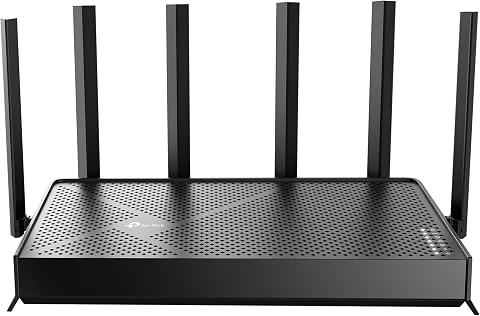
The TP-Link Archer BE600 is a WiFi 7 router offering expansive coverage and high-speed connectivity suitable for 4K/8K streaming, gaming, and smart home devices. It features multiple gigabit ports, advanced security, and easy management via the Tether app, making it ideal for large homes and high-demand networks.
Pros:
- High-speed tri-band WiFi 7 with up to 9.7 Gbps total bandwidth
- Excellent coverage suitable for large homes
- Multiple gigabit ports for versatile wired connections
- Advanced security features and easy management via app
Cons:
- Complex setup for non-technical users
- Premium price may be high for some budgets
- Large size may require ample space for placement
Best for: Home developers checking a Wi-Fi 7 router against their devices and service
Not ideal for: Setups whose wired or coverage needs do not match the router
Bottom line: Confirm service, device, placement, and connection fit before making this the network’s starting point.
Managed Network Switch
A managed switch can be the wired connection hub for a home lab or desk setup, especially when the network includes multiple devices that benefit from Ethernet. The named pick is the NETGEAR 26-Port PoE Gigabit Ethernet Smart Managed Network Switch (GS7; the supplied model name appears truncated). Verify the complete model identifier and specifications so you can compare it with your intended layout.
Port count is only one part of the decision. Count the devices you expect to connect, allow for reasonable expansion, and check whether the switch’s PoE capabilities match the equipment you plan to power. A frequent mistake is assuming every connected device can use PoE or that every PoE device has the same requirements. Confirm power compatibility and the management functions you actually need. Also consider where the switch will sit, how its connections will reach your devices, and whether your existing router and cabling support the planned arrangement.
What to look for:
- Confirm the full GS7 model name and specifications
- Count current wired devices and leave room for additions
- Check PoE compatibility for each device you intend to power
- Review managed features against your network needs
- Plan switch location and cable runs
NETGEAR 26-Port PoE Gigabit Ethernet Smart Managed Network Switch (GS724TP)

The NETGEAR GS724TP is a smart managed network switch with 24 PoE+ Gigabit Ethernet ports, supporting high-speed connectivity and power over Ethernet for compatible devices. It includes 2 SFP ports for fiber optic connections and offers remote management via NETGEAR Insight, suitable for versatile installation in various environments.
Pros:
- High-speed gigabit Ethernet ports with PoE+ support
- Includes fiber optic SFP ports for network expansion
- Remote management capabilities via NETGEAR Insight
- Flexible mounting options for various setups
Cons:
- Requires compatible PoE devices to utilize PoE+ ports
- Management features may be complex for beginners
Best for: Home labs that need multiple wired connections and compatible PoE support
Not ideal for: Small setups with few wired devices or no use for managed features
Bottom line: Verify the full model and match its ports, PoE, and management features to your equipment.
USB Ethernet Adapter
A USB Ethernet adapter can provide a wired network connection for a device that lacks a suitable Ethernet port, but the supplied pick name needs careful interpretation: “USB-C Magnetic Right-Angle Adapter, 240W, 2-Pack” does not identify an Ethernet adapter. Confirm the complete product details before treating it as network gear; the name alone does not establish that it carries Ethernet data.
A common buying mistake is to infer function from connector shape or a power rating. USB-C accessories can serve different purposes, and a right-angle or magnetic design does not by itself confirm network compatibility. Check that the item explicitly supports Ethernet, the connection type your computer needs, and the operating system you use. Verify what is included in the pack and whether an additional cable or adapter is required. If you need wired access for testing, ensure the complete connection path—from computer port through adapter to network cable—is supported by your setup.
What to look for:
- Verify the product explicitly supports Ethernet data
- Confirm compatibility with your computer’s USB-C port
- Check operating-system support for the adapter
- Confirm included components and any extra cable needs
- Review the complete product listing before purchase
USB-C Magnetic Right-Angle Adapter, 240W, 2-Pack

This two-pack of magnetic USB-C adapters supports charging up to 240W and USB 2.0 data transfer up to 480 Mbps. Each adapter rotates 360 degrees and reverses 180 degrees; video output and USB-C hubs are not supported.
Pros:
- Supports charging up to 240W with compatible devices, chargers, and cables
- Rotating right-angle design can help keep the connector out of the way
- Magnetic tip allows quick attachment and removal
- Can serve as a dust cover for the USB-C port
Cons:
- Does not support video output or USB-C hubs
- Data transfer is limited to USB 2.0 speeds and not recommended for large files
- Magnetic tips need protection from metal particles and debris
Best for: Shoppers who verify the full listing is a USB-C Ethernet adapter
Not ideal for: Anyone relying on the supplied name alone to confirm Ethernet support
Bottom line: The provided product name does not establish Ethernet functionality, so check the full specifications first.
Network Attached Storage
Network attached storage can be useful when a developer wants files available to more than one device on a home network. The UGREEN NASync DXP4800 Pro 4-Bay Network Attached Storage is the named pick; consider it in relation to the data you plan to keep, who needs access, and how it will connect to the network.
A common mistake is to focus on the number of bays without checking the rest of the storage plan. Confirm drive compatibility, capacity needs, and the setup you intend to use, including how you will keep a separate copy of important files. Also check the NAS connection options against your switch or router and the devices that will access it. Think through where it will live, who will administer it, and how access will be managed. Network storage can make shared files convenient, but it should fit your workflow and maintenance habits rather than being treated as a substitute for a backup plan.
What to look for:
- Check drive compatibility and the storage capacity you need
- Plan a separate backup for important files
- Confirm network connections match your router or switch
- Consider access and administration needs
- Choose a practical location for the device
UGREEN NASync DXP4800 Pro 4-Bay Network Attached Storage

This 4-bay NAS is engineered for IT professionals and power users, featuring an Intel Core i3-1315U processor and 8GB of DDR5 RAM for smooth virtualization and Docker workflows. It supports up to 144TB of total storage with dual M.2 PCIe 4.0 slots and offers high-speed connectivity via 10GbE and 2.5GbE ports.
Pros:
- High-performance Intel Core i3 processor with expandable DDR5 RAM supports heavy multitasking and virtualization.
- Blazing-fast network speeds with dual ports (10GbE + 2.5GbE) reaching up to 1.25GB/s.
- Massive storage flexibility with support for up to 144TB and dual M.2 SSD cache slots.
- Robust security features including local AI processing, Data Vault encryption, and TV SD certification.
Cons:
- Hard drive rotational speed is limited to 7200 RPM, which may be slower than enterprise-grade 10k/15k RPM drives.
- Requires separate purchase of hard drives as none are included.
Best for: Developers planning shared network storage for multiple devices
Not ideal for: Users without a clear storage, access, and backup plan
Bottom line: Match the NAS to your drive, network, access, and backup plans before setting it up.
Ethernet Cable Tester
A cable verifier helps investigate whether a wired connection or cable run is behaving as expected. The named pick is the Fluke Networks MicroScanner2 Copper Cable Verifier with IntelliTone To; the supplied name appears truncated, so confirm the complete product details and supported functions before selecting it for a particular troubleshooting task.
A frequent mistake is assuming every tester checks every cable type or fault in the same way. Start by identifying the cables and connections in your setup, then compare those needs with the tool’s stated compatibility and functions. Consider whether you need basic verification, help locating a cable, or another specific capability, and ensure the full listing confirms it. Also check what accessories are included and whether they fit your cable runs. For a home lab, prioritize a tool that matches the connections you actually maintain and that you can use comfortably when tracing a problem from one end of the network to the other.
What to look for:
- Confirm the complete MicroScanner2 product name
- Check supported cable types and connections
- Match the tester’s functions to your troubleshooting tasks
- Review included accessories for your cable setup
- Consider how you will trace and access cable runs
Fluke Networks MicroScanner2 Copper Cable Verifier with IntelliTone Toning

The MicroScanner2 is a cable tester that displays cable length, wiremap, cable ID, and distance to faults on a single screen. It supports troubleshooting for RJ11, RJ45, coax, and tests 10/100/1000Base-T and VoIP networks.
Pros:
- Comprehensive cable testing features
- Displays multiple diagnostics on one screen
- Supports various cable types and network speeds
Cons:
- Limited to copper cable verification
- No mention of battery life or durability
- Requires some technical knowledge to interpret results
Best for: People who need to check copper cable runs in their setup
Not ideal for: Buyers whose cable types or required functions are not confirmed
Bottom line: Verify supported cables and functions against your actual troubleshooting needs.
Uninterruptible Power Supply
A UPS can keep selected equipment connected to backup power during a power interruption, depending on the unit and load. The GoldenMate 1500VA/1200W Lithium UPS Battery Backup & Surge Protector is the named pick; check its full specifications and the equipment you intend to connect before deciding whether it fits your setup.
A common mistake is treating the capacity label as a guarantee that every device can run for a desired duration. List the equipment you want protected, check its power requirements, and compare the total load with the unit’s stated limits. Decide which devices matter most during an outage, since a router, storage device, and workstation can have different priorities. Review the available outlets and the product’s stated battery and protection details, then consider where the UPS can be placed near the equipment. Keep expectations grounded in the manufacturer’s specifications for your actual load, and confirm the complete model information before purchase.
What to look for:
- Compare connected equipment’s power needs with the stated limits
- Prioritize which devices need backup power
- Check outlet count and connection types
- Review battery and surge-protection specifications
- Confirm the full product model and placement requirements
GoldenMate 1500VA/1200W Lithium UPS Battery Backup & Surge Protector, Gray

The GoldenMate UPS uses a LiFePO4 battery pack (51.2 V, 5.8 Ah) that delivers over 10 years of life and more than 3,000 charge cycles, eliminating the need for regular replacements. It provides 1500 VA/1200 W pure sine wave output with Automatic Voltage Regulation, eight widely spaced NEMA outlets, and front‑panel USB‑C/A charging ports, all monitored by an LCD display.
Pros:
- LiFePO4 battery offers >10‑year lifespan and >3,000 charge cycles
- 1500 VA/1200 W pure sine wave output with AVR protects sensitive equipment
- Eight widely spaced outlets plus USB‑C/A charging ports for versatile connectivity
- LCD display provides real‑time monitoring and mute/LCD off control
Cons:
- Heavy at 15 kg and relatively large footprint
- Only supports 90–140 V AC input; generator power may not be recognized
Best for: Home network users planning backup power for selected equipment
Not ideal for: Setups that exceed the unit’s stated load or outlet needs
Bottom line: Choose connected devices first, then confirm the UPS supports their combined requirements.
Use a budget-first buying order that starts with the network essentials for your current setup: identify connectivity gaps, count wired devices, and confirm which equipment needs storage or backup power. Resolve the product-name ambiguity for the USB-C adapter and the truncated model names before spending on those items.
You do not need every category at once. Build around your actual devices and workflow, check each connection for compatibility, and add the next piece when it solves a clear need. A few well-matched components make a more useful checklist than buying gear simply to fill every slot.