This checklist is for developers who want a practical way to protect project files, credentials, and recovery options. Think through what would be hardest to replace, then choose storage and access safeguards that fit your workflow. Start with your recovery needs, not a pile of devices.

Get business pricing on monitors, keyboards and dev gear
- Business-only prices and quantity discounts
- Tax-exempt purchasing
- Multiple users, one account, clear invoices
The sections cover portable storage, a hardware security key, NAS planning, and backup power. Each one explains what the slot is meant to address, what to check before buying, and where the listed pick may fit. Use the sections as decision points for a recovery setup that suits your devices and work habits.
Before relying on any item, confirm its connections, supported features, and compatibility with your computer and backup process. Keep more than one recoverable copy of important work, and make sure you can access it when needed. Test your restore steps so the checklist supports an actual recovery, not just storage.
Portable SSD
A portable SSD can give you a compact place to keep project files or a working backup that travels with you. The Samsung T9 Portable SSD 4TB is the listed pick for this slot. Before choosing it, check that your computer has a compatible USB connection and that your workflow can use the drive’s stated interface. Connection compatibility matters more than a headline transfer figure if the host device cannot make use of it.
A common mistake is treating one portable drive as a complete backup plan. A device can be lost, damaged, or unavailable along with the computer it was meant to protect. Decide what folders need regular copies, how often you will update them, and where the drive will be stored between backups. Keep the backup separate from the machine when practical, and periodically open files or restore a sample to confirm the process works.
Check capacity against the data you plan to preserve and leave room for future work. Confirm the included connection details and any software or operating system requirements before purchase. Choose for your actual workflow: a drive that is easy to connect and update is more useful than one that stays unused.
What to look for:
- Confirm your computer supports the drive’s USB connection.
- Compare usable capacity with the folders you plan to back up.
- Check cable and port compatibility with your devices.
- Plan how often you will update the backup.
- Confirm your restore process can read the saved files.
Samsung T9 Portable SSD 4TB, USB 3.2 Gen 2×2 External SSD, Up to 2,000 MB/s
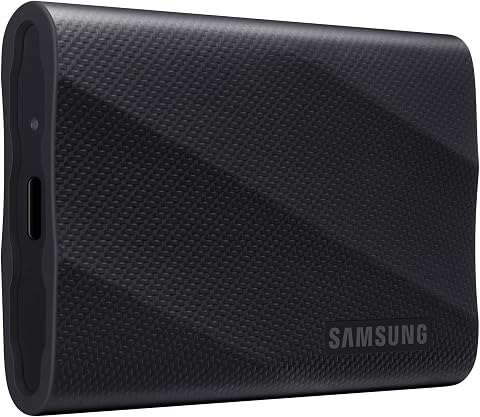
The Samsung T9 Portable SSD delivers up to 2,000 MB/s sequential read and write speeds over a USB 3.2 Gen 2×2 interface, making large file transfers fast and reliable. With a 4 TB capacity, rugged drop resistance, dynamic thermal guard, and AES‑256 hardware encryption, it’s built for creators who need performance and durability on the go.
Pros:
- Blazing transfer speeds up to 2 GB/s when paired with a compatible USB‑C port.
- Large 4 TB storage capacity for extensive media libraries and projects.
- Dynamic Thermal Guard keeps the drive cool during sustained heavy use.
- Rugged design tolerates drops up to 9.8 ft and includes AES‑256 encryption.
Cons:
- Maximum speeds require a USB 3.2 Gen 2×2 host and UASP‑enabled cable; slower on older ports.
- Performance can vary depending on the host device’s configuration.
Best for: Developers who want portable project backup storage.
Not ideal for: Anyone whose device lacks a compatible USB connection.
Bottom line: Choose the Samsung T9 when its connection and capacity fit your backup routine.
USB Flash Drive
The listed Apricorn Aegis Padlock USB drive is a hardware-encrypted portable storage option for files that need a separate access layer. Before buying, confirm that its connection works with your computer and that you understand how its access controls are configured. Know the unlock procedure before storing the only copy of anything important.
A frequent mistake is assuming encryption alone makes a backup recoverable. You still need a consistent copy schedule, a safe way to retain access credentials, and a test that confirms the files can be opened on the system you expect to use. Consider whether the drive’s capacity suits the intended files and whether your organization permits this type of removable storage. Protect access information so a lost credential does not turn a backup into an unusable one.
Check the exact model details, supported operating systems, connection type, and any management requirements. The product name describes a 2TB hardware-encrypted portable external drive, but does not settle every compatibility question. Verify before committing, especially if you plan to use the device across multiple computers or as part of a team recovery process.
What to look for:
- Verify supported computers and operating systems.
- Confirm the connection type matches your devices.
- Understand the unlock and credential recovery process.
- Check capacity against the files you intend to store.
- Test access to a backup copy on a second compatible device.
Apricorn Aegis Padlock 2TB Hardware-Encrypted Portable External Hard Drive

This portable 2TB drive uses 256-bit AES XTS hardware encryption and an integrated keypad for PIN-based access. It connects over USB 3.0, requires no software or administrator rights, and supports up to five user PINs plus an administrator PIN.
Pros:
- Hardware encryption with keypad-based PIN access
- Works without software installation or administrator rights
- Compatible with PC, Mac, and USB-enabled operating systems
- Rugged design with epoxy coating and brute-force self-destruct feature
Cons:
- Uses a rotating 5400 rpm hard drive
- Requires PIN entry through the integrated keypad
Best for: Users who want hardware-encrypted portable storage.
Not ideal for: Workflows that cannot support its access or connection requirements.
Bottom line: Use the Aegis Padlock only after confirming both compatibility and credential recovery.
External Hard Drive
The SanDisk Extreme Portable SSD is the listed external-drive pick, with a stated 4TB capacity. It can serve as another local copy of work, provided its connection fits the computers involved. Check the product’s exact interface and your device ports before purchase. Confirm the connection first rather than assuming every external drive works with every setup.
A common buying mistake is counting a second drive as an independent backup while keeping it beside the primary computer all the time. That can leave both copies exposed to the same loss or incident. Decide where this drive will live, how it will be updated, and which files deserve priority. Separate copies by location when your recovery plan calls for protection beyond a single workspace.
Think about capacity needs, portability, and how you will check backup integrity. Make sure your backup software or manual process can write to the drive and restore files from it. The product name supplies capacity and a transfer-rate claim, but you should confirm device compatibility and workflow fit for yourself. Practice a restore before depending on this drive during a time-sensitive recovery.
What to look for:
- Confirm interface and port compatibility.
- Estimate current backup size and likely growth.
- Choose a storage location separate from your main computer.
- Check that your backup method can restore from the drive.
- Test representative files after a backup completes.
SanDisk Extreme Portable SSD, 4TB, Up to 2,000MB/s

A pocket-sized 4TB external SSD for backing up projects, freeing device space, and organizing content across devices. It offers read speeds up to 2,000MB/s, IP65-rated water and dust resistance, and protection against drops up to 3 meters.
Pros:
- Compact, pocket-sized portable design
- Read speeds up to 2,000 MB/s
- IP65-rated water and dust resistance
- Up to 3 m drop protection and password protection with 256-bit AES encryption
Cons:
- Write speeds are lower than the stated maximum read speed
- Encryption requires a software download and is supported on Windows 10+ and macOS 12+
Best for: Developers adding a portable local copy to their routine.
Not ideal for: Anyone expecting one drive alone to cover every recovery scenario.
Bottom line: The SanDisk can add local capacity when its connection and storage plan fit.
Hardware Security Key
A hardware security key can support account access recovery by providing a physical factor for sign-in. The listed pick combines a FIDO2 security key with a MIFARE DESFire NFC smart card, but the product name alone does not establish which services or devices support every feature. Check service compatibility for the accounts you need to protect before choosing a key.
A common mistake is registering a single key and then storing it where it could be lost alongside the primary device. Review each service’s recovery options and consider whether it permits registering a backup key. Keep recovery codes or alternate access methods in a secure place, following the service’s guidance. Plan for a lost key while you still have normal account access.
Confirm whether you need NFC, a particular connector, or support for specific operating systems and browsers. If using the smart-card function, verify that your device and intended software can work with it. Test sign-in and recovery on the accounts that matter. Validate the full login path before treating the key as part of your recovery plan.
What to look for:
- Check FIDO2 support for each important account.
- Confirm connector and NFC compatibility with your devices.
- Verify whether the smart-card feature suits your intended use.
- Register and test a backup sign-in method where supported.
- Store recovery information securely and separately.
FIDO2 Security Key with MIFARE DESFire NFC Smart Card for 2FA MFA

This security key supports FIDO2 v2.1, U2F, and CTAP1 for secure two-factor authentication and passwordless sign-in. It features a MIFARE DESFire EV2 card for physical access control, with AES encryption and a tamper-resistant secure element.
Pros:
- Supports multiple authentication standards for versatile security
- Combines digital and physical access in one card
- Certified secure element with tamper resistance
- Swiss-engineered design with reliable warranty
Cons:
- Requires compatible services and physical access systems
- May be complex for users unfamiliar with smart cards
Best for: People securing developer accounts with supported services.
Not ideal for: Accounts or devices that do not support the key’s features.
Bottom line: Confirm account support and test a fallback before relying on this key.
NAS Enclosure
A NAS enclosure can be part of a shared or centralized backup plan, but no specific product is listed for this section. Begin by deciding who needs access, which devices will send backups, and whether the system will be used only on a local network or remotely. Define the recovery role before comparing enclosures.
Common mistakes include buying around a drive-bay count without checking the storage workflow, and assuming a NAS automatically provides an independent backup. Consider drive compatibility, network connection, supported backup software, account controls, and how you would restore files if the enclosure or network were unavailable. Plan for device failure and keep a separate recovery copy when your needs call for it.
Check whether the enclosure supports the operating systems and backup tools in your environment. Account for the setup and maintenance you can realistically handle, including updates and access management. If multiple developers will use it, settle permissions and retention expectations before moving work there. Test a restore path from a representative computer before making the NAS central to recovery.
What to look for:
- Confirm drive compatibility and supported capacity.
- Check network connections and operating system support.
- Verify backup software can write to and restore from the NAS.
- Plan user access, permissions, and update responsibilities.
- Maintain and test a separate recovery copy where needed.
Surge Protector
The listed BLUETTI FridgePower Power Station is described as an expandable battery, making it a power-related option to evaluate for continuity planning. The product name does not establish that it functions as a surge protector or that it suits a particular computer setup. Verify the intended power role before treating it as protection for development equipment.
A common mistake is assuming a battery backup, power station, and surge protector are interchangeable. Check the manufacturer’s specifications for output, supported devices, overload protection, and any transfer behavior relevant to your equipment. Consider what must remain powered during an interruption and for how long, then compare that need with documented capabilities. Match specifications to equipment rather than relying on the product category or name.
Also confirm whether your devices can connect safely and whether any required cables or setup steps are supported. Follow the manufacturer’s instructions and your organization’s electrical guidance. A power device cannot replace file backups, so keep a recovery copy of important work separately. Protect the data itself with tested backups even when you have a power continuity plan.
What to look for:
- Verify whether the product provides the surge protection you need.
- Check output and device compatibility in the manufacturer’s specifications.
- Estimate which equipment needs power during an interruption.
- Confirm connection requirements and setup instructions.
- Keep tested file backups independent of power equipment.
BLUETTI FridgePower Power Station, 2016Wh Expandable 4032Wh LFP Battery

The BLUETTI FridgePower is a compact, ultra-slim backup power station designed specifically for household refrigerators and critical appliances. It features an 1800W output, low standby power, and can be expanded up to 8064Wh for extended runtime during power outages.
Pros:
- Ultra-slim, space-efficient design fits behind appliances or in tight spaces
- High power output suitable for refrigerators, sump pumps, and other household devices
- Expandable battery capacity for longer backup runtime
- Smart UPS with quick switching during power outages
Cons:
- Relatively heavy at 44 pounds, may require assistance for installation
- Limited runtime of approximately 4 hours at full load
- Requires some DIY installation and mounting
Best for: Users evaluating backup power for development equipment.
Not ideal for: Anyone needing a confirmed surge protector without spec verification.
Bottom line: Verify the FridgePower’s documented protections before using it for this slot.
Prioritize spending by recovery impact: first cover files and accounts that would be hardest to replace or regain, then add storage capacity and shared backup infrastructure as your workflow requires. Check compatibility before purchasing, and account for any setup or credential recovery needs. Build the essentials first and expand the plan with clear purpose.
A dependable checklist is one you can follow on a busy day. Keep your copies current, store access details safely, and periodically practice restoring files and signing back in. Small, repeatable habits make recovery easier to manage. Choose the pieces that fit your setup and keep refining the process as your work changes.