
If you miss setting your dash cam to the right video quality, all your footage could be blurry and useless when you need it most. The most essential setting is resolution and frame rate. Poor configuration can mean missing important details like license plates or signage. Ensuring your dash cam is properly calibrated, with high-quality video, guarantees clearer, more reliable footage. Keep these tips in mind, and you’ll find out how to avoid common mistakes that compromise your evidence.

Get business pricing on monitors, keyboards and dev gear
- Business-only prices and quantity discounts
- Tax-exempt purchasing
- Multiple users, one account, clear invoices
Key Takeaways
- Ensure your video quality is set to high resolution for clear, legible footage of license plates and signs.
- Regularly calibrate your dash cam to maintain accurate recording and optimal image clarity.
- Properly adjust camera placement and angle to avoid blind spots and glare, especially during night driving.
- Enable night mode settings like increased exposure and glare reduction features for better low-light footage.
- Regularly review and update your dash cam settings to adapt to changing conditions and prevent footage from being useless.
Why Your Dash Cam Footage Might Be Useless When You Need It

Even the best dash cam footage can be useless if it isn’t set up properly before an incident occurs. One key mistake is neglecting vehicle maintenance, which can affect your camera’s performance. A dirty windshield or loose camera mount can obscure footage or cause shaky videos. Additionally, legal considerations matter; if your dash cam isn’t installed correctly or if it captures audio or footage improperly, it might not hold up in court. You need to guarantee your device is functioning properly, with a clear view and adequate storage. Regularly inspecting your vehicle’s camera system ensures optimal performance and prevents issues before they happen. Moreover, staying updated on local laws regarding dash cam use can protect you from legal complications. Failing to do so could mean losing critical evidence when you need it most. Proper setup, regular vehicle maintenance, and understanding camera calibration and legal boundaries help guarantee your footage will be useful when it counts. Ensuring your camera settings are properly configured is essential for capturing usable footage in various conditions, and being aware of software updates can further enhance your device’s reliability.
The One Setting That Guarantees Clear, Legible Footage

Proper dash cam settings can make all the difference in capturing clear, legible footage when you need it most. The key setting to focus on is your video quality. Higher video quality ensures sharper images and better detail, making it easier to identify license plates, road signs, or other critical details. However, increasing video quality also impacts storage capacity, so you need to find a balance that keeps footage clear without quickly filling your memory card. Adjust your settings to the highest quality your storage allows, especially if you anticipate needing evidence. Regularly monitoring your storage capacity ensures you don’t run out of space when it matters most. Prioritizing ideal video quality guarantees your footage remains useful and reliable when you need it.
How to Access and Change Your Dash Cam’s Video Settings

To change your dash cam’s video settings, start by turning on the device and maneuvering to the main menu. From there, access the settings or menu options related to video quality and recording preferences. Pay attention to your camera placement because it affects how settings like field of view and angle impact footage. Adjust the resolution, frame rate, and loop recording settings to optimize storage capacity; higher quality footage consumes more space, so balancing quality with available storage is key. Use the menu controls to toggle between different options, ensuring your camera records clearly and efficiently. Remember, proper access and adjustment of these settings guarantee your footage remains useful and accessible when you need it most. Additionally, understanding how your video settings influence footage quality can help you make better choices for your specific recording needs. It’s also helpful to consult your dash cam’s manual to understand the specific features and how they can be configured for optimal recording.
Why Resolution and Frame Rate Matter for Your Dash Cam
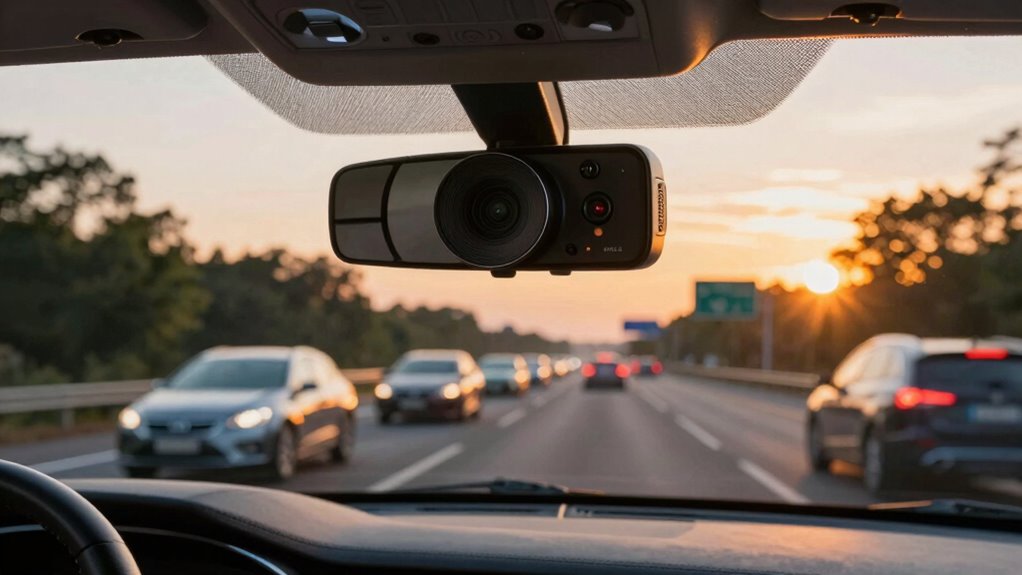
Resolution and frame rate directly influence the clarity and smoothness of your dash cam footage, making them vital for capturing important details. Higher resolution produces sharper images, so you can identify license plates or street signs more easily. A higher frame rate ensures smoother footage, especially during fast movements or sudden stops. Keep in mind, increased resolution and frame rate also impact video compression, which affects file size and storage capacity. Higher settings generate larger files, meaning you’ll need more storage space or frequent data management. Balancing resolution and frame rate is essential: set them high enough to record essential details but not so high that your storage fills up quickly. Proper adjustments ensure your footage remains useful when you need it most. Additionally, understanding video compression techniques can help optimize footage quality without excessive storage use.
How to Adjust Exposure and Lighting for Better Night Footage

Night footage can be challenging to capture clearly, but adjusting your dash cam’s exposure and lighting settings can make a significant difference. To improve night vision, increase exposure slightly to let in more light without overexposing bright spots. This adjustment helps capture details in low-light conditions. Be cautious of glare, which can wash out images; enable glare reduction features if available. Properly balancing exposure ensures your footage isn’t too dark or too bright, providing clearer images of surrounding vehicles, road signs, and incidents. Test different settings in various lighting scenarios to find the most suitable exposure balance. Additionally, understanding how microplastics in dust can affect air quality highlights the importance of keeping your vehicle’s interior clean to maintain better visibility and overall health. Remember, small adjustments can drastically improve night footage quality, making your recordings more useful in critical moments.
Setting the Right Field of View to Capture Useful Evidence

Have you ever wondered if your dash cam is capturing all the critical details on the road? Setting the right field of view is essential for effective evidence collection. Start by ensuring proper lens calibration so your footage accurately reflects your surroundings. A wide-angle lens captures more, but too broad a view might distort details or include unnecessary scenes. Adjust the field of view to focus on the road ahead and nearby sides where collisions or incidents often occur. If your dash cam has parking mode, set it up correctly to monitor your vehicle when parked, ensuring key evidence is recorded even when you’re away. Fine-tuning these settings helps you avoid missing crucial details, making your footage genuinely useful in any situation.
How to Enable Loop Recording and Save Important Clips

Enabling loop recording guarantees your dash cam continuously captures footage without manual intervention, automatically overwriting the oldest files when storage is full. To guarantee you don’t miss critical moments, you should also know how to save important clips. First, access your dash cam’s settings menu. Next, activate the loop recording feature—this keeps your footage current and prevents storage from filling up quickly. Be mindful of your camera angles, so footage remains useful for evidence. Additionally, consider your storage capacity; larger SD cards allow longer recordings and more important clips to be saved. To protect key footage, mark or lock clips manually when an incident occurs. This way, your dash cam works efficiently, and vital evidence stays secure. Understanding storage capacity is crucial for optimal recording duration and clip preservation. Proper file management can help prevent accidental deletion of important footage, ensuring that your footage remains accessible when needed. Regularly checking your camera settings ensures your device functions correctly and captures the necessary footage at all times.
Common Dash Cam Settings Mistakes and How to Fix Them

Many dash cam users make common mistakes in their settings that can compromise footage quality or reliability. One frequent error is poor camera placement, which can limit visibility or cause glare. Another mistake is neglecting dash cam accessories, like lens protectors or mounts, which enhance footage clarity. To fix these issues, ensure your camera is mounted securely at eye level, with a clear view of the road. Use accessories to reduce glare and stabilize footage. Here’s a quick guide:
| Mistake | Fix | Tip |
|---|---|---|
| Incorrect camera placement | Mount at eye level, facing forward | Use a sturdy dash cam mount |
| Ignoring accessories | Add lens protectors, anti-glare filters | Invest in quality accessories |
| Poor angle adjustment | Adjust camera to cover all lanes | Test during daylight |
| Overlooking settings | Regularly review and update configurations | Use calibration tools |
Additionally, adjusting the settings for optimal video quality ensures clearer footage during critical moments. Proper camera calibration can further improve footage clarity and accuracy in recording. Regularly verifying settings adjustments helps prevent issues caused by default configurations or accidental changes. Being aware of the recording environment, such as lighting conditions and weather, can also significantly impact video clarity and should be considered when configuring your dash cam. Furthermore, understanding how lighting conditions influence footage can help you tweak settings for better nighttime or bright daylight recording.
Tips to Check and Update Your Dash Cam Settings Regularly
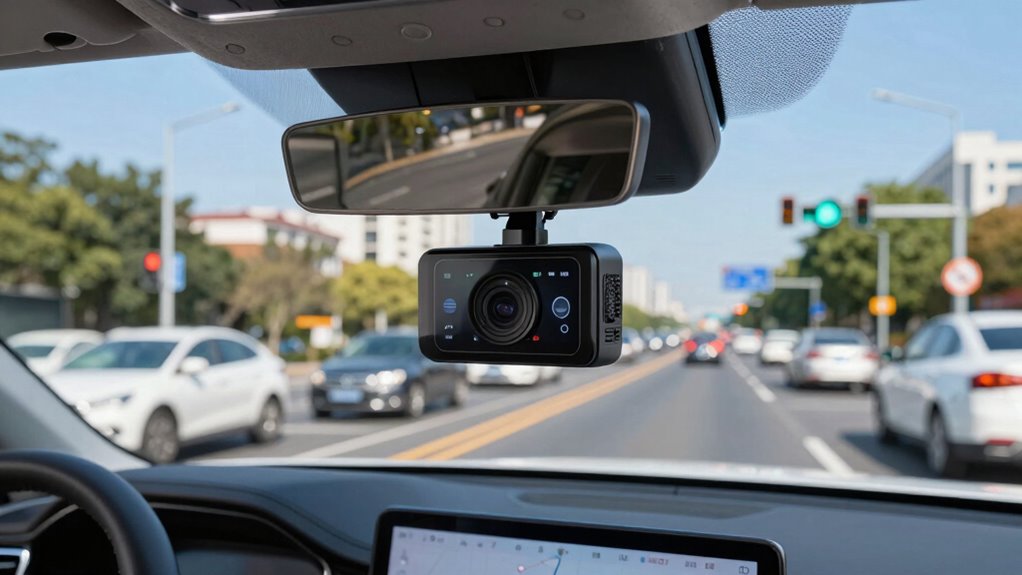
Regularly checking and updating your dash cam settings guarantees perfect footage quality and reliable performance. Make it a habit to review camera placement to ensure the lens captures the right angles and avoid blind spots. Also, monitor storage capacity to prevent overwriting important footage or running out of space unexpectedly. Incorporating safe and reliable techniques into your routine can help maintain optimal camera function and footage integrity. Additionally, staying aware of caregiver emotional health and managing stress effectively can improve your overall focus and decision-making while on the road. Recognizing the importance of golf heritage and its milestones can also serve as a reminder to stay attentive and focused during your drives.
Frequently Asked Questions
How Can I Ensure My Dash Cam Starts Recording Automatically?
To guarantee your dash cam starts recording automatically, enable the parking mode feature and set it to activate when motion is detected or when you’re parked. Make sure GPS tracking is turned on, as it helps the dash cam identify location and movement. Check your camera’s settings and power connection, so it automatically powers on with the vehicle, ensuring continuous recording without manual intervention.
What Storage Capacity Is Recommended for Continuous Recording?
For continuous recording needs, it’s best to choose a dash cam with at least 64GB of storage capacity, though 128GB or more is ideal for extended use. This guarantees you won’t run out of space quickly and can capture long drives without interruption. Always consider your typical driving duration and recording quality; higher resolutions require more storage, so plan accordingly to avoid missing important footage.
How Do I Update My Dash Cam’s Firmware?
Think of updating your dash cam’s firmware as giving it a fresh set of eyes. To do this, visit the manufacturer’s website, download the latest firmware, and follow their step-by-step instructions. While updating, make certain your camera angle remains steady and parking mode is enabled, so your footage stays clear and reliable. Regular updates keep your dash cam sharp, guarding your journey with a vigilant eye ready for anything.
Can I Set Different Recording Modes for Day and Night?
Yes, you can set different recording modes for day and night by enabling parking mode and motion detection. During the day, your dash cam records continuously, but at night, it switches to parking mode, activating motion detection. This conserves storage and battery life while ensuring you capture relevant events. Adjust these settings in your dash cam’s menu to optimize recording conditions for both daytime and nighttime driving.
What Should I Do if My Dash Cam Footage Is Blurry?
If your dash cam footage is blurry, start by cleaning the lens gently with a microfiber cloth to remove dirt or smudges. Next, check if your dash cam has lens calibration settings and adjust them if necessary. Proper cleaning and calibration guarantee clear footage, especially in varying light conditions. Regular maintenance like this keeps your dash cam recording sharp and reliable, helping you capture essential moments accurately.
Conclusion
Don’t forget to double-check and dial in your dash cam’s details. By balancing brightness, settings, and perspectives, you’ll guarantee crystal-clear captures whenever calamity strikes. Properly configured, your footage becomes a foolproof, factual friend, ready to defend you. Stay savvy, stay sharp—set your dash cam to serve, safeguard, and support your journey. Remember, the right settings turn fleeting moments into firm, flawless evidence.
Fall Picks
fall essentials
As an affiliate, we earn on qualifying purchases.