

The best USB-C hub for developers is the Anker 565 11-in-1 for a versatile desk setup with dual-monitor support and a broad port selection. The Plugable 9-in-1 stands out for developers prioritizing high-power charging, while the StarTech 4-Port suits a focused, fast-data setup. The main tradeoffs are port variety versus compactness, display capability versus simplicity, and charging headroom versus the number of connections. A hub’s advertised features also depend on your laptop’s USB-C or Thunderbolt capabilities. Read on for the full breakdown and a guide to matching a hub to your development workflow.

Get business pricing on monitors, keyboards and dev gear
- Business-only prices and quantity discounts
- Tax-exempt purchasing
- Multiple users, one account, clear invoices
Key Takeaways
- Display support shapes the ranking: the Anker 565 is the lead pick for dual-monitor desks, while several smaller hubs focus on a single HDMI output or omit display connections.
- High port counts do not tell the whole story: the Rosonway offers four USB-C and three USB-A ports, a distinctly different setup from the Anker 565’s broad mix of desk connections.
- Charging claims need context: the Plugable’s 140W power delivery gives it a high-power role, but pass-through charging does not mean every connected device receives that full amount.
- Fast data hubs serve different workflows: the StarTech and Belkin emphasize 10Gbps data, while the Xiaobi is a USB 3.0 hub better suited to basic peripheral expansion than a high-speed development desk.
- Compact models trade breadth for simplicity: options such as the Anker 332 and 5-in-1 focus on core connections, while the 11-in-1 and 9-in-1 picks suit users who want more devices attached at once.
| Anker 565 11-in-1 USB-C Hub with Dual Monitor Support |  | Best Overall for Multi-Display Workstations | Ports: 11 | Video outputs: HDMI and DisplayPort; dual displays up to 2K at 60Hz with DP 1.4 or 1080p at 60Hz with DP 1.2 | USB data speed: Up to 10Gbps | VIEW LATEST PRICE | See Our Full Breakdown |
| Anker Nano 10-in-1 USB-C Hub with Smart Display |  | Best for High-Refresh-Rate Displays | Ports: 10 connection options, including HDMI 2.1, DisplayPort 1.4, USB, Gigabit Ethernet, SD, and microSD | Single-display support: Up to 4K at 144Hz or 2K at 240Hz | Dual-display support: Up to dual 2K at 240Hz with a compatible host | VIEW LATEST PRICE | See Our Full Breakdown |
| Rosonway 7-Port Powered USB-C Hub, 10Gbps, 4 USB-C and 3 USB-A Ports |  | Best for Linux Peripheral Setups | Total ports: 7 | Port mix: 4 USB-C and 3 USB-A | Data transfer rate: Up to 10Gbps per port | VIEW LATEST PRICE | See Our Full Breakdown |
| StarTech 4-Port USB-C Hub with 10Gbps Data and 100W Power Delivery |  | Best Compact USB-C Expansion | Ports: 4 USB-C | Data transfer rate: 10Gbps | Port configuration: 3 dedicated data ports; 1 shared data or Power Delivery port | VIEW LATEST PRICE | See Our Full Breakdown |
| Anker 5-in-1 USB-C Hub with 4K HDMI |  | Best Simple HDMI-and-USB-A Pick | Ports: 1 HDMI, 3 USB-A, 1 USB-C Power Delivery input | HDMI output: Up to 4K at 30Hz | USB-A configuration: 1 USB 3.0 and 2 USB 2.0 | VIEW LATEST PRICE | See Our Full Breakdown |
| Belkin 4-Port USB-C Hub Adapter, 10 Gbps, 100W Pass-Through Charging |  | Best for USB-C-Only Workstations | Ports: 4 USB-C | Maximum data transfer rate: Up to 10 Gbps | Pass-through charging: Up to 100W; up to 85W to host | VIEW LATEST PRICE | See Our Full Breakdown |
| UGREEN Revodok Pro 6-in-1 USB-C Hub with 4K 60Hz HDMI and 100W Power Delivery |  | Best for Fast Mixed Peripherals | Total ports: 6 | USB-C data ports: 2 × USB-C 3.2 Gen 2, up to 10 Gbps | USB-A data ports: 2 × USB-A 3.2 Gen 2, up to 10 Gbps | VIEW LATEST PRICE | See Our Full Breakdown |
| Acer 6-in-1 USB-C Hub with 4K HDMI, 10Gbps Data Transfer, and 100W Power Delivery |  | Best for a Portable Laptop Desk | Ports: 1 × HDMI, 2 × USB-C 3.2, 1 × USB-A 3.2, 1 × USB-A 2.0, 1 × USB-C PD | HDMI output: Up to 4K at 60Hz | Maximum data transfer rate: Up to 10 Gbps | VIEW LATEST PRICE | See Our Full Breakdown |
| Anker 555 8-in-1 USB-C Hub with 4K HDMI and Ethernet |  | Best for Desk Connectivity | Total ports: 8 | Connections: USB-C PD input, USB-C data, 2 × USB-A data, HDMI, Ethernet, microSD and SD card reader | Maximum HDMI output: 4K at 60Hz with DP 1.4; 4K at 30Hz with DP 1.2 | VIEW LATEST PRICE | See Our Full Breakdown |
| Anker 332 5-in-1 USB-C Hub with 4K HDMI | 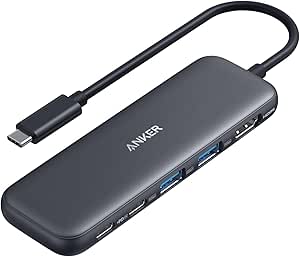 | Best Simple Everyday Hub | Ports: 1 × HDMI, 1 × USB-C data, 2 × USB-A data, 1 × USB-C PD-IN | Maximum video resolution: 4K at 30Hz | Maximum data transfer rate: Up to 5 Gbps | VIEW LATEST PRICE | See Our Full Breakdown |
| Plugable 9-in-1 USB-C Hub with 140W Power Delivery |  | Best for Power-Hungry Developer Laptops | Ports: 9 | HDMI: Up to 4K at 60Hz; requires host DisplayPort Alt Mode | Power delivery: Up to 140W input and 125W laptop output; hub uses 15W | VIEW LATEST PRICE | See Our Full Breakdown |
| 8-in-2 USB-C Hub with USB-A Ports, Card Reader, and 3.5 mm Audio |  | Best for Lightweight, Mixed-Device Workflows | Port configuration: Listed as 8-in-2; includes USB 3.0, USB 2.0, USB-C data, TF/SD reader, and 3.5 mm audio | USB 3.0 speed: Up to 5Gbps | USB 2.0 speed: Up to 480Mbps | VIEW LATEST PRICE | See Our Full Breakdown |
| Acer 5-in-1 USB-C Hub with 4 USB-C 3.2 Ports and 100W PD |  | Best for USB-C-Only Peripherals | Ports: Four USB-C data ports and one USB-C PD port | Data transfer: Up to 10Gbps shared across the four data ports | Power delivery: 100W PD port | VIEW LATEST PRICE | See Our Full Breakdown |
| Anker 7-in-1 USB-C Hub with 4K HDMI, USB-A, USB-C, and SD/TF Card Reader |  | Best Compact Everyday Desk Hub | Ports: 7 | HDMI: Up to 4K at 60Hz | USB data speed: Up to 5Gbps | VIEW LATEST PRICE | See Our Full Breakdown |
| Xiaobi 7-Port USB 3.0 Hub with USB-A and USB-C Ports, 4 ft Cable |  | Best for Peripheral-Heavy USB Setups | Data ports: Seven: four USB-A and three USB-C | Data transfer rate: Up to 5Gbps | Power input: USB-C 5V port; power input only | VIEW LATEST PRICE | See Our Full Breakdown |
| USB-C hubs for developer | Ports | Compatibility |
|---|---|---|
| Anker 565 11-in-1 USB-C Hub wi | 11 | macOS 12 and newer, Windows 10 and 11, ChromeOS; not Linux |
| Anker Nano 10-in-1 USB-C Hub w | 10 connection options, including HDMI 2.1, DisplayPort 1.4, USB, Gigabit Ethernet, SD, and microSD | Windows 10/11 and macOS; compatible USB-C, USB4, or Thunderbolt host required |
| Rosonway 7-Port Powered USB-C | — | — |
| StarTech 4-Port USB-C Hub with | 4 USB-C | — |
| Anker 5-in-1 USB-C Hub with 4K | 1 HDMI, 3 USB-A, 1 USB-C Power Delivery input | macOS 12 or newer, Windows 10 and 11, and ChromeOS; DP Alt Mode and Power Delivery required |
| Belkin 4-Port USB-C Hub Adapte | 4 USB-C | USB-C MacBook, iPad, Chromebook, and PC |
| UGREEN Revodok Pro 6-in-1 USB- | — | — |
| Acer 6-in-1 USB-C Hub with 4K | 1 × HDMI, 2 × USB-C 3.2, 1 × USB-A 3.2, 1 × USB-A 2.0, 1 × USB-C PD | — |
| Anker 555 8-in-1 USB-C Hub wit | — | USB-C, USB4, and Thunderbolt; macOS 12 or newer, Windows 10/11, ChromeOS |
| Anker 332 5-in-1 USB-C Hub wit | 1 × HDMI, 1 × USB-C data, 2 × USB-A data, 1 × USB-C PD-IN | USB-C, USB4, and Thunderbolt; supported macOS, Windows, and ChromeOS devices |
| Plugable 9-in-1 USB-C Hub with | 9 | Full-featured USB-C, USB4, and Thunderbolt 3/4/5 systems |
| 8-in-2 USB-C Hub with USB-A Po | — | — |
| Acer 5-in-1 USB-C Hub with 4 U | Four USB-C data ports and one USB-C PD port | Windows, macOS, Linux, Chrome OS, iPadOS, iOS, and Android |
| Anker 7-in-1 USB-C Hub with 4K | 7 | Windows and macOS devices with USB-C DP Alt Mode and Power Delivery; USB4 and Thunderbolt 3/4/5 |
| Xiaobi 7-Port USB 3.0 Hub with | — | Windows, macOS, ChromeOS, and Linux; laptops, PCs, PS4, and Xbox |
More Details on Our Top Picks
Anker 565 11-in-1 USB-C Hub with Dual Monitor Support
I’d put the Anker 565 first for developers who need one hub to connect displays, wired networking, peripherals, and memory cards. Its 11-port mix gives it broader desk coverage than the Anker 5-in-1, which is a simpler HDMI-and-USB-A option, while Ethernet is useful for stable network access during builds or remote sessions. It can drive two external displays, but macOS mirrors their content rather than extending the desktop, so that feature suits presentations better than a two-monitor coding setup on a Mac. Windows users get more flexibility, subject to host support and the stated resolution limits. The hub also passes through up to 85W, but you supply the charger. I’d skip it for Linux systems, which are not supported.
Pros:- Eleven ports include HDMI, DisplayPort, Ethernet, USB data, SD, and microSD.
- Supports two external displays on compatible systems.
- Up to 85W pass-through charging helps keep a laptop powered at the desk.
- Compact aluminum enclosure weighs 4.8 ounces.
Cons:- Dual external displays mirror the same content on macOS.
- A separate charger is required for pass-through charging.
- Not compatible with Linux.
Best for: Windows developers who want wired Ethernet, card readers, and multiple display connections from one compact desk hub.
Not ideal for: Linux developers or Mac users who need two independent external desktops; Linux is unsupported, and macOS mirrors the displays.
- Ports:11
- Video outputs:HDMI and DisplayPort; dual displays up to 2K at 60Hz with DP 1.4 or 1080p at 60Hz with DP 1.2
- USB data speed:Up to 10Gbps
- Pass-through charging:Up to 85W
- Card readers:SD and microSD, up to 104MB/s
- Compatibility:macOS 12 and newer, Windows 10 and 11, ChromeOS; not Linux
- Dimensions and weight:5.39 × 2.24 × 0.55 in; 4.8 oz
- Enclosure:Aluminum
Our verdict“Choose the Anker 565 for a well-connected Windows development desk, but look elsewhere if you need Linux support or independent dual displays on macOS.”
Anker Nano 10-in-1 USB-C Hub with Smart Display
The Anker Nano 10-in-1 is the display-focused choice here: its HDMI 2.1 and DisplayPort 1.4 outputs support up to 4K at 144Hz on one display, with higher dual-display refresh rates possible on compatible hosts. That gives developers with high-refresh monitors more headroom than the Anker 565, whose listed dual-display modes are lower resolution and refresh rate. Its built-in status display also shows port, charging, transfer-speed, and temperature information, useful when diagnosing a connection issue without guessing which link is active. The tradeoff is that those display capabilities depend on the host, and macOS mirrors the external screens. It also lacks Linux support and requires a separate charger for laptop power passthrough. I’d choose it for a Windows desk setup, not as a universal multi-OS dock.
Pros:- HDMI 2.1 and DisplayPort 1.4 support up to 4K at 144Hz on one compatible display.
- Built-in display reports port, charging, transfer-speed, and temperature information.
- Includes Gigabit Ethernet and SD 3.0 and microSD 3.0 readers.
- Long host cable and magnetic base offer flexible desk placement.
Cons:- macOS mirrors content across both external monitors.
- High-refresh display modes depend on host compatibility.
- Charger is not included, and Linux is not supported.
Best for: Windows developers with compatible USB-C, USB4, or Thunderbolt laptops and high-refresh monitors who value visible connection and temperature status.
Not ideal for: Linux users, Mac developers seeking two extended external desktops, or buyers who want a hub that includes its own charger.
- Ports:10 connection options, including HDMI 2.1, DisplayPort 1.4, USB, Gigabit Ethernet, SD, and microSD
- Single-display support:Up to 4K at 144Hz or 2K at 240Hz
- Dual-display support:Up to dual 2K at 240Hz with a compatible host
- USB data ports:10Gbps USB-C and USB-A; two 5Gbps USB-A
- Power input and host charging:100W maximum PD-IN; up to 80W host charging
- Host cable:27.6 in
- Compatibility:Windows 10/11 and macOS; compatible USB-C, USB4, or Thunderbolt host required
- Included accessory:Magnetic base
Our verdict“Pick the Anker Nano if your compatible Windows workstation needs high-refresh displays and at-a-glance hub status, rather than Linux support or Mac extended desktops.”
Rosonway 7-Port Powered USB-C Hub, 10Gbps, 4 USB-C and 3 USB-A Ports
For developers whose main need is attaching several fast data devices, the Rosonway 7-Port offers a focused alternative to the display-heavy Anker 565. All seven ports—four USB-C and three USB-A—support up to 10Gbps, and the included 36W power adapter means connected peripherals need not rely entirely on the laptop’s bus power. Individual switches can help isolate accessories or leave only the devices needed for a task active. Linux support also makes this a better fit for a Linux workstation than the two Anker hubs in this batch. The boundary is clear, though: this is a data hub, not a docking station. It has no video output and its USB-C ports do not provide PD charging, so it cannot replace a laptop charger or connect a monitor.
Pros:- Four USB-C and three USB-A ports support up to 10Gbps data transfer.
- Included 36W adapter powers the hub independently of the host.
- Individual port switches help control connected devices.
- Supports Linux, Windows, and macOS.
Cons:- No video output for external monitors.
- USB-C ports provide standard 1.5A charging, not PD charging.
- Seven-port data focus omits Ethernet and card readers found on the Anker 565.
Best for: Linux developers who connect several external SSDs, input devices, and other USB peripherals and want separate port switches.
Not ideal for: Developers looking for monitor output, laptop charging passthrough, or a single hub that combines data, display, and docking functions.
- Total ports:7
- Port mix:4 USB-C and 3 USB-A
- Data transfer rate:Up to 10Gbps per port
- Power adapter:36W (12V/3A)
- Host cable:Detachable, 3.3 ft
- USB-C charging:Standard 1.5A; no PD charging
- Video output:Not supported
- Operating systems:Linux, Windows, and macOS
- Enclosure:Aluminum
Our verdict“Choose the Rosonway for a Linux-friendly cluster of fast USB peripherals, but not if your development desk needs monitor output or laptop charging.”
StarTech 4-Port USB-C Hub with 10Gbps Data and 100W Power Delivery
The StarTech 4-Port USB-C Hub suits developers who want more USB-C connections without adding display, Ethernet, or card-reader hardware they will not use. Three dedicated ports handle data at up to 10Gbps; a fourth can serve data or up to 100W Power Delivery passthrough. That makes it a more compact, USB-C-only alternative to the seven-port Rosonway, which adds USB-A ports and powered peripheral support but cannot pass through PD charging. The StarTech’s small aluminum-and-plastic body and attached braided cable are easy to keep in a laptop bag, and plug-and-play setup avoids driver installation. Its main compromise is the shared fourth port: it cannot handle data and charging passthrough at once. It also has no USB-A or video ports, so this is targeted expansion rather than a full workstation hub.
Pros:- Three dedicated USB-C data ports support up to 10Gbps.
- Shared fourth port supports data or up to 100W Power Delivery passthrough.
- Compact 1.44-ounce design has an attached braided cable.
- Plug-and-play operation and overcurrent protection.
Cons:- The fourth port cannot handle data and charging passthrough simultaneously.
- No video output, Ethernet, card reader, or USB-A ports.
- Charging depends on the host and a suitable charger.
Best for: Developers with USB-C peripherals who want a small travel hub, three dedicated fast data ports, and optional laptop charging passthrough.
Not ideal for: Developers who need HDMI or DisplayPort, USB-A connections, Ethernet, or data access on all four ports while charging through the hub.
- Ports:4 USB-C
- Data transfer rate:10Gbps
- Port configuration:3 dedicated data ports; 1 shared data or Power Delivery port
- Power Delivery passthrough:Up to 100W
- Host cable:Attached, 8 in
- Enclosure:Aluminum and plastic
- Dimensions:3.8 × 1.1 × 0.4 in
- Weight:1.44 oz
Our verdict“Choose the StarTech when compact USB-C data expansion and optional passthrough matter more than video, USB-A, or full four-port charging access.”
Anker 5-in-1 USB-C Hub with 4K HDMI
The Anker 5-in-1 is the straightforward pick for a developer who needs one external screen, a few USB-A accessories, and laptop power passthrough. Its three USB-A ports make it a more direct fit for older keyboards, mice, or test devices than the USB-C-focused StarTech 4-Port Hub. It also keeps the setup simpler than the 11-port Anker 565, trading Ethernet, DisplayPort, and card readers for a smaller, more focused connection set. The tradeoff shows up on display work: HDMI tops out at 4K at 30Hz, which is less fluid than 60Hz output, and two of the USB-A ports use USB 2.0 speeds. Up to 90W passthrough is useful, but the charger is not included, and Linux is unsupported.
Pros:- Combines HDMI, three USB-A ports, and USB-C power input.
- Supports up to 90W pass-through charging.
- Compact form fits a basic laptop desk or travel setup.
- Compatible with supported Windows, macOS, and ChromeOS devices.
Cons:- HDMI output is limited to 4K at 30Hz.
- Two USB-A ports are USB 2.0, with transfer speeds up to 480Mbps.
- Charger is not included, and the hub is not compatible with Linux.
Best for: Developers with a supported Windows, macOS, or ChromeOS laptop who need basic HDMI output, USB-A accessories, and power passthrough in one compact hub.
Not ideal for: Linux developers, users who need 4K at 60Hz, or anyone who needs fast transfer speeds across several USB ports.
- Ports:1 HDMI, 3 USB-A, 1 USB-C Power Delivery input
- HDMI output:Up to 4K at 30Hz
- USB-A configuration:1 USB 3.0 and 2 USB 2.0
- USB data speeds:USB 3.0 up to 5Gbps; USB 2.0 up to 480Mbps
- Pass-through charging:Up to 90W
- Compatibility:macOS 12 or newer, Windows 10 and 11, and ChromeOS; DP Alt Mode and Power Delivery required
- Dimensions:4.8 × 1.2 × 0.46 in
- Material and weight:Plastic; 0.06 kg
Our verdict“Pick the Anker 5-in-1 for a simple, compact HDMI-and-USB-A setup, but choose a higher-bandwidth hub if smooth 4K or fast peripheral transfers matter.”
Belkin 4-Port USB-C Hub Adapter, 10 Gbps, 100W Pass-Through Charging
I’d choose the Belkin 4-Port USB-C Hub when a developer’s peripherals are already USB-C: it adds four ports with up to 10 Gbps data in a particularly compact form. That makes it a better fit for connecting fast storage and USB-C accessories than the Anker 332, whose data tops out at 5 Gbps and whose ports are a mix of USB-A and USB-C. Belkin also passes through up to 100W, with up to 85W reaching the host, so a laptop can stay powered while the hub is in use. The tradeoff is specialization: there’s no HDMI, Ethernet, or USB-A for legacy devices. Its plastic enclosure keeps the weight down, but this isn’t the all-purpose desk hub I’d pick for a varied collection of developer gear.
Pros:- Four USB-C ports for connecting multiple compatible peripherals
- Data transfer speeds up to 10 Gbps
- Up to 100W pass-through charging, with up to 85W delivered to the host
- Compact 50 g design with plug-and-play setup
Cons:- No HDMI or Ethernet connection
- No USB-A ports for older peripherals
- Up to 15W of pass-through power is used by the adapter
Best for: Developers with a USB-C MacBook, Chromebook, or PC who need several fast USB-C peripheral connections and pass-through charging.
Not ideal for: Developers who need an external display, wired Ethernet, or USB-A connections from the same hub.
- Ports:4 USB-C
- Maximum data transfer rate:Up to 10 Gbps
- Pass-through charging:Up to 100W; up to 85W to host
- Compatibility:USB-C MacBook, iPad, Chromebook, and PC
- Dimensions:2.95 × 1.65 × 0.55 in
- Weight:50 g
- Enclosure and recycled content:Plastic; at least 72% post-consumer recycled content
- Warranty:2-year limited warranty
Our verdict“Choose Belkin if your developer setup is USB-C-first and fast peripheral connections matter more than video or legacy ports.”
UGREEN Revodok Pro 6-in-1 USB-C Hub with 4K 60Hz HDMI and 100W Power Delivery
The UGREEN Revodok Pro balances modern USB-C and USB-A connections without giving up a useful desk display: its two ports of each type support up to 10 Gbps, and HDMI handles 4K at 60Hz. For developers moving files between current USB-C drives and older USB-A devices, that mix is more practical than the Belkin hub, which offers four USB-C ports but no video output or USB-A. UGREEN also lists 100W Power Delivery, making it a more versatile single-cable companion for a compatible laptop. Its six-port layout is less expansive than the Anker 555, which adds Ethernet and card readers, so it’s not the pick for network or media-card workflows. I’d also check operating-system compatibility before buying: the listed systems are Mac OS 9 and Windows 7/10, rather than a full current-platform list.
Pros:- Two USB-C and two USB-A data ports, each supporting up to 10 Gbps
- HDMI output supports 4K at 60Hz
- Supports up to 100W Power Delivery
- Aluminum-and-plastic construction in a portable six-port design
Cons:- No Ethernet or SD and microSD card readers
- Listed operating-system compatibility is limited to Mac OS 9 and Windows 7/10
- Six connections offer fewer expansion options than the eight-port Anker 555
Best for: Developers who connect both USB-C and USB-A storage or peripherals and want a 4K 60Hz external display connection.
Not ideal for: Developers who need built-in Ethernet or SD and microSD readers, or who require clearly listed support for a newer operating system.
- Total ports:6
- USB-C data ports:2 × USB-C 3.2 Gen 2, up to 10 Gbps
- USB-A data ports:2 × USB-A 3.2 Gen 2, up to 10 Gbps
- HDMI:Up to 4K at 60Hz
- Power Delivery:Up to 100W
- Listed operating systems:Mac OS 9, Windows 7, Windows 10
- Enclosure:Aluminum and plastic
- Weight:180 g
- Warranty:2 years
Our verdict“Pick the Revodok Pro for fast USB-A and USB-C peripherals plus a 4K 60Hz display, after confirming OS support for your machine.”
Acer 6-in-1 USB-C Hub with 4K HDMI, 10Gbps Data Transfer, and 100W Power Delivery
I’d put the Acer 6-in-1 on a developer’s shortlist when portability and a tidy laptop setup matter: its 5.9-inch integrated cable and six connections bring HDMI, USB data, and charging together without a separate cable to pack. Unlike the Anker 332, Acer supports 4K at 60Hz rather than 30Hz and lists data speeds up to 10 Gbps. Its power input reaches 100W, with up to 90W available for laptop charging, a useful allowance when compiling or running other sustained workloads. The mix includes USB-A 2.0 alongside faster ports, so a slow legacy accessory can use the hub but won’t benefit from high-speed transfer. HDMI also depends on DisplayPort Alt Mode from the host, and no power adapter or cable is included.
Pros:- HDMI output supports up to 4K at 60Hz
- USB data supports transfer rates up to 10 Gbps
- Up to 90W laptop charging from 100W power input
- Compact design with an integrated 5.9-inch cable
Cons:- Video output requires host USB-C DisplayPort Alt Mode
- Power adapter and cable are not included
- USB-A 2.0 port is slower than the hub’s high-speed data connections
Best for: Developers who move between workspaces and want a short-cable hub with 4K 60Hz HDMI, multiple USB connections, and laptop charging.
Not ideal for: Anyone whose USB-C host lacks DisplayPort Alt Mode, or who expects a power adapter and charging cable to come with the hub.
- Ports:1 × HDMI, 2 × USB-C 3.2, 1 × USB-A 3.2, 1 × USB-A 2.0, 1 × USB-C PD
- HDMI output:Up to 4K at 60Hz
- Maximum data transfer rate:Up to 10 Gbps
- Power input and laptop charging:Up to 100W input; up to 90W to laptop
- Host video requirement:USB-C with DisplayPort Alt Mode
- Cable length:5.9 in (15 cm)
- Color:Grey
Our verdict“Choose Acer for a portable, higher-refresh display-and-data setup, provided your laptop supports DisplayPort Alt Mode and you have a charger.”
Anker 555 8-in-1 USB-C Hub with 4K HDMI and Ethernet
For a developer who docks at a desk, the Anker 555 makes the strongest case in this group for broad connectivity: it combines Ethernet, HDMI, SD and microSD readers, and USB data ports in one hub. Compared with the UGREEN Revodok Pro, it trades the UGREEN’s two 10 Gbps USB-A and two 10 Gbps USB-C ports for a wider spread of connection types, which can matter more when a desk setup includes wired networking and card-based file transfers. HDMI reaches 4K at 60Hz with DP 1.4, and pass-through charging supplies up to 85W. That is less host power than the Acer offers, and Ethernet comes with a clear platform limit: the listed compatibility excludes Linux. The USB-C data port also does not serve as a second video output.
Pros:- Combines Ethernet, SD and microSD readers, HDMI, and USB data connections
- HDMI supports up to 4K at 60Hz with DP 1.4
- USB data transfer rates reach up to 10 Gbps
- Aluminum enclosure with up to 85W pass-through charging
Cons:- Not compatible with Linux
- USB-C data port does not provide video output; HDMI is the only video connection
- Hub uses 15W, so a 100W PD charger and cable are recommended for pass-through charging
Best for: Developers using a supported macOS, Windows, or ChromeOS laptop who need wired Ethernet, card readers, HDMI, and USB connections at one desk.
Not ideal for: Linux users, developers who need dual-display output, or anyone who wants more than 85W pass-through charging to the host.
- Total ports:8
- Connections:USB-C PD input, USB-C data, 2 × USB-A data, HDMI, Ethernet, microSD and SD card reader
- Maximum HDMI output:4K at 60Hz with DP 1.4; 4K at 30Hz with DP 1.2
- Maximum data transfer rate:10 Gbps
- Maximum pass-through charging:85W
- Cable length:7.48 in
- Compatibility:USB-C, USB4, and Thunderbolt; macOS 12 or newer, Windows 10/11, ChromeOS
- Material and weight:Aluminum; 4.48 oz
- Warranty:18 months
Our verdict“Choose the Anker 555 for a supported laptop desk setup that needs Ethernet and card readers, not for Linux or multi-display output.”
Anker 332 5-in-1 USB-C Hub with 4K HDMI
The Anker 332 suits developers who want a straightforward way to add a monitor, a couple of USB-A accessories, one USB-C data device, and charging. Its five-port mix is easier to match to everyday peripherals than the Belkin’s four USB-C-only layout, but the tradeoff is lower performance: data tops out at 5 Gbps, and HDMI is limited to 4K at 30Hz. That display mode is less suited to a high-refresh desktop than the Acer’s 4K 60Hz output. Pass-through charging reaches 85W, though the charger is not included. I’d treat this as a compact connection fix rather than a serious workstation dock: the USB-C data port cannot carry video, and Linux is not supported. It works best when modest bandwidth and a single HDMI display are enough.
Pros:- Combines HDMI, USB-A, USB-C data, and USB-C charging input
- Supports an external display at up to 4K 30Hz
- Provides up to 85W pass-through charging
- Compact, lightweight ABS enclosure
Cons:- Data transfer tops out at 5 Gbps
- HDMI is limited to 4K at 30Hz, below the Acer’s 4K 60Hz output
- Not compatible with Linux, and the charging adapter is not included
Best for: Developers with a supported macOS, Windows, or ChromeOS laptop who need basic HDMI, USB-A, USB-C data, and charging connections.
Not ideal for: Linux users, developers who need 4K at 60Hz, or those transferring large files frequently and wanting data speeds above 5 Gbps.
- Ports:1 × HDMI, 1 × USB-C data, 2 × USB-A data, 1 × USB-C PD-IN
- Maximum video resolution:4K at 30Hz
- Maximum data transfer rate:Up to 5 Gbps
- Pass-through charging:Up to 85W
- Compatibility:USB-C, USB4, and Thunderbolt; supported macOS, Windows, and ChromeOS devices
- Linux compatibility:Not compatible
- Dimensions:4.78 × 1.59 × 0.45 in
- Weight and enclosure:1.44 oz; ABS
- Warranty:18 months
Our verdict“Choose the Anker 332 for basic everyday connections on a supported system, but pick Acer for faster data and 4K 60Hz video.”
Plugable 9-in-1 USB-C Hub with 140W Power Delivery
The Plugable 9-in-1 is the strongest fit here for developers who want one compact connection point for a laptop, wired network, external display, removable media, and multiple peripherals. Its 4K 60Hz HDMI, Gigabit Ethernet, UHS-II card readers, and 10Gbps USB ports make it more desk-ready than the Xiaobi, which expands USB connections but offers no video, networking, or card readers. Plugable also supports up to 125W laptop output when paired with a compatible PD 3.1 EPR charger and cable, though the hub reserves 15W and does not include those requirements in the supplied details. The tradeoff is a short built-in cable and the need for DisplayPort Alt Mode for video. I’d choose it for a capable laptop dock substitute, not a flexible long-reach setup.
Pros:- Combines HDMI, Gigabit Ethernet, USB ports, and SD and microSD readers
- Supports 4K at 60Hz when the host supports DisplayPort Alt Mode
- Includes 10Gbps USB data ports and UHS-II card readers
- Supports up to 125W laptop output with compatible PD 3.1 EPR power equipment
Cons:- Maximum charging output requires a compatible charger and cable, which are not specified as included
- The 7.48-inch built-in cable limits placement flexibility
- The hub uses 15W of input power, reducing the amount available to the laptop
Best for: Developers with a USB-C, USB4, or Thunderbolt laptop who need wired networking, a 4K monitor, fast USB connections, and card readers in one portable hub.
Not ideal for: Developers who need a longer host cable, or whose laptop lacks DisplayPort Alt Mode and whose workflow depends on HDMI output.
- Ports:9
- HDMI:Up to 4K at 60Hz; requires host DisplayPort Alt Mode
- Power delivery:Up to 140W input and 125W laptop output; hub uses 15W
- USB data:Two USB-A 10Gbps, one USB-C 10Gbps, and one USB 2.0
- Other connections:Gigabit Ethernet, SD and microSD UHS-II card readers
- Compatibility:Full-featured USB-C, USB4, and Thunderbolt 3/4/5 systems
- Cable length:7.48 inches
- Weight and dimensions:130 g; 9.45 × 3.14 × 0.79 inches
Our verdict“Choose the Plugable if your development setup needs display, Ethernet, card-reader, and high-power charging support in one hub.”
8-in-2 USB-C Hub with USB-A Ports, Card Reader, and 3.5 mm Audio
This compact aluminum hub suits developers who move between a laptop, tablet, or phone and need familiar USB-A connections, card readers, and a headphone jack. Its listed compatibility spans Windows, macOS, ChromeOS, Linux, iOS, and Android, a broader device mix than the Anker 7-in-1, whose listed compatibility focuses on Windows and macOS laptops with video-capable USB-C. The tradeoff is that this hub offers no stated video output or laptop charging, so it is a peripheral adapter rather than a one-cable desk solution. Its USB 3.0 connection reaches 5Gbps, while USB 2.0 is limited to 480Mbps. The “8-in-2” label and port configuration are unclear in the product details, so I’d confirm the exact layout before relying on it for a specific device setup.
Pros:- Combines USB-A, USB-C data, SD and TF card readers, and 3.5 mm audio
- USB 3.0 data supports speeds up to 5Gbps
- Lightweight 40 g aluminum design
- Lists compatibility with desktop and mobile operating systems
Cons:- The 8-in-2 name and stated port configuration are unclear
- USB 2.0 connections are limited to 480Mbps
- No video output, Ethernet, or power-delivery capability is listed
Best for: Developers who use several operating systems or mobile devices and need basic USB, audio, and card-reader connections without a display dock.
Not ideal for: Laptop users who need HDMI output, pass-through charging, Ethernet, or a clearly documented port layout for a fixed workstation.
- Port configuration:Listed as 8-in-2; includes USB 3.0, USB 2.0, USB-C data, TF/SD reader, and 3.5 mm audio
- USB 3.0 speed:Up to 5Gbps
- USB 2.0 speed:Up to 480Mbps
- Enclosure:Aluminum
- Dimensions:5.3 × 1.06 × 0.4 inches
- Weight:40 g
- Operating system compatibility:Windows, macOS, Chrome OS, Linux, iOS, and Android
- Warranty:1 year
Our verdict“Pick this hub for basic connections across computers and mobile devices, but choose the Anker 7-in-1 if your workflow needs HDMI and pass-through charging.”
Acer 5-in-1 USB-C Hub with 4 USB-C 3.2 Ports and 100W PD
Unlike the Plugable 9-in-1 or Anker 7-in-1, the Acer 5-in-1 does not try to be a miniature dock: it concentrates on adding four USB-C data ports and a separate 100W PD port. That makes it a more natural match for developers whose external drives, boards, and accessories use USB-C, and who already have display output handled another way. The key limitation is shared bandwidth: the four data ports divide a maximum of 10Gbps, so several active high-speed transfers may compete with one another. It also has no video output, and charging depends on a compatible host and external charger. Its compact aluminum body and broad OS compatibility favor a portable peripheral setup over a full workstation hub.
Pros:- Provides four USB-C 3.2 Gen 2 data ports
- Dedicated 100W PD port supports charging a compatible host
- Compact aluminum alloy enclosure weighs 0.06 kg
- Lists compatibility across major desktop and mobile operating systems
Cons:- Four data ports share a maximum of 10Gbps bandwidth
- Does not support video output
- PD charging requires a compatible host and an external charger
Best for: Developers with USB-C external drives and peripherals who want more USB-C connections and pass-through host charging without needing HDMI.
Not ideal for: Developers who need an external monitor, Ethernet, USB-A ports, or independent 10Gbps bandwidth for multiple simultaneous transfers.
- Ports:Four USB-C data ports and one USB-C PD port
- Data transfer:Up to 10Gbps shared across the four data ports
- Power delivery:100W PD port
- Video output:Not supported
- Enclosure:Aluminum alloy
- Weight:0.06 kg
- Cable length:0.5 ft
- Compatibility:Windows, macOS, Linux, Chrome OS, iPadOS, iOS, and Android
Our verdict“Choose the Acer when your accessories are USB-C-first and you do not need display output or a broader mix of port types.”
Anker 7-in-1 USB-C Hub with 4K HDMI, USB-A, USB-C, and SD/TF Card Reader
The Anker 7-in-1 balances the connections many developers use daily: HDMI for a monitor, two USB-A ports for older peripherals, USB-C data, and SD/TF card slots. It is a simpler desk companion than the Plugable 9-in-1, which adds Gigabit Ethernet, faster 10Gbps USB ports, UHS-II readers, and higher laptop charging output. Anker counters with a compact 67 g metal body and 4K 60Hz HDMI, making it well suited to a laptop bag or a modest home-office setup. Charging is capped at 85W to the laptop from up to 100W input, and the charger is not included. Also, its USB-C data port does not carry video, so display output must use HDMI and requires a compatible host.
Pros:- Combines HDMI, two USB-A ports, USB-C data, and SD/TF card slots
- Supports HDMI output up to 4K at 60Hz
- Compact metal enclosure weighs 67 g
- Accepts up to 100W USB-C PD input and provides up to 85W to the laptop
Cons:- Laptop charging is limited to 85W and a charger is not included
- USB data speeds are limited to 5Gbps
- The USB-C data port does not support video output
Best for: Developers who want a portable HDMI hub with USB-A, USB-C data, and card readers for a laptop that supports USB-C DisplayPort Alt Mode and Power Delivery.
Not ideal for: Developers who need Gigabit Ethernet, 10Gbps USB, higher-than-85W laptop charging, or a charger bundled with the hub.
- Ports:7
- HDMI:Up to 4K at 60Hz
- USB data speed:Up to 5Gbps
- USB-A:Two USB 3.0 ports
- Card readers:SD and TF
- Power delivery:Up to 100W input; up to 85W laptop charging
- Dimensions and weight:5.17 × 1.46 × 0.47 inches; 67 g
- Compatibility:Windows and macOS devices with USB-C DP Alt Mode and Power Delivery; USB4 and Thunderbolt 3/4/5
Our verdict“Choose the Anker for a lightweight everyday hub with HDMI and familiar ports; choose the Plugable for Ethernet, faster USB, and more charging headroom.”
Xiaobi 7-Port USB 3.0 Hub with USB-A and USB-C Ports, 4 ft Cable
The Xiaobi 7-port hub is for developers who need more connections for keyboards, mice, development boards, and other USB peripherals—not a full USB-C dock. It offers four USB-A and three USB-C data ports at up to 5Gbps, plus a four-foot cable that gives more placement freedom than the short-cable Acer 5-in-1. That flexibility comes with a narrower job description: the USB-C port marked “5V” is power input only, so it cannot connect data devices, and the hub does not charge connected equipment. Compared with the Anker 7-in-1, Xiaobi supplies more data ports but gives up HDMI, card readers, and laptop power delivery. I’d treat it as a peripheral expander for a desk, not as the single hub for a complete mobile workstation.
Pros:- Provides seven data ports: four USB-A and three USB-C
- Supports data transfer speeds up to 5Gbps
- Four-foot cable offers more placement flexibility than short integrated leads
- Aluminum alloy enclosure includes a non-slip base
Cons:- The USB-C port marked 5V is for power input only, not data
- Does not charge connected devices
- Provides no HDMI, card-reader, or Ethernet connections
Best for: Developers who connect several USB-A and USB-C data peripherals to a laptop or PC and want a longer cable for desk placement.
Not ideal for: Developers who need HDMI, card readers, laptop charging, or a hub that can charge connected devices.
- Data ports:Seven: four USB-A and three USB-C
- Data transfer rate:Up to 5Gbps
- Power input:USB-C 5V port; power input only
- Cable length:4 ft
- Enclosure:Aluminum alloy
- Compatibility:Windows, macOS, ChromeOS, and Linux; laptops, PCs, PS4, and Xbox
- Warranty:12 months
Our verdict“Choose Xiaobi if your main problem is too few USB data ports; choose the Anker 7-in-1 if you also need display and card-reader connections.”

How We Picked
I ranked these hubs around the jobs developers commonly ask a desk hub to do: connect displays, move files, attach input devices and storage, and keep a laptop powered while working. I weighed the stated port mix, data rates, display features, power-delivery support, cable arrangement, and whether a hub appears suited to a fixed desk or a lighter travel setup. I also separated dedicated USB expansion from multi-purpose docks, since a hub with many data ports is not automatically a better choice for a dual-monitor workstation.
The Anker 565 leads because its dual-monitor support and 11-in-1 format address a wide range of desk needs. The Plugable ranks highly for buyers who put charging capacity first, while focused options such as the StarTech and Belkin make more sense when fast USB data is the priority. Smaller and more specialized models rank lower for broad workstation use, not because they lack a use case, but because they require clearer compromises. I treated product specifications as stated capabilities, not guarantees: a laptop, cable, operating system, and connected display can affect what works in practice.
Factors to Consider When Choosing USB-C Hubs For Developers
For a developer, the right hub depends less on the largest port count and more on the bottleneck in your setup. Before choosing, map the devices you connect every day, then check what your laptop can supply through its USB-C port.
Match the hub to your laptop’s USB-C capabilities
USB-C describes the connector, not a guaranteed set of features. One laptop port may support charging, video, and fast data, while another may handle only some of those jobs. Check the laptop’s specifications for DisplayPort Alt Mode, Thunderbolt or USB4 support, and the maximum charging input before choosing a hub. A dock cannot add a video mode the host port does not support. This matters most when you expect to connect external displays or charge through the same cable. If your laptop uses a proprietary charger or has limited USB-C video support, plan for those limits rather than relying on the hub’s port list alone.
Choose displays by resolution, refresh rate, and workload
Two display outputs can simplify a workstation, but the number of sockets alone does not say what resolutions and refresh rates they can drive together. Developers who keep an editor, terminal, and documentation open may value extra screen space, while someone coding on the go may need only one external monitor. Check the hub’s stated display modes and whether those modes apply to simultaneous screens, not just one display at a time. Also confirm your operating system’s support for the hub’s display method, since multi-display behavior can vary by platform. Avoid paying for dual-monitor support if your laptop cannot output to both displays through that connection. For a home desk, matching the hub to the monitors you already own matters more than choosing the biggest display count.
Separate fast storage from everyday peripherals
External SSDs, source-code repositories, virtual-machine images, and large media assets can make USB data speed more relevant than a high count of slower ports. Keyboards, mice, and many security keys use little bandwidth, so they can share a basic hub without holding back typical input tasks. Check which ports carry the advertised 10Gbps rate; a hub may have a mix of faster and slower connections. A multi-port USB-C hub can be useful when your peripherals use USB-C, but it may leave you short on USB-A for older devices. Keep the fastest storage on the hub’s highest-speed port, and avoid assuming every socket can run at its maximum rate at the same time.
Treat pass-through charging as shared power
Power delivery through a hub can reduce cable clutter, but the wattage printed on a product is not always the amount available to the laptop. The hub itself and connected accessories can draw power, and the laptop may cap how much it accepts. Compare the hub’s pass-through rating with your laptop’s charger requirement, leaving headroom for the hub’s own use. A developer running a demanding laptop, external storage, and displays should be more careful about power than someone using a lightweight machine for web work. Keep the original charger’s requirements in view, and check whether the hub includes a power adapter or expects you to supply one. A higher advertised figure is useful only when the entire charging path supports it.
Plan for heat, placement, and cable reach
A hub can have the right ports and still be awkward if its cable cannot reach the laptop’s port or it blocks nearby connectors. A short integrated cable suits a tidy, portable setup, while a longer lead can make it easier to place a hub beside a monitor or under a desk. Powered hubs also add another device and cable to manage, so account for the outlet and desk space they need. When several high-draw devices run together, placement with room for airflow can help avoid trapping heat beside a laptop or inside a cable bundle. For a shared office, a hub that stays connected to desk peripherals can be more practical than repeatedly plugging in a pocket-sized adapter. Check the physical layout against your laptop before buying, especially if its ports sit close together.
Prioritize the connections you use every day
Make a short inventory of devices that stay connected: displays, Ethernet, storage, keyboard, audio gear, and card readers. Then identify the connections you use only occasionally, such as an SD slot or a second video output. This keeps port counts from becoming a substitute for fit; a hub with many unused connectors can be bulkier than a simpler adapter that covers the daily routine. Developers who work with camera media may value card readers, while a desktop workstation with wired networking may put Ethernet first. Also check whether a port is for data, charging, or both, since similarly shaped USB-C sockets can serve different functions. Leave a spare port or two for temporary devices if your workflow changes often.
Frequently Asked Questions
Can a USB-C hub run two monitors from any developer laptop?
No. The laptop’s USB-C port and operating system must support the required video output, and the hub must list compatible simultaneous display modes. A hub advertised for dual monitors cannot overcome a host port that supports only one external display. Check the laptop manufacturer’s specifications and compare them with the hub’s display details before buying. Confirm the resolution and refresh rate you need on both screens, since supported modes can differ when two displays are connected. If dual-screen support is the main reason for your purchase, treat host compatibility as the first check, not an afterthought.
Is a 10Gbps hub worth choosing for coding?
It can be, but the benefit depends on what you connect. Fast external SSDs, large builds stored on external drives, and frequent transfers of substantial datasets can make a faster data connection useful. Keyboards, mice, and ordinary coding peripherals do not need 10Gbps bandwidth. Check that the specific port you plan to use supports the advertised speed, and remember that connected devices and the host connection share bandwidth. If your workflow mainly involves input devices and one display, a simpler hub may suit you just as well.
Will a hub with 100W or 140W power delivery charge my laptop at that wattage?
Not necessarily. The hub’s figure describes its supported power-delivery capacity, but the laptop, charger, cable, and power shared with the hub and peripherals all affect what reaches the computer. Some laptops also have a lower maximum charging rate than the hub can support. Compare the laptop’s required adapter wattage with the hub’s pass-through specifications, and check whether a separate power source is needed. If the laptop loses charge under heavy workloads, the hub’s headline wattage alone may not solve the issue.
Should I choose a powered USB hub or a bus-powered USB-C hub?
A powered hub makes more sense when you regularly connect several devices that draw power, or when you want to avoid putting their full power demand on the laptop. A bus-powered hub is simpler to carry and can be a good match for low-draw devices such as a keyboard, mouse, and basic storage. Powered models need an outlet and add another adapter to the desk. Check which devices need power and whether they must stay connected at once, rather than choosing by port count alone. For storage that requires substantial power, verify the hub’s specifications for the specific connection you plan to use.
How do I know whether I need a multi-purpose dock or a USB-port expansion hub?
Choose a multi-purpose dock if you need a blend of functions such as video, charging, Ethernet, and card reading from one laptop connection. Choose a USB-focused hub if your main problem is a shortage of ports for peripherals and storage. The Rosonway’s four USB-C and three USB-A connections serve a different purpose from the display-oriented Anker 565, even though both expand a laptop setup. Before buying, list the connections your workflow actually needs and mark which ones must work at the same time. This prevents paying for display or media features you will not use while missing the data ports you rely on daily.
Conclusion
For the best overall desk setup, I recommend the Anker 565 11-in-1 because dual-monitor support and a broad connection mix make it the most flexible pick here. The best value depends on the ports you need: the Anker 332 is a straightforward option for core connections, while the StarTech 4-Port is a better fit when 10Gbps data matters more than a large assortment of dock features. For a premium, high-power choice, consider the Plugable 9-in-1 with 140W power delivery, after checking your laptop’s charging requirements. Beginners who want a simple way to add everyday connections can start with the Anker 5-in-1 rather than paying for ports they may not use. For specific needs, choose the Rosonway for numerous USB-C and USB-A data ports, the Anker 555 when Ethernet is part of the setup, or the Xiaobi for basic USB 3.0 expansion; pick based on the host port and devices you will connect.
Halloween Picks

Jenaai 5.3-Foot Motion-Activated Halloween Animatronic Skeleton

Kalolary 11 ft Halloween Inflatable Archway Ghost House Tunnel

Halloween Inflatable Haunted House Maze – 20×20 ft with Removable Roof and Blower
As an affiliate, we earn on qualifying purchases.