For developers who want a wireless ergonomic mouse, I’d start with the Logitech MX Master 4 for its broad productivity controls, then compare the Logitech Lift for a smaller vertical design or the Logitech Ergo M575S if you want to move the pointer without moving your arm much. The right fit depends on more than wrist comfort: hand size, desk space, scrolling needs, device switching, and whether you can adapt to a vertical grip or trackball all matter. Premium multi-button mice can make long coding sessions and app switching smoother, while simpler vertical models offer a more focused ergonomic change with fewer controls. This roundup compares those tradeoffs across 14 wireless options. Read on for the full breakdown and a guide to choosing by hand position, workflow, and setup.

Get business pricing on monitors, keyboards and dev gear
- Business-only prices and quantity discounts
- Tax-exempt purchasing
- Multiple users, one account, clear invoices
Key Takeaways
- The MX Master 4 is the broadest productivity pick: its control-rich design suits developers who want more than a basic pointer, while vertical mice prioritize a different hand posture.
- Vertical mice are not interchangeable: the Lift is a compact alternative, while larger designs such as the MX Vertical may fit buyers seeking a roomier grip; hand size should guide the choice.
- Trackballs trade movement for adaptation: the Ergo M575S and handheld Welspo can reduce the need for broad mouse travel, but pointer control feels different from a conventional mouse.
- Connectivity and charging vary across the field: Bluetooth, 2.4 GHz receivers, rechargeable designs, and multi-device support affect how neatly a mouse fits a laptop-and-desktop setup.
- Low-cost vertical models focus on the posture change: options from TECKNET, Anker, Lekvey, AOC, MOKURU, and Uineer offer alternatives to feature-heavy Logitech picks, but buyers should check controls, fit, and connection needs.
| Logitech MX Master 4 for Mac |  | Best Overall for Mac-Based Development | Connectivity: Bluetooth, radio frequency, USB | Sensor: 8,000 DPI optical | Battery life: Up to 70 days | VIEW LATEST PRICE | See Our Full Breakdown |
| TECKNET Ergonomic Vertical Wireless Mouse | 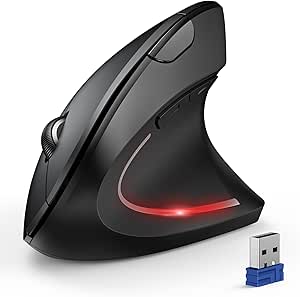 | Best Value for Multi-Device Setups | Connectivity: Bluetooth 5.0/3.0 and 2.4GHz USB receiver | DPI levels: 800, 1,200, 1,600, 2,400, 3,200, 4,800 | Buttons: 6 | VIEW LATEST PRICE | See Our Full Breakdown |
| Logitech MX Vertical Wireless Ergonomic Mouse – Graphite |  | Best for Wrist-Posture Prioritization | Connectivity: USB receiver and Bluetooth Low Energy | Sensor: Optical, 4,000 DPI | Battery life: Up to 4 months | VIEW LATEST PRICE | See Our Full Breakdown |
| Logitech MX Master 4 Ergonomic Wireless Mouse with Haptic Feedback, Graphite |  | Best Premium Shortcut and Scroll Control | Connectivity: Bluetooth, radio frequency, USB-C dongle | Sensor: Optical, up to 8,000 DPI | Buttons: 7 | VIEW LATEST PRICE | See Our Full Breakdown |
| Logitech Ergo M575S Wireless Bluetooth Trackball Mouse | 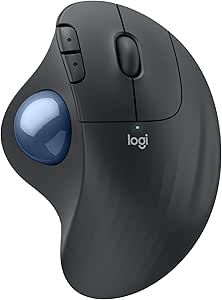 | Best for Small Desks and Minimal Arm Movement | Connectivity: Bluetooth and USB Logi Bolt receiver | Movement detection: Thumb-controlled trackball | Buttons: 2 buttons plus 3 customizable buttons | VIEW LATEST PRICE | See Our Full Breakdown |
| Welspo Wireless Handheld USB Trackball Mouse |  | Best for Workspace-Free Pointing | Connectivity: Wireless USB receiver | Movement detection: Trackball | Buttons: 5 | VIEW LATEST PRICE | See Our Full Breakdown |
| AOC Rechargeable Ergonomic Vertical Mouse |  | Best for Customizable Multi-Device Setups | Design: Right-handed vertical, 52-degree angle | Connectivity: Bluetooth 5.4, 2.4 GHz wireless, USB wired | DPI settings: 1000, 1600, 2400, 3200, 4800 | VIEW LATEST PRICE | See Our Full Breakdown |
| MOKURU Wireless Ergonomic Vertical Mouse, Bluetooth and 2.4 GHz, 4 Buttons, 1000/1600/2400 DPI, Black |  | Best for Simple, Quiet Vertical Use | Design: Right-handed vertical | Connectivity: Bluetooth and 2.4 GHz USB-A | Buttons: 4 | VIEW LATEST PRICE | See Our Full Breakdown |
| Philips Ergonomic Rechargeable Wireless Mouse with Bluetooth, USB-A/C Receiver, and Side Scroll |  | Best for Wide-Code and Timeline Navigation | Connectivity: Bluetooth and 2.4 GHz USB-A/C receiver | Device switching: Up to 3 devices | Hand orientation: Right-handed | VIEW LATEST PRICE | See Our Full Breakdown |
| Uineer Ergonomic Vertical Wireless Mouse |  | Best for Cross-Platform Device Switching | Design: Right-handed vertical | Connectivity: Bluetooth 4.5/5.0 and 2.4G wireless | Device switching: Up to 3 devices | VIEW LATEST PRICE | See Our Full Breakdown |
| Logitech Lift Vertical Ergonomic Wireless Mouse – Graphite |  | Best Overall for Small to Medium Hands | Hand orientation: Right-handed | Dimensions: 108 × 70 × 71 mm | Weight: 125 g | VIEW LATEST PRICE | See Our Full Breakdown |
| Anker 2.4 GHz Wireless Vertical Ergonomic Mouse |  | Best Value for a Simple Vertical Setup | Hand orientation: Right-handed | Dimensions: 120 × 62.8 × 74.8 mm | Weight: 4.48 oz | VIEW LATEST PRICE | See Our Full Breakdown |
| Lekvey Ergonomic Vertical Wireless Mouse |  | Best Rechargeable Pick for Medium to Large Hands | Connectivity: 2.4G wireless via nano USB receiver | Battery: 600mAh rechargeable lithium polymer | Charging: USB-C | VIEW LATEST PRICE | See Our Full Breakdown |
| UGREEN Ergonomic Wireless Mouse with Bluetooth and 2.4 GHz Connectivity |  | Best for Multi-Device Switching | Design: Right-handed vertical ergonomic | Connectivity: Bluetooth and 2.4 GHz wireless | Device connections: Up to 3 | VIEW LATEST PRICE | See Our Full Breakdown |
| wireless ergonomic mice for developer | Connectivity | Buttons | Battery | Hand orientation |
|---|---|---|---|---|
| Logitech MX Master 4 for Mac | Bluetooth, radio frequency, USB | 7 programmable | — | — |
| TECKNET Ergonomic Vertical Wir | Bluetooth 5.0/3.0 and 2.4GHz USB receiver | 6 | 2 AAA batteries, not included | Right-handed |
| Logitech MX Vertical Wireless | USB receiver and Bluetooth Low Energy | 4 | — | Right-handed |
| Logitech MX Master 4 Ergonomic | Bluetooth, radio frequency, USB-C dongle | 7 | — | Right-handed |
| Logitech Ergo M575S Wireless B | Bluetooth and USB Logi Bolt receiver | 2 buttons plus 3 customizable buttons | 1 AA battery, included | Right-handed |
| Welspo Wireless Handheld USB T | Wireless USB receiver | 5 | — | Ambidextrous |
| AOC Rechargeable Ergonomic Ver | Bluetooth 5.4, 2.4 GHz wireless, USB wired | 7 total; programmable buttons | Rechargeable, 800 mAh | — |
| MOKURU Wireless Ergonomic Vert | Bluetooth and 2.4 GHz USB-A | 4 | Rechargeable; up to 30 days per charge | — |
| Philips Ergonomic Rechargeable | Bluetooth and 2.4 GHz USB-A/C receiver | 5; programmable buttons | Rechargeable, 500 mAh | Right-handed |
| Uineer Ergonomic Vertical Wire | Bluetooth 4.5/5.0 and 2.4G wireless | 6 | Rechargeable; C battery included | — |
| Logitech Lift Vertical Ergonom | Bluetooth Low Energy and Logi Bolt USB | 4 customizable buttons | 1 AA; up to 24 months | Right-handed |
| Anker 2.4 GHz Wireless Vertica | 2.4 GHz wireless via USB receiver | 5 | — | Right-handed |
| Lekvey Ergonomic Vertical Wire | 2.4G wireless via nano USB receiver | 6, non-programmable | 600mAh rechargeable lithium polymer | — |
| UGREEN Ergonomic Wireless Mous | Bluetooth and 2.4 GHz wireless | 5 | 1 AA | — |
More Details on Our Top Picks
Logitech MX Master 4 for Mac
The MX Master 4 for Mac suits developers who want shortcuts and precise navigation in one full-size mouse. Its MagSpeed wheel can move through long logs or code files quickly, then slow to pixel-level scrolling, while the thumb wheel and programmable buttons give common actions a dedicated place. The Actions Ring and Haptic Sense Panel add another layer of app-specific control, though setting them up requires Logi Options+.
Compared with the MX Vertical, this model favors multi-action productivity over a handshake posture; choose the Vertical if wrist position is your main concern. Its long battery life and broad OS support suit a mixed-device desk, but the Mac-oriented finish does not change its right-handed shape. I’d skip it if you want a simple, no-software mouse or need a left-handed design.
Pros:- MagSpeed wheel combines fast document traversal with fine scrolling control.
- Seven programmable buttons and Actions Ring support app-specific workflows.
- Haptic feedback can provide tactile cues for assigned actions.
- Up to 70 days of battery life and USB-C charging.
Cons:- Advanced customization depends on the Logi Options+ app.
- Designed primarily for right-handed use.
- Charging cable and USB dongle are not included.
Best for: Mac developers who move through large codebases, logs, and documentation and want programmable controls across multiple apps.
Not ideal for: Left-handed developers or buyers who want advanced shortcuts without installing Logi Options+.
- Connectivity:Bluetooth, radio frequency, USB
- Sensor:8,000 DPI optical
- Battery life:Up to 70 days
- Charging:USB-C
- Buttons:7 programmable
- Compatibility:macOS, iPadOS, Windows, Linux, Chrome OS, Android
- Material:54% recycled plastic
- Click noise reduction:90% less click noise
Our verdict“Choose this for a feature-rich Mac development desk where programmable navigation matters more than a vertical wrist angle.”
TECKNET Ergonomic Vertical Wireless Mouse
The TECKNET vertical mouse is a practical entry point for developers who want to try a handshake-style grip without giving up device switching. It pairs over Bluetooth or a 2.4GHz receiver and can switch among three devices, which is useful for moving between a work computer, personal laptop, and another compatible device. Its six DPI settings let you tune pointer speed for different screens, while quiet main clicks fit shared offices.
Compared with the Logitech MX Vertical, the TECKNET adds three-device switching and adjustable sensitivity, but the MX Vertical offers a rechargeable battery and a more premium feature set. The TECKNET instead relies on two AAA batteries, which are not included, and its side buttons do not work with macOS. It makes sense for a right-handed developer prioritizing basic ergonomics and multi-host convenience, not someone seeking fully supported Mac shortcuts.
Pros:- Switches among three devices using Bluetooth and 2.4GHz connectivity.
- Six DPI settings provide control over cursor speed.
- Silent left and right clicks suit quiet work areas.
- Vertical shape encourages a more neutral hand position.
Cons:- Requires two AAA batteries, which are not included.
- Side buttons are not compatible with macOS.
- Right-handed design excludes left-handed users.
Best for: Right-handed developers switching among several computers who want a vertical grip, quiet clicks, and adjustable pointer speed.
Not ideal for: Mac users who rely on side-button navigation, left-handed users, or buyers who prefer rechargeable mice.
- Connectivity:Bluetooth 5.0/3.0 and 2.4GHz USB receiver
- DPI levels:800, 1,200, 1,600, 2,400, 3,200, 4,800
- Buttons:6
- Hand orientation:Right-handed
- Battery:2 AAA batteries, not included
- Battery life:Up to 24 months
- Weight:4.32 ounces
- Dimensions:4.74 inches long x 2.49 inches wide
- Compatibility:Windows, Mac, Chrome, Linux
Our verdict“Pick the TECKNET if multi-device switching and a low-commitment move to a vertical grip matter more than rechargeable power or Mac side-button support.”
Logitech MX Vertical Wireless Ergonomic Mouse – Graphite
The Logitech MX Vertical puts hand posture ahead of extra shortcuts. Its 57-degree angle positions the hand in a handshake-like grip, a distinct alternative to the flatter, button-rich MX Master 4. For developers spending long sessions at a desk, the shape may help reduce the sense of wrist rotation, while the 4,000 DPI sensor and cursor-speed switch let you cover more screen with less hand movement.
This is a focused ergonomic choice rather than a compact control center: it has four buttons and no thumb scroll wheel or haptic features. Compared with the TECKNET vertical mouse, it offers USB-C recharging and a stated battery life of up to four months, but lacks the TECKNET’s three-device switching. The unusual grip can take time to adapt to, and its right-handed form rules out left-handed buyers. I’d choose it when posture is the priority, not maximum customization.
Pros:- 57-degree vertical angle promotes a handshake-style hand position.
- 4,000 DPI sensor and cursor-speed switch can reduce hand travel.
- USB-C charging includes quick-charge support.
- Works with Windows, macOS, Linux, Chrome OS, and mobile platforms.
Cons:- Four buttons offer fewer workflow controls than the MX Master 4.
- The distinct vertical shape may take time to get used to.
- Designed exclusively for right-handed use.
Best for: Right-handed developers who want a pronounced vertical grip and rechargeable power for long desktop work sessions.
Not ideal for: Left-handed users, developers who need many programmable controls, or anyone unwilling to adjust to a different grip.
- Connectivity:USB receiver and Bluetooth Low Energy
- Sensor:Optical, 4,000 DPI
- Battery life:Up to 4 months
- Charging:USB-C; 1-minute charge provides up to 3 hours of use
- Buttons:4
- Hand orientation:Right-handed
- Operating distance:Up to 10 meters
- Compatible operating systems:Windows 10/11, macOS 10.15+, iPadOS 13.4+, Chrome OS, Linux, Android 12.0+
Our verdict“Choose the MX Vertical if a pronounced handshake grip matters more than extra buttons, haptics, or multi-device switching.”
Logitech MX Master 4 Ergonomic Wireless Mouse with Haptic Feedback, Graphite
For developers who spend much of the day moving through code, issue trackers, and long technical documents, the MX Master 4 makes navigation its strongest argument. The MagSpeed wheel shifts between rapid scrolling and precise movement, while the thumb wheel and seven buttons can put recurring actions within reach. Its haptic feedback and app-specific Actions Ring offer more customization than the simpler MX Vertical, which is better suited to buyers focused on grip posture.
The tradeoff is that these controls pay off most when configured in Logi Options+; those who prefer plug-and-play use may not get the full benefit. Its right-handed ergonomic shape, quiet clicks, broad OS support, and up to 70 days of battery life suit a busy workstation, but it is not a vertical mouse. Compared with the Mac-specific MX Master 4, this Graphite version lists a USB-C dongle and broader cross-platform positioning, while retaining the same general workflow emphasis.
Pros:- MagSpeed wheel supports both rapid scrolling and fine control.
- Haptic feedback and Actions Ring allow app-specific shortcuts.
- Eight-thousand DPI sensor tracks on a variety of surfaces.
- Up to 70 days of battery life with quick-charge support.
Cons:- Advanced customization requires Logi Options+.
- Charging cable is not included.
- Right-handed shape does not suit left-handed users.
Best for: Developers who want a premium, customizable mouse for fast document navigation and app-specific desktop shortcuts.
Not ideal for: Left-handed users, buyers prioritizing a vertical handshake grip, or anyone avoiding companion software.
- Connectivity:Bluetooth, radio frequency, USB-C dongle
- Sensor:Optical, up to 8,000 DPI
- Buttons:7
- Hand orientation:Right-handed
- Battery life:Up to 70 days
- Charging:Rechargeable; 1-minute charge provides up to 3 hours of use
- Compatible operating systems:Windows, macOS, Linux, Chrome OS, iPadOS, Android
- Materials:Plastic enclosure with recycled plastic components and 100% recycled cobalt in the battery
- Finish and color:Matte Graphite
Our verdict“Choose the Graphite MX Master 4 for configurable, high-speed navigation rather than a posture-first vertical design.”
Logitech Ergo M575S Wireless Bluetooth Trackball Mouse
The Logitech Ergo M575S changes the movement problem rather than trying to solve it with a different mouse angle: the thumb-controlled trackball moves the cursor while the device stays put. That makes it a strong fit for developers with limited desk space, a crowded workstation, or a preference for keeping arm movement small. Its sculpted shape and quiet clicks suit long work sessions, and the single AA battery is rated for up to 18 months.
Compared with the MX Vertical, the M575S avoids moving the whole mouse across the desk, but it asks the thumb to do more precise work. Developers already comfortable with a conventional mouse may need time to adapt, and its 2,000 DPI sensitivity and right-handed layout are less flexible than the MX Master 4’s broader shortcut setup. Choose it for a stationary, space-saving workflow; skip it if thumb control feels uncomfortable or you need support beyond its listed Windows and macOS versions.
Pros:- Thumb-controlled trackball needs little desk space and keeps the mouse stationary.
- Sculpted shape is designed to reduce forearm muscle strain.
- Quiet clicks help limit noise in shared work areas.
- Up to 18 months of battery life from one included AA battery.
Cons:- Thumb operation may not suit users who prefer conventional mouse movement.
- Right-handed design excludes left-handed developers.
- Advanced customization depends on Logi Options+ and listed OS support is limited.
Best for: Right-handed developers at compact desks who want cursor control without repeatedly moving a mouse across the surface.
Not ideal for: Left-handed users, developers who prefer moving a conventional mouse, or those needing broad OS compatibility for advanced features.
- Connectivity:Bluetooth and USB Logi Bolt receiver
- Movement detection:Thumb-controlled trackball
- Buttons:2 buttons plus 3 customizable buttons
- Hand orientation:Right-handed
- Battery life:Up to 18 months
- Battery:1 AA battery, included
- Sensitivity:2,000 DPI
- Operating system:Windows 11, macOS 13 Ventura
- Material and color:52% post-consumer recycled plastic; Graphite with blue ball
Our verdict“Pick the M575S if desk space and reduced arm movement matter more to your workflow than a conventional mouse feel.”
Welspo Wireless Handheld USB Trackball Mouse
For developers who need to control a pointer away from a desk, the handheld trackball is the defining advantage here: moving the cursor does not require sliding the whole mouse, so it can work from a couch, presentation area, or cramped workstation. Its ambidextrous shape also sets it apart from right-handed vertical options such as the AOC Rechargeable Ergonomic Vertical Mouse. Five buttons and a thumb-operated rollerball with scrolling cover basic navigation, while the plug-and-play USB receiver avoids setup software. The tradeoff is a less conventional pointing style that may take practice, plus two AAA batteries rather than a rechargeable cell. Its listed operating-system compatibility is limited to Linux, Unix, and Windows XP, so developers using newer systems should verify support before choosing it.
Pros:- Handheld trackball works without a flat surface for mouse movement.
- Ambidextrous design accommodates either hand.
- USB receiver offers plug-and-play connection without software.
- Thumb-operated trackball includes scrolling.
Cons:- Thumb-operated trackball may require an adjustment period.
- Runs on two AAA batteries rather than a rechargeable battery.
- Listed operating-system support is limited to Linux, Unix, and Windows XP.
Best for: Developers who work away from a desk, share a pointer between left and right hands, or have little surface space for mouse movement.
Not ideal for: Developers who want a familiar desktop mouse feel, rechargeable power, or clearly listed compatibility with current Windows and macOS versions.
- Connectivity:Wireless USB receiver
- Movement detection:Trackball
- Buttons:5
- Hand orientation:Ambidextrous
- Power:2 AAA batteries
- Wireless range:10 meters
- Listed operating systems:Linux, Unix, Windows XP
- Included:USB receiver and carrying bag
Our verdict“Choose the Welspo if you need ambidextrous, surface-independent pointing and can accept its dated listed OS compatibility and battery-powered design.”
AOC Rechargeable Ergonomic Vertical Mouse
The AOC is the most configurable vertical option in this group for developers who switch machines or tune pointer response to different tasks. Its 52-degree handshake angle gives the hand a more upright posture, while Bluetooth 5.4, 2.4 GHz, and wired USB cover varied desk setups. Five DPI levels reach 4800, and programmable buttons offer more room for shortcuts than the four-button MOKURU. The battery status display and ability to keep using it while charging are practical safeguards during long coding sessions. Those extras come with a fit limitation: AOC recommends it for small to medium hands, and only the main left and right clicks are quiet. Developers with larger hands or a preference for a simpler, quieter mouse may find the MOKURU a better fit.
Pros:- 52-degree vertical grip supports a more upright hand position.
- Bluetooth, 2.4 GHz wireless, and wired USB provide flexible connections.
- Five DPI settings and programmable buttons support personalized workflows.
- Rechargeable battery has a status display and allows use while charging.
Cons:- Recommended only for small to medium hands.
- Only the left and right clicks are specified as quiet.
- RGB lighting reduces stated battery life compared with use without lighting.
Best for: Developers with small or medium right hands who move between several computers and want adjustable sensitivity, programmable controls, and multiple connection modes.
Not ideal for: Developers with large hands, or those who need every button to be quiet and prefer a simple, low-customization mouse.
- Design:Right-handed vertical, 52-degree angle
- Connectivity:Bluetooth 5.4, 2.4 GHz wireless, USB wired
- DPI settings:1000, 1600, 2400, 3200, 4800
- Buttons:7 total; programmable buttons
- Battery:Rechargeable, 800 mAh
- Battery life:Up to 200 hours without RGB; 40+ hours with RGB
- Charging:USB Type-C; usable while charging
- Recommended hand size:Small to medium
- Compatibility:Windows, macOS, Chrome OS, Linux
Our verdict“Pick the AOC for a small-to-medium right hand and a customizable multi-device setup; skip it if fit or quiet operation across all buttons matters most.”
MOKURU Wireless Ergonomic Vertical Mouse, Bluetooth and 2.4 GHz, 4 Buttons, 1000/1600/2400 DPI, Black
The MOKURU keeps the vertical-mouse idea uncomplicated: its right-handed, near-vertical shape, four buttons, and three DPI presets suit developers who want a different hand posture without a large control set to configure. Quiet clicks are a useful fit for shared offices or late-night work, while Bluetooth pairing for up to two devices and a 2.4 GHz USB-A receiver cover common computer setups. Compared with the AOC, it gives up a third device connection, programmable buttons, and finer sensitivity choices; in return, its simpler feature set may be easier to live with. The rechargeable battery is rated for up to 30 days per charge and takes 1.5 hours to charge. Its right-handed shape and limited DPI presets are the main constraints for developers who need broader adjustment or left-hand use.
Pros:- Vertical shape encourages a more upright hand posture.
- Quiet clicks suit shared offices and quiet work areas.
- Bluetooth can pair with up to two devices, with 2.4 GHz USB-A as another connection option.
- Rechargeable battery is rated for up to 30 days per charge.
Cons:- Right-handed design excludes left-handed users.
- Three DPI presets provide less adjustment than the AOC or Uineer.
- Four buttons offer fewer control options than models with programmable buttons.
Best for: Right-handed developers who want a straightforward vertical mouse with quiet clicks and a rechargeable battery for a Windows or Mac computer.
Not ideal for: Left-handed developers, users who need programmable controls or more than three sensitivity settings, and people who regularly switch among three devices.
- Design:Right-handed vertical
- Connectivity:Bluetooth and 2.4 GHz USB-A
- Buttons:4
- DPI settings:1000, 1600, 2400
- Movement detection:Optical
- Device pairing:Bluetooth pairing with up to two devices
- Battery:Rechargeable; up to 30 days per charge
- Charging time:1.5 hours
- Compatibility:Windows and Mac computers
Our verdict“Choose the MOKURU for quiet, uncomplicated vertical use across one or two computers, but look elsewhere for left-hand support or deeper customization.”
Philips Ergonomic Rechargeable Wireless Mouse with Bluetooth, USB-A/C Receiver, and Side Scroll
Developers who frequently move across wide editors, spreadsheets, or timelines may get more value from the Philips’s horizontal thumb-side wheel than from another vertical grip. Its contoured shell and thumb rest provide a conventional right-handed fit, while the main wheel and side wheel make both vertical and horizontal navigation available without relying on key combinations. Compared with the AOC, it is not a vertical mouse and has fewer buttons, but Bluetooth plus a USB-A/C receiver and switching among up to three devices make it a flexible desk companion. Five DPI settings span 800 to 4000, and the rechargeable battery is rated for up to 25 days at eight hours daily. The listed OS requirements are restrictive: compatibility notes name Android, iOS, and macOS, with minimum versions of macOS 14 and Windows 11.
Pros:- Horizontal thumb-side wheel makes wide documents and timelines easier to navigate.
- Bluetooth and USB-A/C receiver support switching among up to three devices.
- Contoured shell and anti-slip thumb rest provide a defined right-handed grip.
- Five DPI settings and programmable buttons allow some workflow customization.
Cons:- Right-handed design is unsuitable for left-hand use.
- Listed minimum operating-system requirements may rule out older computers.
- Included one-meter cable is for charging only, not wired mouse use.
Best for: Right-handed developers who scroll horizontally through wide code, spreadsheets, or timelines and switch among up to three computers or mobile devices.
Not ideal for: Left-handed users, developers seeking a vertical handshake grip, or buyers who need broad compatibility with older operating systems.
- Connectivity:Bluetooth and 2.4 GHz USB-A/C receiver
- Device switching:Up to 3 devices
- Hand orientation:Right-handed
- Buttons:5; programmable buttons
- DPI settings:800–4000 across 5 levels
- Scroll controls:Main wheel and horizontal thumb-side wheel
- Battery:Rechargeable, 500 mAh
- Battery life:Up to 25 days at 8 hours per day
- Weight:97 g
Our verdict“Pick the Philips if horizontal scrolling and multi-device switching matter more than a vertical posture or left-handed support.”
Uineer Ergonomic Vertical Wireless Mouse
The Uineer suits developers who want a vertical grip and multi-device switching without the AOC’s wired mode or the MOKURU’s two-device Bluetooth limit. Bluetooth and 2.4G wireless support connections across up to three devices, and four DPI levels from 800 to 3200 provide a practical range for coding, documents, and pointer-heavy work. At 95 g, it has a stated weight that makes it a concrete option for buyers comparing desktop ergonomics with portability. Its compatibility list spans Windows, Mac OS X, Linux, Android, and iOS 13+, but the side buttons do not work on macOS, narrowing the value of its six-button layout for Mac users. The right-handed shape is also specified for small to medium hands, so the Philips may suit larger hands better, though it lacks a vertical design.
Pros:- Vertical handshake grip is designed to support a more natural hand position.
- Connects with Bluetooth or 2.4G wireless and supports switching among up to three devices.
- Four DPI settings cover a range of pointer speeds for varied tasks.
- Compatibility list includes Windows, Mac OS X, Linux, Android, and iOS 13+.
Cons:- Right-handed shape is not suitable for left-handed use.
- Designed for small to medium hands, limiting fit for larger hands.
- Side buttons are not functional on macOS.
Best for: Developers with small or medium right hands who switch among computers or mobile devices running different operating systems and want a rechargeable vertical mouse.
Not ideal for: Left-handed developers, users with large hands, and Mac users who depend on side buttons for shortcuts.
- Design:Right-handed vertical
- Connectivity:Bluetooth 4.5/5.0 and 2.4G wireless
- Device switching:Up to 3 devices
- DPI settings:800, 1600, 2400, 3200
- Buttons:6
- Weight:95 g
- Dimensions:4.8 × 3.03 inches
- Battery:Rechargeable; C battery included
- Range:33 feet
Our verdict“Choose the Uineer for a compact-handed, right-handed developer juggling several operating systems, but skip it if Mac side buttons or a larger fit are priorities.”
Logitech Lift Vertical Ergonomic Wireless Mouse – Graphite
The Logitech Lift is my strongest fit for developers who want a vertical grip without giving up flexible device support. Its 57-degree angle encourages a handshake-style hold, while quiet clicks suit shared offices and late coding sessions. Bluetooth and Logi Bolt let it connect across a broad mix of systems, including Linux, and four customizable buttons can put common actions closer to hand. Compared with the Anker 2.4 GHz Wireless Vertical Ergonomic Mouse, the Lift offers more connection options and much longer stated battery life, but its advanced button setup depends on Logitech software. The main compromise is fit: it is sized for small to medium right hands, so larger-handed developers may find the Anker or another roomier shape more comfortable. It also excludes left-handed users.
Pros:- 57-degree vertical shape promotes a more neutral wrist and forearm position
- Bluetooth and Logi Bolt support multiple connection setups and broad OS compatibility
- Four customizable buttons can bring frequently used commands within reach
- Up to 24 months of battery life from one AA battery
Cons:- Right-handed shape excludes left-handed users
- Small-to-medium sizing may feel cramped for larger hands
- Advanced button customization requires Logi Options+ software
Best for: Right-handed developers with small to medium hands who switch between operating systems and want quiet clicks and customizable controls.
Not ideal for: Left-handed users, developers with large hands, or anyone who wants to customize buttons without installing Logi Options+.
- Hand orientation:Right-handed
- Dimensions:108 × 70 × 71 mm
- Weight:125 g
- Tracking sensitivity:Adjustable up to 4000 DPI
- Connectivity:Bluetooth Low Energy and Logi Bolt USB
- Battery:1 AA; up to 24 months
- Buttons:4 customizable buttons
- Compatibility:Windows, macOS, iPadOS, Chrome OS, Linux, Android
Our verdict“Choose the Lift if you have a small or medium right hand and want a quiet vertical mouse with flexible connectivity and long battery life.”
Anker 2.4 GHz Wireless Vertical Ergonomic Mouse
The Anker 2.4 GHz Vertical Mouse makes sense for developers who want a straightforward ergonomic shape and do not need Bluetooth or extensive button software. Its three DPI settings let you adjust pointer speed for different screen sizes, while next and previous buttons are handy for browser-based documentation and issue trackers. Unlike the Logitech Lift, it connects through a USB receiver only, so switching among computers is less convenient and a spare USB port is required. Its five-meter range is also shorter than the Lift’s stated range. The shape supports a neutral handshake grip, but the clicks are audible, which makes this a less fitting desk companion for quiet rooms or calls. Remember that it needs two AAA batteries, and they are not included.
Pros:- Vertical shape supports a handshake-style wrist and arm position
- Three DPI settings allow pointer-speed adjustment
- Next and previous buttons help with browser navigation
- Power-saving mode activates after eight minutes of inactivity
Cons:- USB receiver is the only connection option
- Audible clicks may distract in quiet workspaces
- Requires two AAA batteries, which are not included
Best for: Developers who use one laptop with a USB-A port, prefer a basic vertical mouse, and want dedicated browser navigation buttons.
Not ideal for: People who need quiet clicks, Bluetooth pairing, multi-device switching, or a mouse that arrives ready to use without separate batteries.
- Hand orientation:Right-handed
- Dimensions:120 × 62.8 × 74.8 mm
- Weight:4.48 oz
- Tracking:Optical
- DPI settings:800, 1200, 1600
- Connectivity:2.4 GHz wireless via USB receiver
- Buttons:5
- Power:2 AAA batteries required; not included
- Wireless range:5 m
Our verdict“Pick the Anker for a simple, receiver-based vertical setup with useful browser buttons, but skip it if quiet operation or Bluetooth matters.”
Lekvey Ergonomic Vertical Wireless Mouse
The Lekvey Ergonomic Vertical Mouse is a practical choice for developers who want a rechargeable, receiver-based mouse and a shape aimed at medium to large hands. Its USB-C charging avoids buying replacement batteries, and plug-and-play 2.4G connectivity keeps setup simple across Windows, Mac, and Linux. Compared with the Anker 2.4 GHz Wireless Vertical Ergonomic Mouse, Lekvey replaces disposable AAA batteries with a built-in rechargeable cell, though both rely on a USB receiver rather than Bluetooth. Its six buttons provide extra physical controls, but they are not programmable, limiting their usefulness for personalized coding shortcuts. The vertical grip may also take several days to feel natural, and the larger recommended fit can be awkward for smaller hands. This is a functional ergonomic option, not a customization-focused one.
Pros:- Rechargeable 600mAh battery with USB-C charging
- Plug-and-play 2.4G receiver connection requires no Bluetooth pairing
- Compatible with Windows, Mac OS, and Linux
- Six physical buttons provide additional controls
Cons:- Buttons are non-programmable, limiting workflow customization
- Medium-to-large sizing may not suit smaller hands
- Vertical shape may require several days of adjustment
Best for: Developers with medium to large hands who prefer USB-C charging, straightforward receiver setup, and broad Windows, Mac, and Linux compatibility.
Not ideal for: Small-handed users, developers who want Bluetooth, or anyone seeking programmable buttons for editor and workflow shortcuts.
- Connectivity:2.4G wireless via nano USB receiver
- Battery:600mAh rechargeable lithium polymer
- Charging:USB-C
- DPI settings:800, 1200, 1600
- Dimensions:5.0 × 3.0 × 2.5 in
- Weight:3.36 oz
- Buttons:6, non-programmable
- Compatibility:Windows, Mac OS, Linux
Our verdict“Choose Lekvey if you want a rechargeable vertical mouse for a medium or large hand and can work with fixed button functions.”
UGREEN Ergonomic Wireless Mouse with Bluetooth and 2.4 GHz Connectivity
The UGREEN Ergonomic Wireless Mouse suits developers who divide work across several computers or tablets and want a vertical shape with quiet clicks. It can connect to up to three devices through Bluetooth and 2.4 GHz wireless, giving it a more flexible setup than the receiver-only Anker and Lekvey. Four DPI settings, reaching 4000, offer more tracking choices than those two models, which can help when moving between displays with different resolutions. The tradeoff is fit: UGREEN is intended for medium to large right hands, unlike the smaller-hand-focused Logitech Lift. It also runs on one AA battery rather than charging over USB, and its plastic enclosure keeps the feature set practical rather than premium. Developers with smaller hands should look elsewhere.
Pros:- Bluetooth and 2.4 GHz connections support switching among up to three devices
- Four DPI settings range from 1000 to 4000
- Quiet-click buttons suit shared offices and focused work
- PTFE glide feet support smooth movement
Cons:- Medium-to-large fit may be uncomfortable for smaller hands
- Right-handed vertical shape excludes left-handed users
- Requires one AA battery rather than USB charging
Best for: Right-handed developers with medium to large hands who regularly switch among up to three computers or mobile devices.
Not ideal for: Small-handed users, left-handed developers, or buyers who prefer a rechargeable mouse over replaceable AA batteries.
- Design:Right-handed vertical ergonomic
- Connectivity:Bluetooth and 2.4 GHz wireless
- Device connections:Up to 3
- Wireless range:Up to 10 m
- DPI settings:1000, 1600, 2000, 4000
- Buttons:5
- Battery:1 AA
- Compatibility:Windows, macOS, Linux, ChromeOS, Android, iOS
- Glide feet:PTFE
Our verdict“Choose UGREEN if multi-device switching and quiet operation matter more than rechargeable power or a compact fit.”

How We Picked
I ranked these wireless ergonomic mice for developer workflows by looking at how well each design balances sustained comfort with practical daily work. I considered grip style and likely fit, pointer and scrolling controls, wireless connection options, device flexibility, charging or battery approach, and whether the design suits long sessions of code navigation, documentation, and switching between apps. A mouse can be ergonomically shaped yet still be a poor match if it feels awkward for the buyer’s hand or removes a control their workflow depends on.
The order favors versatility and useful productivity controls first, then distinguishes focused alternatives by posture, compactness, or pointer technique. Premium models rank higher when their added controls and connectivity serve a clear developer need; simpler vertical mice remain relevant for buyers who want a more accessible change in hand position. Trackballs are ranked for their particular desk-space and arm-movement benefits, not as direct replacements for conventional mice. Because comfort is personal, the rankings are starting points rather than medical claims or promises of pain relief.
| wireless ergonomic mice for developer | Battery life | Hand orientation |
|---|---|---|
| Logitech MX Master 4 for Mac | Up to 70 days | — |
| TECKNET Ergonomic Vertical Wir | Up to 24 months | Right-handed |
| Logitech MX Vertical Wireless | Up to 4 months | Right-handed |
| Logitech MX Master 4 Ergonomic | Up to 70 days | Right-handed |
| Logitech Ergo M575S Wireless B | Up to 18 months | Right-handed |
| Welspo Wireless Handheld USB T | — | Ambidextrous |
| AOC Rechargeable Ergonomic Ver | Up to 200 hours without RGB; 40+ hours with RGB | — |
| MOKURU Wireless Ergonomic Vert | — | — |
| Philips Ergonomic Rechargeable | Up to 25 days at 8 hours per day | Right-handed |
| Uineer Ergonomic Vertical Wire | — | — |
| Logitech Lift Vertical Ergonom | — | Right-handed |
| Anker 2.4 GHz Wireless Vertica | — | Right-handed |
| Lekvey Ergonomic Vertical Wire | — | — |
| UGREEN Ergonomic Wireless Mous | — | — |
Factors to Consider When Choosing Wireless Ergonomic Mice For Developers
Choosing a mouse for development is a fit-and-workflow decision, not a contest over the largest feature list. I’d match the shape to how your hand rests, then check whether the controls, connection, and desk setup support the way you actually work.
Choose a grip change you can sustain
A vertical mouse changes the angle of your hand, while a trackball keeps the device mostly stationary and uses a thumb or finger to move the pointer. Neither shape suits everyone, and a dramatic change can feel unfamiliar at first. If you are switching from a standard mouse, think about whether you want a gentler adjustment or a different pointer technique altogether. Hand size matters: a compact shell may feel cramped in a large hand, while an oversized one can make precise control harder for a smaller hand. Check the manufacturer’s fit guidance where available, and buy from a seller with a return policy if possible. Don’t treat an ergonomic label as a guarantee of comfort.
Match buttons and scrolling to your coding routine
Long source files, wide spreadsheets, and browser documentation place different demands on scrolling. A side-scroll control or extra buttons may help when you regularly move through wide content or assign shortcuts, but added controls can be unnecessary if you prefer a simple setup. Think about which actions you repeat: switching desktops, returning to a previous page, or triggering a custom command. Confirm that the mouse’s software supports your operating system and that customization is available on the devices you use. More buttons only help when they are reachable without changing your grip. If you rely on keyboard shortcuts already, a simpler mouse may be the better fit.
Plan for multiple computers and connection types
Developers often use a work laptop alongside a personal computer, so pairing options can matter as much as shape. Bluetooth avoids occupying a USB port, while a 2.4 GHz receiver can be convenient on machines where Bluetooth pairing is unavailable or inconsistent. Some mice include both options, but connection flexibility does not automatically mean easy device switching; check how many devices can be paired and how switching works. A USB-A receiver may also need an adapter for a newer laptop with USB-C ports. If you move between computers frequently, account for those small setup steps before choosing. For a single desktop, a simpler connection may be all you need.
Treat desk space and pointer technique as one decision
A conventional vertical mouse still needs room to travel, so it may not solve a cramped desk by itself. Trackballs can reduce broad arm movement and stay in place, which may help where a keyboard, tablet, or notebook competes for space. The tradeoff is that pointer movement shifts to a thumb or finger, and precise control may take practice. Consider your screen layout too: a high-resolution or multi-monitor setup can call for different pointer sensitivity than a single display. Check whether the mouse offers adjustable sensitivity if you regularly move between those setups. Choose a trackball for its stationary operation, not simply because it is labeled ergonomic.
Compare power and maintenance before you buy
Rechargeable mice reduce the need to keep spare batteries nearby, while replaceable batteries can be useful when you want a quick swap during a workday. Wireless devices still need routine charging or battery replacement, and the best approach depends on your tolerance for upkeep. Trackballs add another maintenance point: the ball and its socket may need cleaning as dust collects. Dust and skin oils can affect pointer movement, so a mouse that is easy to clean may be more practical for a busy desk. Check the charging connector and whether you can use the mouse while charging if uninterrupted work matters. A small convenience can outweigh extra buttons if it better suits your routine.
Spend for workflow benefits, not feature count
A premium mouse makes sense when its extra controls, scrolling options, or multi-device features solve problems you face repeatedly. If your main goal is trying a vertical grip, a simpler model may provide the shape change without paying for features you will not use. On the other hand, a basic mouse can become frustrating if it lacks a connection type or control you need every day. List your must-haves before comparing models: fit, device switching, side scrolling, rechargeable power, or minimal desk movement. Separate those needs from nice-to-haves such as additional programmable buttons. This keeps the decision focused on work benefits rather than an impressive-looking specification list.
Frequently Asked Questions
Should I choose a vertical mouse or a trackball for long coding sessions?
Choose a vertical mouse if you want to keep moving a familiar mouse across the desk while changing the angle of your grip. Choose a trackball if you want the device to stay in one place and are willing to learn a different way to control the pointer. The Logitech Ergo M575S represents the stationary, thumb-operated approach in this roundup, while the vertical models preserve mouse movement. Neither design guarantees comfort for every hand. If possible, try the grip before committing, especially if you have not used a trackball before.
Is a premium mouse worth it if I mostly write code and use keyboard shortcuts?
It can be, but only if its controls solve a recurring problem in your workflow. A feature-rich option such as the MX Master 4 may suit someone who frequently scrolls, switches apps, or works across devices, while a simpler vertical mouse may be a better match if the main goal is changing hand posture. Keyboard-heavy work reduces the value of extra buttons for some developers. Consider how often you would use each added control rather than counting features. If none maps to a regular task, put fit and connection reliability ahead of premium extras.
How do I choose between the Logitech Lift and Logitech MX Vertical?
Start with hand fit and the amount of room you want around your grip, since a compact vertical design can suit some users better than a larger one. The Lift is the more compact choice in this lineup, while the MX Vertical is a different option for buyers who prefer a roomier vertical form. Also compare the controls and wireless setup you need rather than assuming that both models work identically. If you can, check sizing guidance or handle the mouse before buying. A comfortable fit matters more than choosing the model with the longer feature list.
Do I need Bluetooth, or is a 2.4 GHz receiver enough for a developer setup?
A 2.4 GHz receiver can be a straightforward choice for a computer with an available USB port, while Bluetooth can keep a receiver out of a crowded laptop setup. If you switch between a work computer and a personal device, check whether the mouse supports the number of pairings you need and how switching works. Some listed options offer both connection methods, but you should confirm the exact configuration for the model you are considering. Also check whether your laptop needs a USB-A-to-USB-C adapter for its receiver. For one stationary desktop, connection simplicity may matter more than having both options.
Can a wireless ergonomic mouse work well with a multi-monitor or high-resolution setup?
Yes, but pointer sensitivity and your preferred control style matter more than the ergonomic label. A higher-resolution or multi-monitor setup can require broader pointer movement, so adjustable sensitivity may be useful. A trackball can move the pointer without moving the device, though controlling long pointer travel with a thumb or finger may take practice. For conventional vertical mice, make sure your desk has enough room for the movement you need. Check whether settings can be customized on your operating system before relying on software controls. Try to match sensitivity to your display setup rather than assuming one setting will feel right everywhere.
Conclusion
For most developers who want one mouse for varied desk work, I’d begin with the Logitech MX Master 4 as the best overall choice because it puts productivity controls at the center of the decision. The TECKNET vertical mouse is a best-value starting point for buyers focused on trying a vertical grip without prioritizing a large control set, while the Logitech MX Master 4 for Mac is the best premium fit for Mac users who want a productivity-oriented design. For beginners to vertical mice, I’d look at the Logitech Lift and compare its compact fit against the larger MX Vertical. If you need a stationary pointer setup or have limited desk space, the Logitech Ergo M575S is the specific-use pick; choose the handheld Welspo only if its distinctive trackball format suits your work. Match the grip to your hand, then choose the controls and connection that fit your actual coding setup.